
Overview
This article explains how to disable haptic feedback (vibration) on Zebra Android devices using a Zebra MX configuration deployed through SureMDM. This is achieved by creating a new job, adding the required Zebra MX XML configuration, and deploying the job to the target devices.
Purpose
To provide administrators with the steps required to disable haptic feedback (vibration) on Zebra devices using a Zebra MX configuration through SureMDM.
Scope
This article applies to:
- Zebra Android devices that support Zebra MX.
- Devices managed through SureMDM.
- Administrators responsible for configuring device settings remotely.
- Environments where haptic feedback needs to be disabled for improved user experience or operational requirements.
Prerequisites
- The Zebra device must be enrolled in SureMDM.
- The device must support Zebra MX version 11.8 or later.
- Administrator access to the SureMDM Console.
- The target device must be online and able to receive jobs.
Configuration Steps
Step 1: Create a New Job
- Navigate to Jobs in the SureMDM Console.
- Click New Job.
- Select the Zebra MX Configuration job type.
- Enter an appropriate job name (for example, Disable Haptic Feedback).
Step 2: Add the Zebra MX Configuration
- In the Zebra MX configuration editor, paste the following XML script:
<wap-provisioningdoc>
<characteristic version=”11.8″ type=”TouchMgr”>
<parm name=”DeviceType” value=”0″ />
<parm name=”HapticFeedback” value=”Turn off” />
</characteristic>
</wap-provisioningdoc>
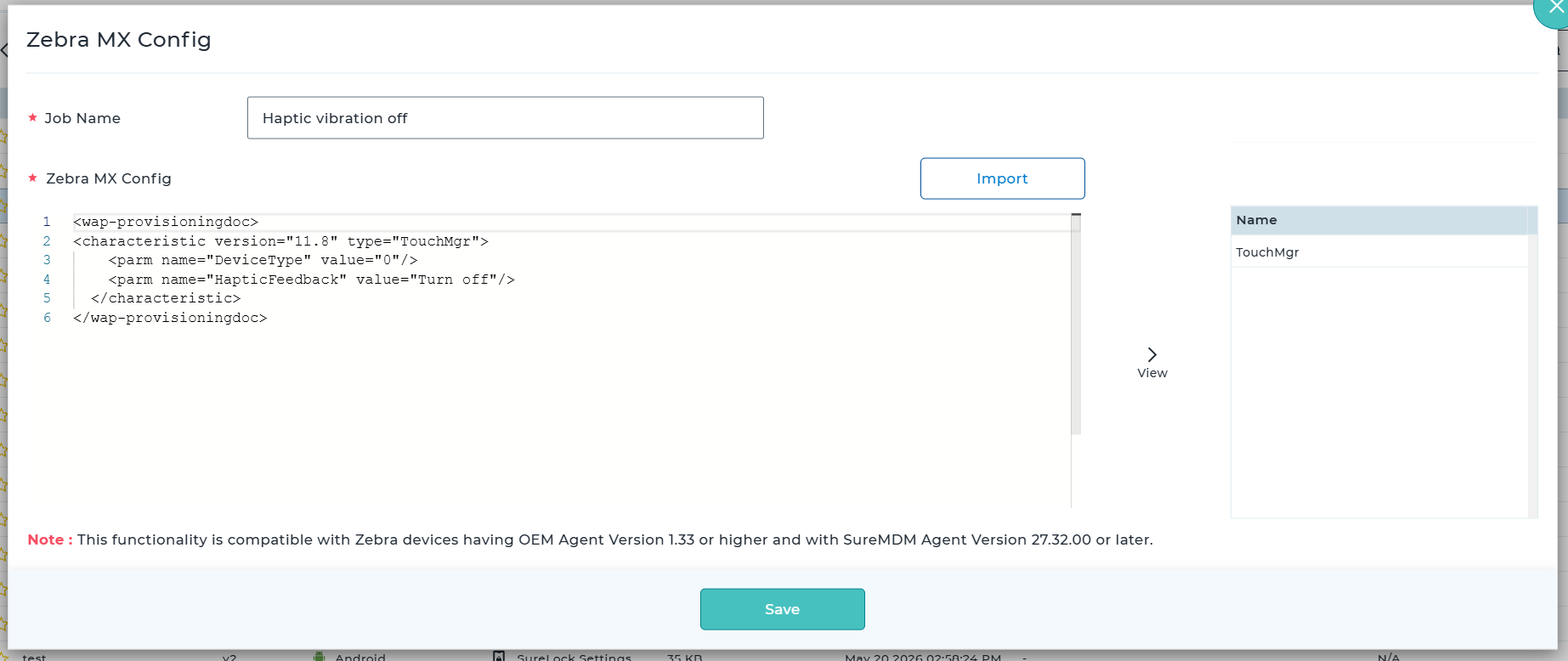
- Save the job.
Note – The characteristic version should match the MX version of the target device on which the script will be deployed.
Step 3: Deploy the Job
- Navigate to Devices.
- Select the target Zebra device(s).
- Click Apply Job.
- Select the Disable Haptic Feedback job.
- Deploy the job to the selected devices.
Verification
- Sync the Zebra device with SureMDM if required.
- Allow the job to complete successfully.
- On the device, verify that haptic feedback (vibration) is disabled for supported touch interactions.
- Confirm that the job status is reported as Successful in the SureMDM Console.
Result
Haptic feedback (vibration) is successfully disabled on the selected Zebra devices using the Zebra MX configuration deployed through SureMDM.
Conclusion
By creating a Zebra MX configuration job, adding the appropriate Touch Manager XML configuration, and deploying it through SureMDM, administrators can remotely disable haptic feedback on Zebra devices. This provides a consistent device experience and helps organizations enforce standardized device behavior across their managed Zebra deployment.
Need more help? Here’s how to get help from our experts.