
The purpose of this document is to outline the configuration steps required to set the preferred network type to 5G, 4G LTE, 3G, or 2G on Samsung devices. This capability addresses remote configuration requests from SureMDM administrators who need to restrict devices to specific network types based on local network availability and environmental conditions.
By deploying the SureMDM OEM Config policy, administrators can now effectively control and manage preferred network settings across all targeted Samsung devices remotely.
Prerequisites
N/A
Steps
- Navigate to Profile > New > Android > Primary Profile > OEM Configs > Knox Service Plugin.
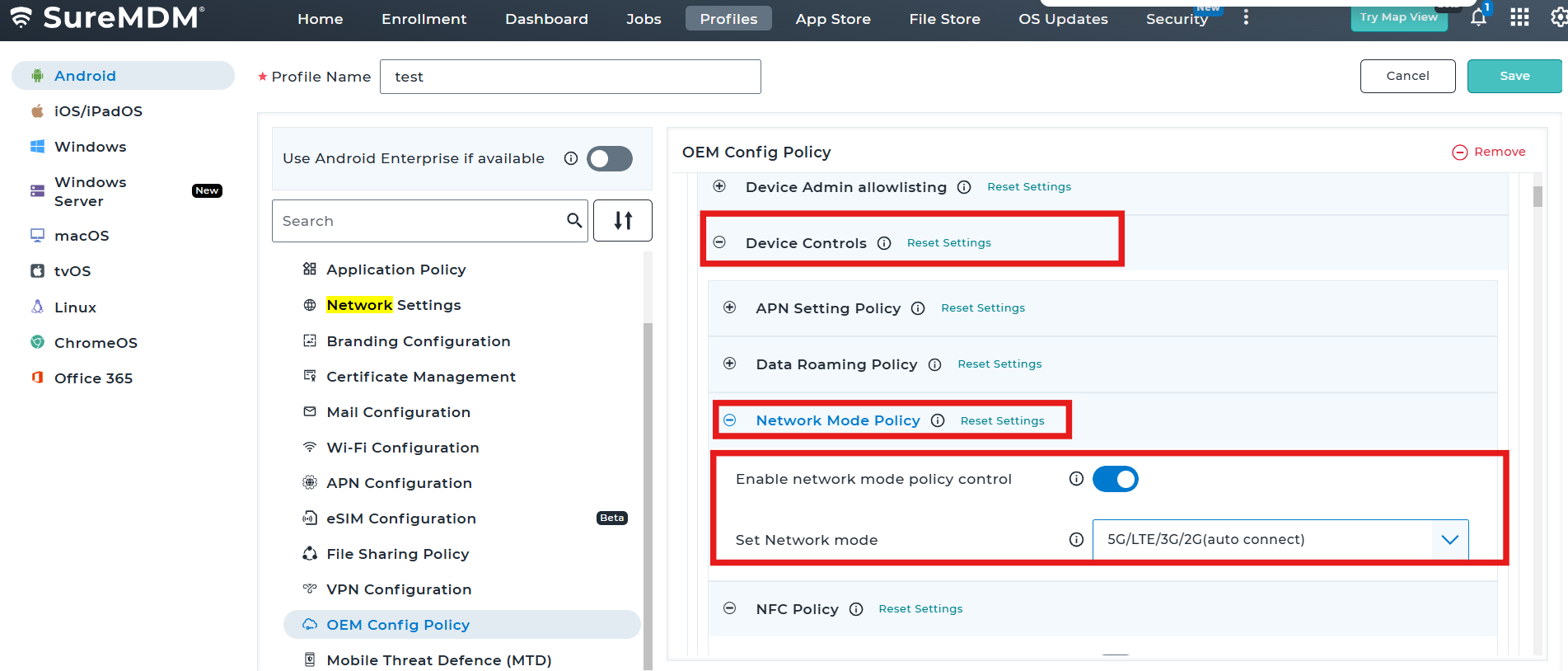
- Expand the menu -> click on device controls -> click on network mode policy.
- Please enable and set the Network mode policy as required.
We have three options to configure.
1 5G/LTE/3G/2G(auto connect)
2 LTE/3G/2G(auto connect)
3 3G/2G(auto connect)
Conclusion
Once these configurations are applied, save the profile and deploy it to the target Samsung devices to enforce the selected network mode policy successfully. They should only allow the network type on the device side; all other network types should be blocked on the device end.
Need more help? Here’s how to get help from our experts.