
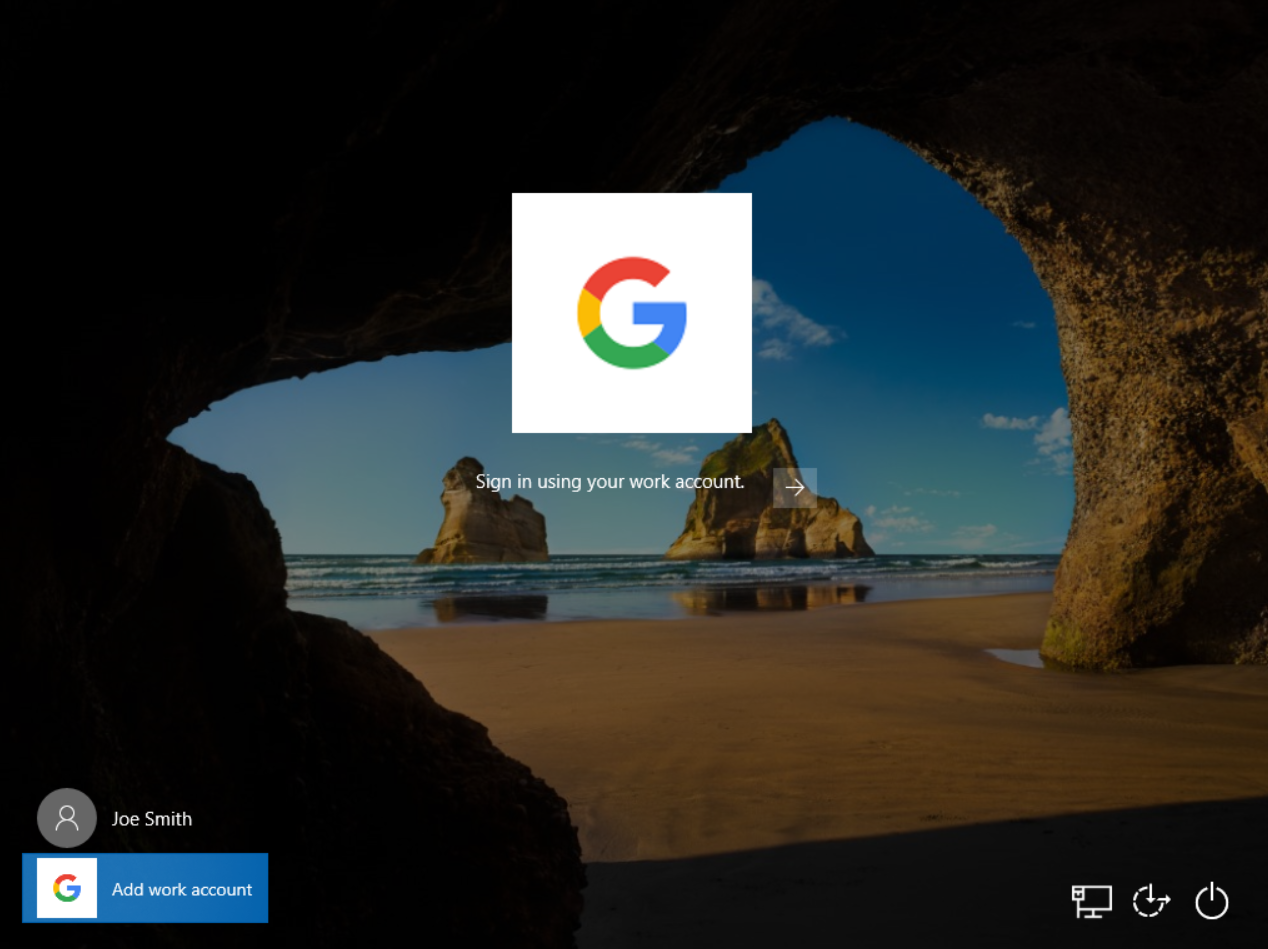
Google Credential Provider for Windows (GCPW) lets users sign in to a Windows 10 or 11 device with the Google Account they use for work or school. With SureMDM’s multi-line PowerShell scripting, an administrator can download, install and configure GCPW on enrolled Windows devices in one step using a Run Script job.
Let’s understand how an administrator can deploy GCPW using a SureMDM Run Script job, restrict sign-in to specific domains, and have GCPW take over an existing local Windows account.
Purpose
The purpose of this article is to understand how to install and configure Google Credential Provider for Windows (GCPW) on Windows devices using a SureMDM Run Script job.
Pre-Requisites
- A SureMDM account.
- A Windows 10 or 11 device (Pro, Pro for Workstations, Enterprise or Education; 32-bit or 64-bit, not ARM) enrolled into SureMDM using SureMDM agent 6.02.0 or later.
- A Google Workspace (or Cloud Identity) account with super administrator access, on an edition that supports GCPW.
- Chrome browser version 81 or later, installed on the device with administrator privileges.
- The GCPW PowerShell script given in this article, with the allowed domains filled in.
- (Only for account takeover) Access to the Google Admin console to edit custom attributes on user accounts.
Steps to Deploy GCPW
1. Prepare the script and restrict sign-in to specific domains
The script below downloads the GCPW installer from Google, installs it, and writes the registry key that controls which domains can sign in through GCPW.
IMPORTANT: The variable $domainsAllowedToLogin must be populated before you save the job. It restricts GCPW sign-in to the domains you list, as a comma-separated list, for example “solarmora.com,altostrat.com”. If it is left empty, the script displays an error and exits with code 5, and nothing is installed. If no domains are set on a device, no user can sign in through GCPW.
<#
This script downloads Google Credential Provider for Windows (GCPW),
installs it, and configures the allowed login domains.
Administrator access is required.
#>
# Domains allowed to sign in through GCPW
$domainsAllowedToLogin = ""
Add-Type -AssemblyName System.Drawing
Add-Type -AssemblyName PresentationFramework
# Check if domains are configured
if ([string]::IsNullOrWhiteSpace($domainsAllowedToLogin)) {
    [System.Windows.MessageBox]::Show(
        'The list of domains cannot be empty! Please edit this script.',
        'GCPW', 'OK', 'Error'
    ) | Out-Null
    exit 5
}
# Check administrator privileges
function Is-Admin {
    $identity = [Security.Principal.WindowsIdentity]::GetCurrent()
    principal=New-ObjectSecurity.Principal.WindowsPrincipal(identity)
    return $principal.IsInRole(
        [Security.Principal.WindowsBuiltInRole]::Administrator
    )
}
if (-not (Is-Admin)) {
    [System.Windows.MessageBox]::Show(
        'Please run this script as administrator!',
        'GCPW', 'OK', 'Error'
    ) | Out-Null
    exit 5
}
# Select the correct installer for the operating system
$gcpwFileName = 'gcpwstandaloneenterprise.msi'
if ([Environment]::Is64BitOperatingSystem) {
    $gcpwFileName = 'gcpwstandaloneenterprise64.msi'
}
$gcpwUri = "https://dl.google.com/credentialprovider/$gcpwFileName"
$installerPath = Join-Path $env:TEMP $gcpwFileName
# Download and install GCPW
try {
    Write-Host "Downloading GCPW from $gcpwUri"
    Invoke-WebRequest `
        -Uri $gcpwUri `
        -OutFile $installerPath `
        -ErrorAction Stop
    Write-Host "Installing GCPW..."
    $installProcess = Start-Process `
        -FilePath 'msiexec.exe' `
        -ArgumentList @('/i', ""$installerPath"", '/qn', '/norestart') `
        -PassThru `
        -Wait
    if ($installProcess.ExitCode -notin @(0, 3010)) {
        throw "GCPW installation failed with exit code (installProcess.ExitCode)."
    }
    Write-Host "GCPW installation completed. Exit code: (installProcess.ExitCode)"
}
catch {
    [System.Windows.MessageBox]::Show(
        "GCPW installation failed:`n(_.Exception.Message)",
        'GCPW', 'OK', 'Error'
    ) | Out-Null
    exit 1
}
# Force the registry configuration
$registryPath = 'HKLM:\SOFTWARE\Google\GCPW'
$registryValueName = 'domains_allowed_to_login'
$expectedDomain = $domainsAllowedToLogin.Trim()
try {
    Write-Host "Configuring GCPW registry settings..."
    # Create the registry key if it does not exist
    if (-not (Test-Path -LiteralPath $registryPath)) {
        New-Item `
            -Path $registryPath `
            -Force `
            -ErrorAction Stop | Out-Null
    }
    # Remove the existing value first, if present
    $existingValue = Get-ItemProperty `
        -LiteralPath $registryPath `
        -Name $registryValueName `
        -ErrorAction SilentlyContinue
    if ($null -ne $existingValue) {
        Remove-ItemProperty `
            -LiteralPath $registryPath `
            -Name $registryValueName `
            -Force `
            -ErrorAction Stop
    }
    # Write the desired value explicitly as REG_SZ
    New-ItemProperty `
        -LiteralPath $registryPath `
        -Name $registryValueName `
        -Value $expectedDomain `
        -PropertyType String `
        -Force `
        -ErrorAction Stop | Out-Null
    # Verify the registry value and its type
    $actualDomain = (Get-ItemProperty `
        -LiteralPath $registryPath `
        -Name $registryValueName `
        -ErrorAction Stop).$registryValueName
    $actualType = (Get-Item -LiteralPath $registryPath).GetValueKind(
        $registryValueName
    )
    if (
        $actualDomain -cne $expectedDomain -or
        $actualType -ne [Microsoft.Win32.RegistryValueKind]::String
    ) {
        throw "Registry verification failed. Value='actualDomain';Type='actualType'."
    }
    Write-Host "Registry configuration verified successfully."
    Write-Host "Registry path: HKLM\SOFTWARE\Google\GCPW"
    Write-Host "Value name: $registryValueName"
    Write-Host "Value data: $actualDomain"
    Write-Host "Value type: $actualType"
    [System.Windows.MessageBox]::Show(
        "GCPW configuration completed successfully!nnAllowed domain: $actualDomain",
        'GCPW', 'OK', 'Info'
    ) | Out-Null
}
catch {
    Write-Error "GCPW registry configuration failed: (_.Exception.Message)"
    [System.Windows.MessageBox]::Show(
        "Registry configuration failed:`n(_.Exception.Message)",
        'GCPW', 'OK', 'Error'
    ) | Out-Null
    exit 1
}
finally {
    # Remove the downloaded installer
    if (Test-Path -LiteralPath $installerPath) {
        Remove-Item -LiteralPath $installerPath -Force -ErrorAction SilentlyContinue
    }
}
NOTE: The script shows message boxes for its success and error messages. Test it on a pilot device first and confirm how it behaves when run from a SureMDM job, because Run Script jobs may run without an interactive desktop session.
2. Create a Run Script job in SureMDM
SureMDM customers deploy this script by creating a Run Script job:
- Log in to the SureMDM console and navigate to Jobs.
- Select Windows as the operating system.
- Select Run Script and enter a Job Name, for example Install GCPW.
- Paste the complete script from Step 1 into the script box, with $domainsAllowedToLogin populated. You can also import it as a script file.
- Select Save to save the job.
NOTE: The supported file formats for importing scripts are .txt, .ps1, .bat and .vbs.
3. Apply the job and review the results
- Navigate to the SureMDM Home page.
- Select the desired device(s) or Group of devices.
- Select the Apply button (or Group-Apply button) and apply the job you created.
Once the job is deployed, monitor the execution result from the job status. SureMDM shows a brief status message with output details, warnings, errors or success confirmations. Restart the device after the job completes so the registry changes take effect.
Optional: Take Over an Existing Local Windows Account
By default, GCPW creates a new Windows profile for a user on first sign-in, and the user must click Add Work Account. If you want GCPW to take over an existing local Windows account instead, you must modify the user’s custom attributes in Google Workspace (formerly G Suite). This is done in the Google Admin console, not in SureMDM or in the script.
IMPORTANT: Account takeover requires editing custom attributes on each user in Google Workspace. Without these attributes, GCPW has nothing to match against and creates a new Windows profile for the user.
GCPW matches a user’s Google Account to an existing local or Active Directory Windows profile based on a custom attribute you add in Google Directory. When it finds a match, it associates the Google Account with the Windows profile and synchronizes the passwords.
To set up account takeover:
Step A: Create the custom attribute (one time)
- In the Google Admin console, go to Directory > Users.
- At the top of the Users list, click More > Manage custom attributes.
- At the top right, click Add Custom Attribute.
- For Category, enter Enhanced desktop security. The category name is case sensitive.
- Under Custom fields, add one or both of the following entries. The names are case sensitive.
- Name: Local Windows accounts for local accounts, or AD accounts for Active Directory (AD) joined accounts
- Info type: Text
- Visibility: Visible to user and admin
- Number of values: Multi-value
- Click Add. The Manage user attributes page now lists the attribute.
NOTE: If you enter the Category or Name incorrectly, you can’t edit it. Delete the custom attribute and start over.
Step B: Set the value on each user’s account
Complete these steps for every user whose existing Windows account GCPW should take over:
- In the Admin console, go to Directory > Users and click the user’s name.
- Click User information and find the Enhanced desktop security section.
- For a local Windows account, enter the account in the format un:_Windows_username_. For example, if the user signs in to Windows as jsmith, enter un:jsmith. The Windows username can contain spaces. If the user has several local accounts, enter each one in its own Local Windows accounts field (a new field appears as you start typing). To limit the user’s access to a specific device, enter un:_Windows_username_,sn:_device_serial_number_. Don’t put a space after the comma. Only one device serial number is allowed.
- For an Active Directory account, enter the sAMAccountName in the format domain\username, for example example\jsmith.
- Click Save.
NOTE: To limit a user to one specific device, add the device serial number to the local account entry: un:jsmith,sn:123456. Don’t put a space after the comma. Only one serial number is allowed per entry.
NOTE: You can enter only one AD account per user; if you enter more, GCPW uses only the first. If a user has both an AD entry and a local entry, GCPW looks for the AD account first.
Step C: Deploy GCPW
Deploy GCPW using the SureMDM Run Script job described above.
NOTE: Because GCPW synchronizes the user’s Google password with the Windows password, the Google Account password becomes the password for the taken-over account. Inform users before you roll this out.
NOTE: If the directory has no Windows username for a user, or GCPW finds no match on the device, a new Windows profile is created and associated with the Google Account.
If you have any questions or need help with our products, please don’t hesitate to contact our support team.