
Purpose
This article explains how to enable or disable all widgets on Android devices managed through SureMDM. It provides administrators with the required steps to control widget availability, helping maintain a consistent device configuration, improve user experience, and restrict access to unwanted or unnecessary widgets based on organizational requirements.
Prerequisites
Supported from Android 14 onwards. Supported on SureMDM Agent >=v29.63.00
Steps:-
1: Go to the profile section from the top navigation bar.
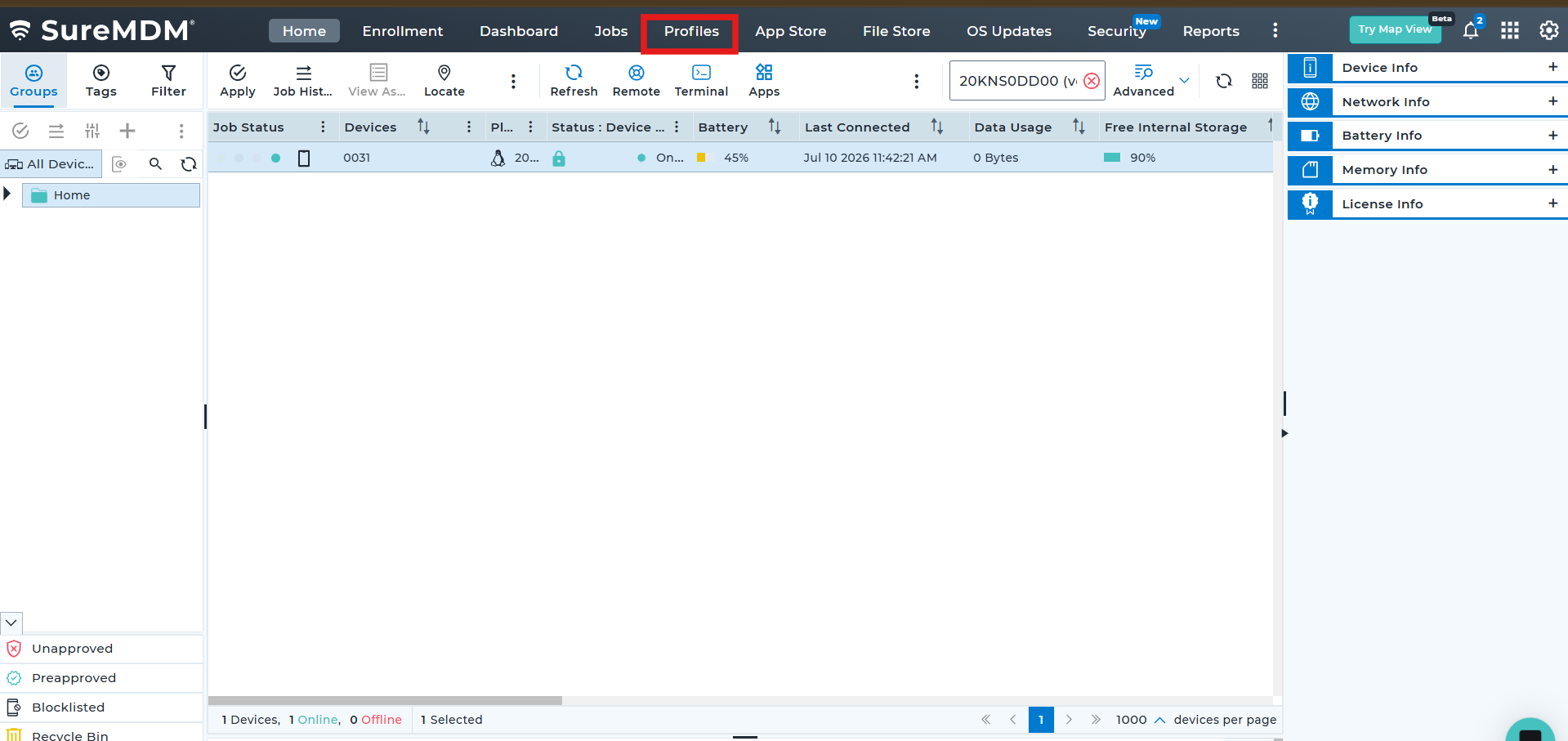
2. Select the Android OS to create a new profile or edit an existing profile.
3.Under System Settings, click Expand All, search for Widget, and select Disable All Widgets in the console to disable all widgets on the device.
4.Save the profile and deploy it to the device. Verify that the widgets previously visible on the device are now disabled.

Before Profile deployment :-

After profile deployment :-

Conclusion:-
By applying the Disable All Widgets setting through SureMDM, administrators can prevent widgets from being displayed or used on supported Android devices. This helps maintain a controlled and consistent device configuration, reduces unnecessary distractions, and ensures that devices follow the organization’s defined usage and management requirements.
Need more help? Here’s how to get help from our experts.