
The Custom ADMX feature in SureMDM allows administrators to import application-specific Administrative Template files (ADMX and ADML) and configure the available settings through a Windows profile. This is useful when the required application settings are not available in the built-in Windows profile payloads.
This article explains how to import ADMX and ADML files into SureMDM, configure the imported template, and deploy the Custom ADMX profile to manage Windows devices.
Prerequisites
• Administrative access to the SureMDM Console.
• Windows devices enrolled in SureMDM.
• Valid and compatible ADMX and ADML files for the application being managed.
• Required permissions to create and deploy Windows profiles.
• The corresponding application should be installed on the target Windows devices when the selected ADMX settings require the application to be present.
Steps
1. Log in to the SureMDM Console.
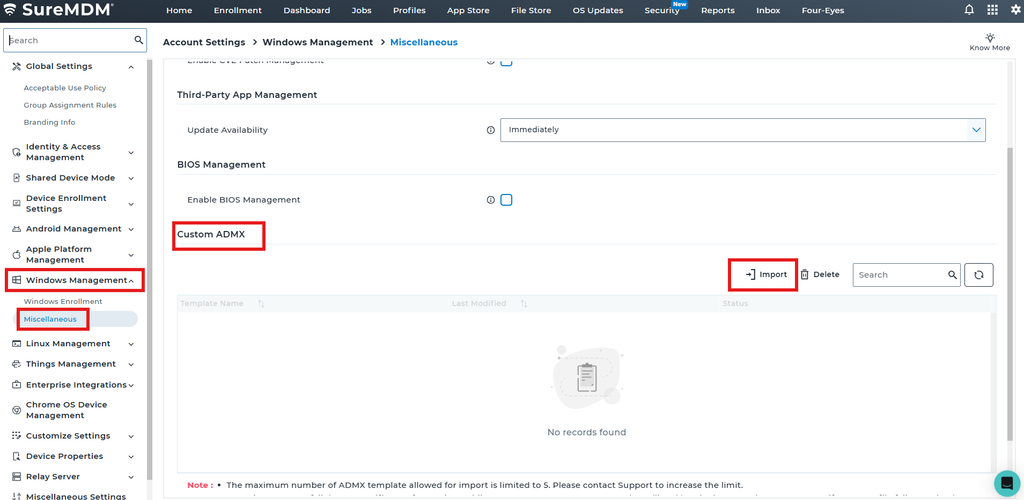
2. Navigate to Settings > Account Settings.
3. Select Windows Management.
4. Go to the Miscellaneous section and select Custom ADMX.
5. Browse and select the required ADMX file and the corresponding ADML file.
6. Click Upload to import the files.
7. Allow a few minutes for SureMDM to process the files. After processing is complete, the imported ADMX template will be available for selection in the Custom ADMX payload.
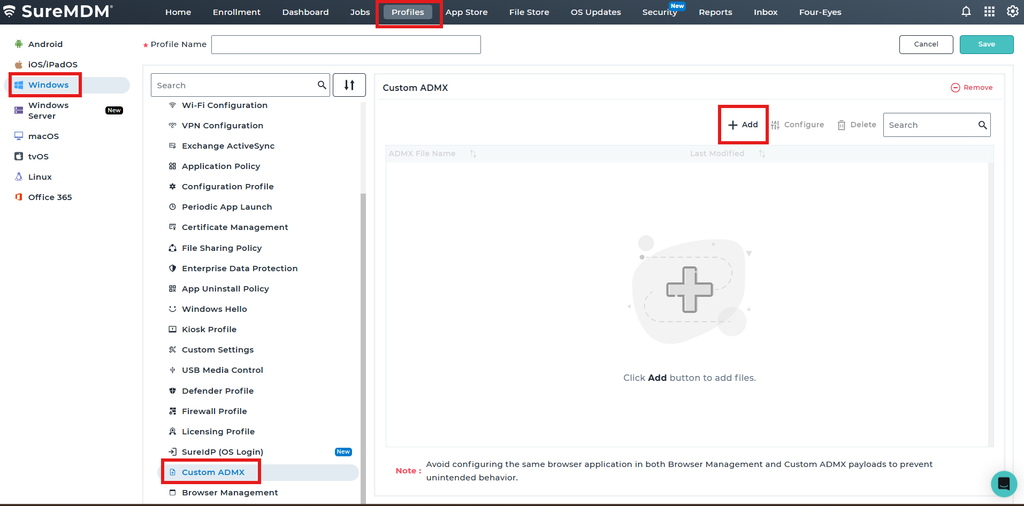
8. Navigate to Profiles.
9. Select Windows as the platform and click New Profile.
10. Select Custom ADMX from the available profile payloads.
11. Click Add and select the imported ADMX template from the drop-down list.
12. Click Configure and configure the available application settings as required.
13. Save the profile.
14. Go back to the Home tab and select the required Windows device(s) or group(s).
15. Click Apply.
16. Select the newly created profile under All Jobs/Profiles.
17. Click Apply to deploy the profile to the selected Windows devices.
Note
• SureMDM allows a maximum of five ADMX templates to be imported.
• Imported ADMX templates are supported for application-specific configurations. Refer to the application vendor’s ADMX documentation when configuring the settings.
• If the application vendor releases an updated ADMX template, upload the updated ADMX and ADML files again and reapply the profile.
• To ensure the configured Custom ADMX settings take effect immediately, make sure the required application is installed on the target device.
Use Case:
Custom ADMX is useful when administrators need to configure application-specific Windows settings that are not available in the standard SureMDM profile payloads. For example, an administrator can import the vendor-provided ADMX and ADML files for an application such as Zoom, configure the supported settings exposed by the template, and deploy the configuration centrally to managed Windows devices.
Conclusion
The Custom ADMX feature in SureMDM allows administrators to extend Windows profile management by importing and configuring application-specific ADMX and ADML templates. Once the template is imported and configured, the profile can be deployed to Windows devices or groups from the SureMDM Console.
Need more help? Here’s how to get help from our experts.