
To provide administrators with a centralized method to change or reset the macOS user password through the SureMDM console, ensuring secure access management and simplifying password administration on managed Mac devices.
Prerequisites
NA*
Steps
1. Select the device for which the macOS password needs to be changed, then click the three-dot menu (⋮) at the top of the SureMDM console.
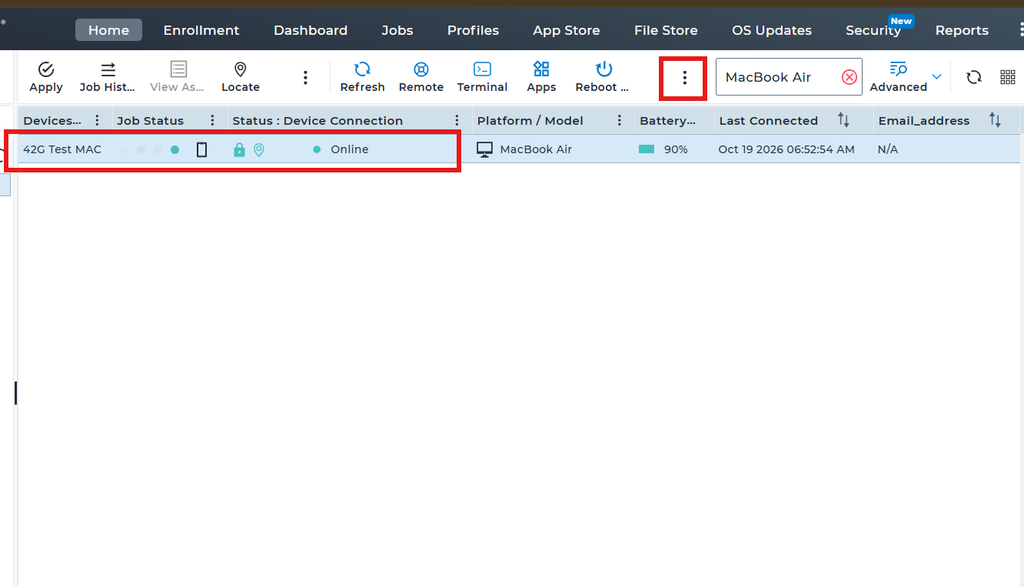
2. Click on Local User Account under Dynamic Jobs.
3. Select the user account for which you want to change the password, then click Change Password.
4. Under the Change Password Using option, select Admin Account. Enter the administrator username and password, then enter the new password for the selected user and click Apply to execute the password change.
5. After applying the changes, select the device again and navigate to Deployed Jobs. Under Quick Actions, verify that the job status shows Successfully Completed to confirm that the password change operation was executed successfully.
Conclusion
Using the SureMDM console, administrators can efficiently change the password of a selected macOS user account by providing the administrator credentials and setting a new password. Once the operation is applied, the job status can be verified under Deployed Jobs to confirm successful execution and ensure effective password management on managed devices.
Need more help? Here’s how to get help from our experts.