
When a device is locked in SureLock (Kiosk Mode), access to the system status bar is typically restricted to prevent users from leaving the allowed application environment. As a result, essential information such as battery level, Wi-Fi or internet connectivity, cellular/SIM status, and device date and time may only be visible by swiping down from the top of the screen.SureLock provides an option to keep this information always visible by pinning the status bar, allowing end users to quickly view critical device details without interrupting their workflow or exiting the kiosk environment.
Purpose
This Article provides a step-by-step guide on how to pin the status bar in SureLock so that battery percentage, network/Wi-Fi status, SIM/cellular connectivity, and device date and time remain visible at all times
Prerequists
NA
Steps
- Log in to the SureMDM console.
- Navigate to the Jobs, select the SureLock settings job, and Modify
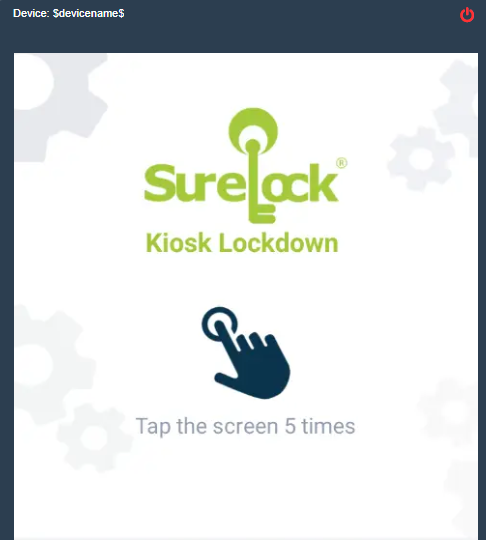
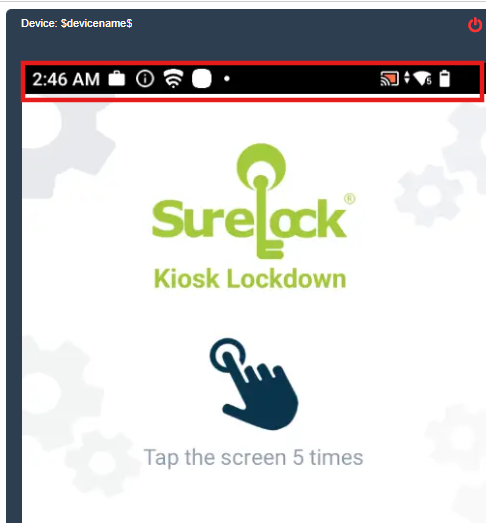
- Navigate to the SureLock settings and Disable the Fullscreen mode.
- Save the Job and deploy it on the device.
SureLock Screen When the Fullscreen mode is enabled:
SureLock Screen When the Fullscreen mode is Disabled
Conclusion:
The enhanced SureLock settings to disable the Full Screen Mode will give a detailed UI view of the status bar icons with Network, battery, and other status information.
Need more help? Here’s how to get help from our experts.