
Purpose
To manually add and configure applications in SureLock that are not automatically detected, by specifying details such as package name, label, and behavior settings to ensure proper access, control, and functionality on the device. This feature enables administrators to include enterprise, third-party, or in-house applications that may not appear in the default app list. It also allows fine-tuned control over application visibility, launch behavior, and security configurations, ensuring a more customized and secure device experience.
Prerequisites
- SureLock installed on the device
- Access to SureLock Admin Settings
- Valid admin password
- Correct Package Name of the application
Steps
- Open SureLock on the device.
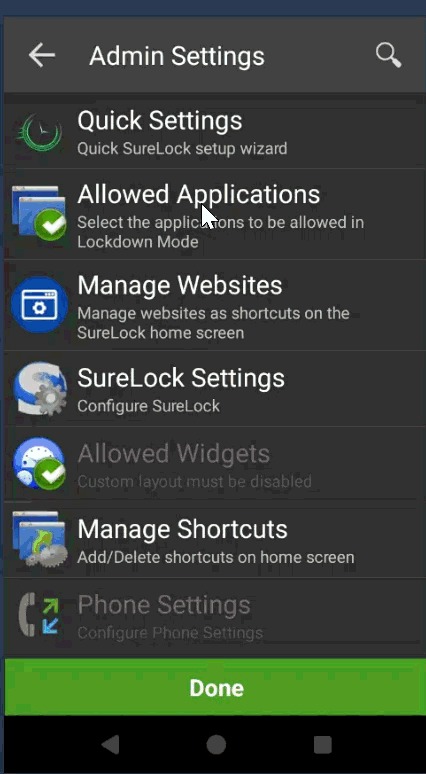
- Enter Admin Settings using the configured password.
- Navigate to Allowed Applications -> Select either Visible Apps or Hidden Apps.
- Tap on Add Custom App -> In the Application Settings screen, enter the required details:
- Label: Enter the application name
- Package Name: Enter the exact package name
- Icon: (Optional) Choose an icon
- Password: (Optional) Set a launch password
- Configure additional options as needed:
- Hide Icon in Home Screen
- Launch at Startup
- Restart App on Relaunch
- Clear Data on Launch
- Hide Floating Buttons when the app is running
- Clear Data on Logout
- Enable Shared Device Mode
- Scroll down and configure Advanced settings:
- Runtime Permissions
- App Availability Mode
- Child Windows
- Current Path
- App Idle Timeout
- Page Number
- Application’s Position
- Tap Done to save the configuration.
- Refer to the below screenshot for a sample configuration with details filled in the Application Settings screen.
The same can be configured via the SureLock Job on the console.
Open Jobs > SureLock Job on the console.
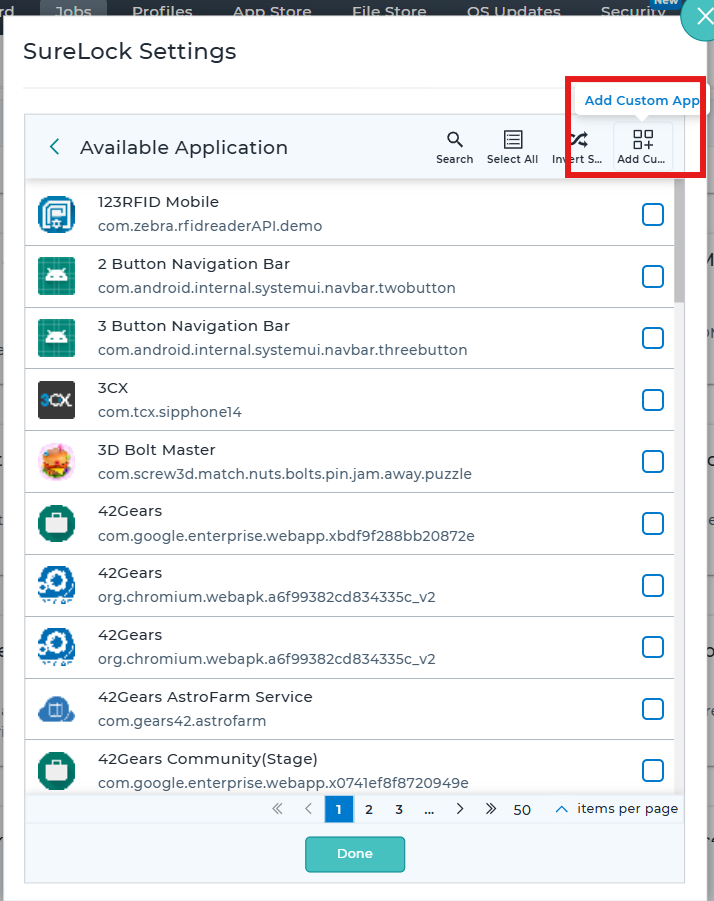
- Navigate to Allowed Applications -> Select either Visible Apps or Hidden Apps.
- Tap on Add Custom App as shown below.
Expected Results
The custom application will be successfully added to SureLock and will appear under the selected category (Visible Apps or Hidden Apps). The app will function based on the configured settings.
Conclusion:
The Add Custom App feature in SureLock is a powerful way to manually include and manage applications on locked devices. By configuring both basic and advanced settings, administrators can ensure precise control over how each application behaves within the SureLock environment.
Need more help? Here’s how to get help from our experts.