
Purpose
This article explains how to create an Install Application job in SureMDM to install an application and automatically add its shortcut to the Home Screen of enrolled Android devices. This helps ensure faster access to business-critical applications for end users.
Prerequisites
- Android devices must be enrolled in SureMDM.
- Devices must be Samsung KNOX devices.
- SureMDM Agent version 27.37.00 or later must be installed on the device.
- Storage permission must be enabled on the device.
Steps
- Log in to the SureMDM Web Console.
- Navigate to Jobs > New Job > Android > Install Application.
- In the Configure Job screen, enter a Job Name and click Add App.
- In the Install Job prompt, configure all the required options:
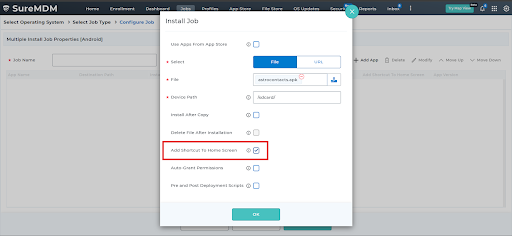
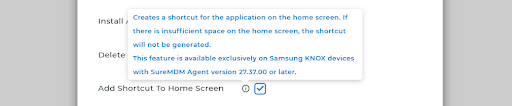
Add Shortcut To Home Screen – Enable this option to create a shortcut for the application on the device home screen.
Note: This feature is available only on Samsung KNOX devices running SureMDM Agent version 27.37.00 and above.
Click OK and Tick the Disclaimer checkbox and click Okay to save the job.
Expected Results
- The application is installed successfully on the target Android devices.
- A shortcut for the application is created on the Home Screen of the device.
Conclusion
Using the Install Application job with the Add Shortcut To Home Screen option allows administrators to deploy applications while ensuring quick and easy access for users. This feature is particularly useful for Samsung KNOX devices where consistent app visibility is required.
Need more help? Here’s how to get help from our experts.