
Purpose
This knowledge base article explains how IT administrators can use a Compliance Job in SureMDM to automatically notify an administrator when a user reaches the maximum number of password attempts on a managed Android device. This ensures timely awareness of potential security risks and enables quick remediation.
Prerequisites
- Android devices enrolled in SureMDM
- Administrator access to the SureMDM Console
Steps
- Log in to SureMDM Console
- Create a New Job
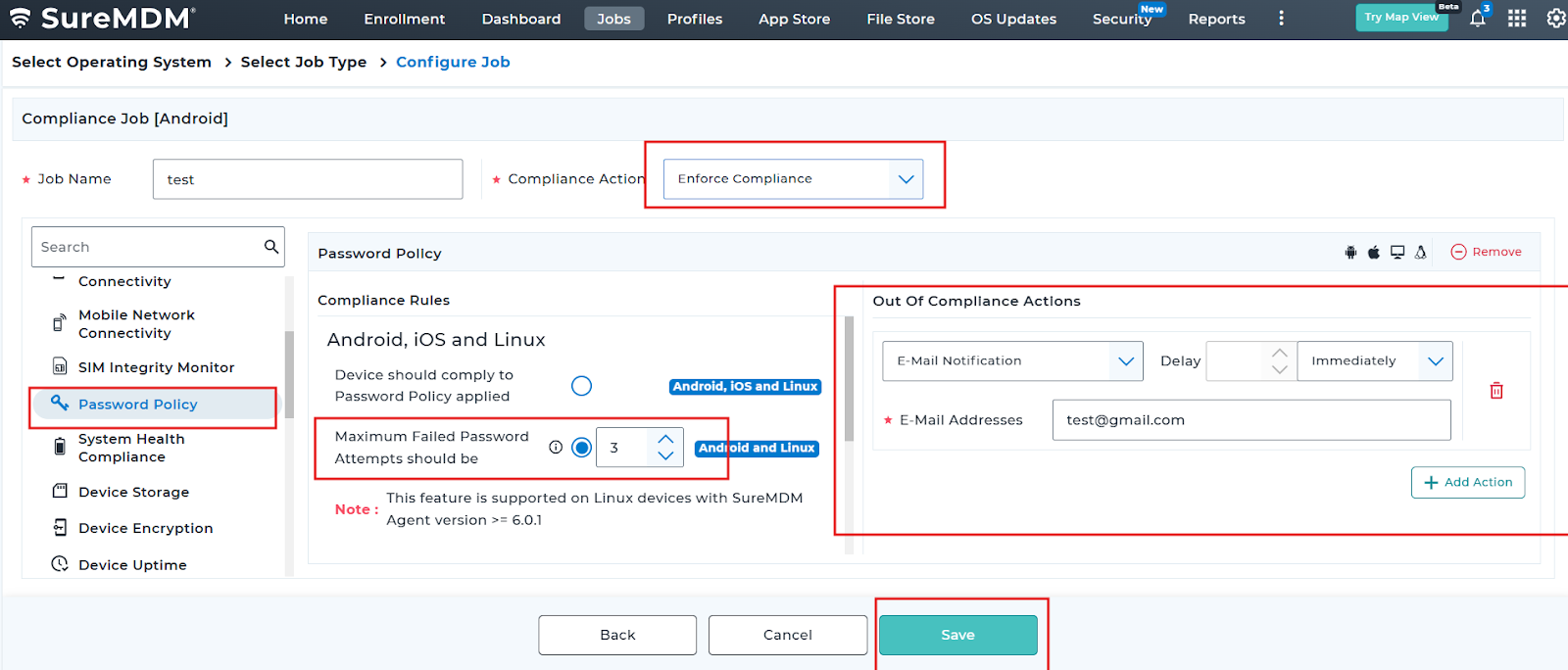
- Go to Jobs -> Create New Job -> Android.
- Select Compliance as the job type.
- Select the Password Policy
- Configure the maximum password attempts according to your organizational policy.
- We have the other option “Device should comply with Password Policy applied”. It will apply if the password attempt is preconfigured by the profile
- Configure the Action
- In the Actions section, select Send Email.
- Enter the email address of the administrator(s) who should receive the notification.
- Keep the time of Action “Immediately”.
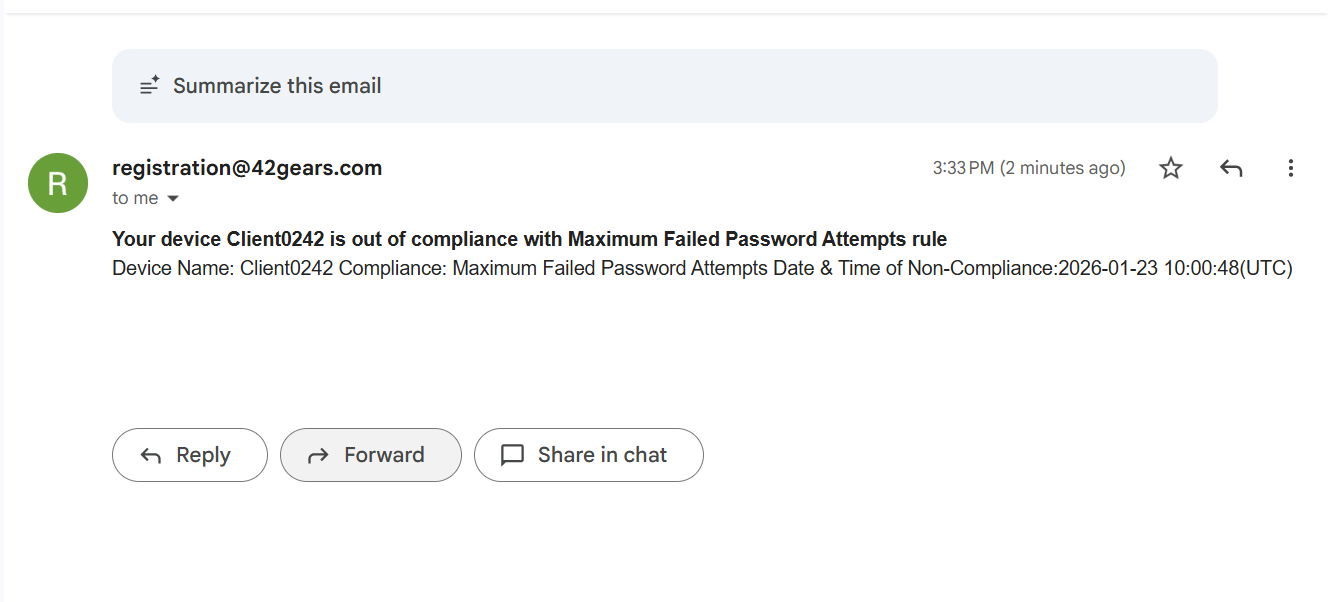
- Save and deploy the Policy on the device and check for the notification.
Result
Conclusion
Using SureMDM’s Application Policy, administrators can enable Samsung Smart Switch on Fully Managed devices safely and efficiently. This ensures that users can run Smart Switch for device migration while maintaining centralized control over application deployment.
If you have any questions or need help with our products, please don’t hesitate to contact our support team.
Was this helpful?
YesNo