
Purpose
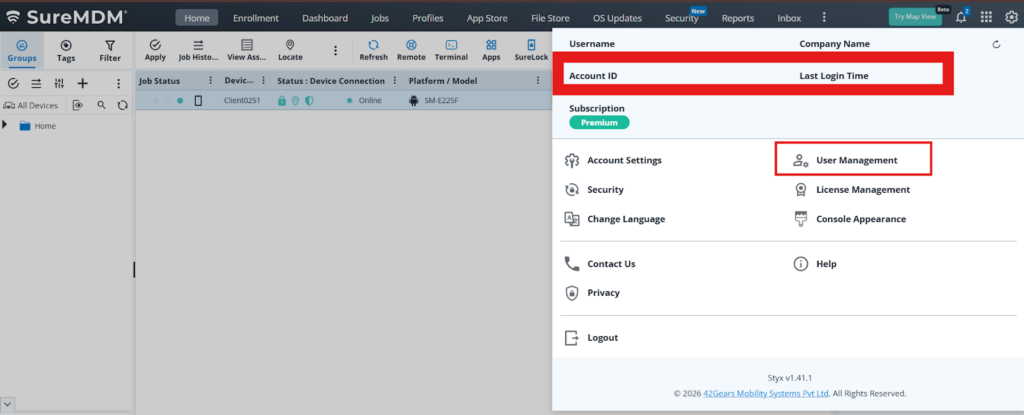
In User Management, creating a user as a Location Tracking user generates a dedicated Location Tracking console. Users can log in to this console to view live device locations and track devices. No other actions are allowed, as the console is solely intended for device location monitoring.
Prerequisites
Na
Steps
1.Click the Settings icon in the console, then select User Management.
2.Click Create New User, and under User Type, select Location Tracking User.
3.In the new tab, type the URL of the login page and use the credentials that were used to create the Location Tracking user.
4.After successfully logging in, the URL automatically redirects to the Location Tracking page. All devices with available location data are listed in the console, and you can also trigger a Buzz on a device by clicking the Buzz icon displayed in the console.
Conclusion
The Location Tracking console is a dedicated interface used exclusively for accessing and tracking device locations. It enables users to view real-time device positions and trigger the Buzz feature, while restricting all other operations for secure monitoring.
Need more help? Here’s how to get help from our experts.