
Purpose
In some environments, administrators may need to restrict access to the Microsoft Windows App Store to prevent users from installing unauthorized applications. While SureMDM provides built-in options for managing app access on Windows devices, these features are not available in all licensing tiers.
This method is particularly useful when native policy-based controls are unavailable due to licensing limitations.This article explains how to block or unblock the Microsoft Windows App Store on Windows devices using a RunScript job in SureMDM
Prerequists
This is most suitable for the users who are using the Standard version of SureMDM on which the Windows Profile option is not available.
For the customers who are using the Premium or Enterprise version of SureMDM, they can use the App Locker feature available in the Windows Profile.
Steps
To Block Microsoft App Store
- Log in to the SureMDM console.
- Navigate to jobs section, New Job and select Windows platform
- Select the Runscript job, enter the job name.
- Select the Runscript type as powershell, and paste the below script
- Save the Job and deploy it on the device
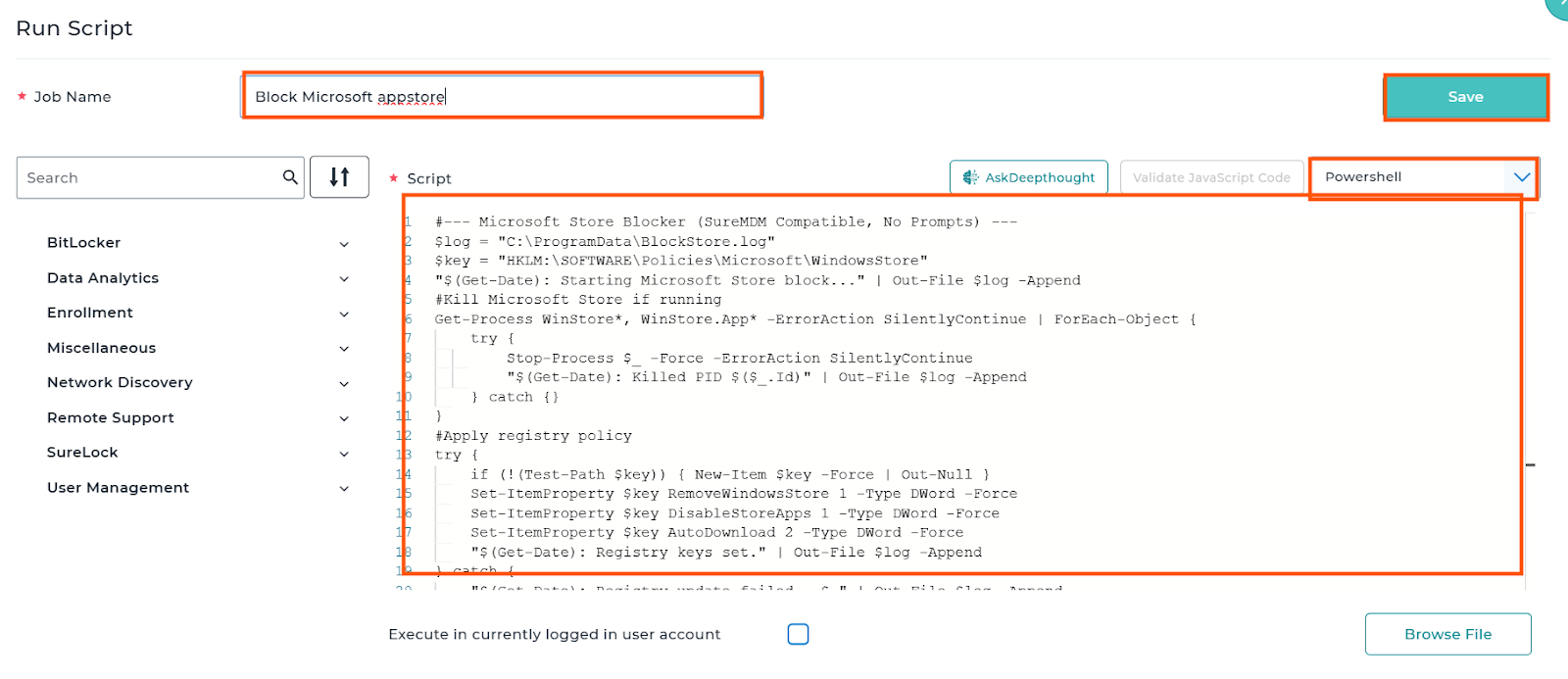
Link to download the script.
Steps: To Unblock Microsoft app store
To Unblock the Microsoft app store on the Windows devices, use the below script
Link to download the script.
Conclusion:
After the successful deployment of the job, the admin can block or unblock Microsoft store from the Windows devices
Need more help? Here’s how to get help from our experts.