
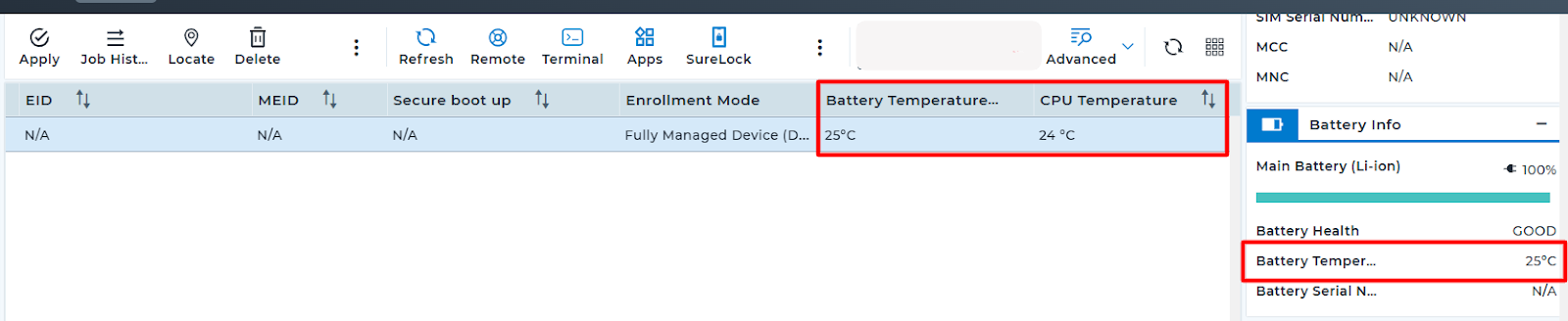
SureMDM provides the ability to monitor device health parameters such as Battery Temperature and CPU Temperature through Device Grid views, Device Information panel, and Reports.
For convenience, administrators can change the temperature unit displayed on the SureMDM Console from Celsius (°C) to Fahrenheit (°F) or vice versa.
Purpose
This Article provides a step-by-step guide on how to change the temperature unit on the SureMDM console.
Prerequisites
NA
Steps
- Log in to the SureMDM console.
- Navigate to the top right gear icon Settings
- Click on Account settings and navigate to the Micelenious settings.
- Select the temperature unit and change it to Fahrenheit or Celsius
Note:
By default, Celsius unit will be selected on the console.
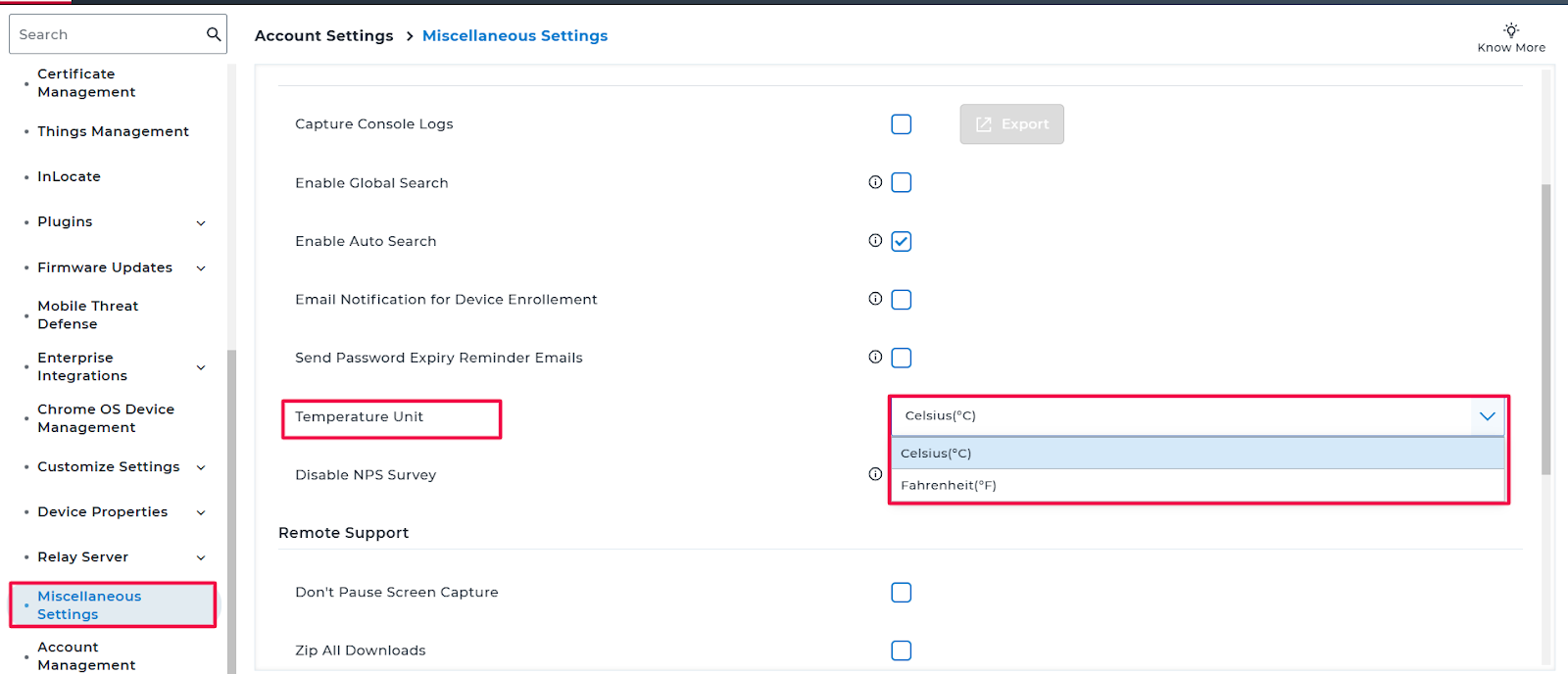
- Once the changes are made, scroll down and click on Apply.
Conclusion:
Changing the temperature unit on the console will display all temperature-related fields in the selected preferred unit across both the Grid columns and the SureMDM reports.
Need help?
CONTACT US
Was this helpful?
YesNo