
Purpose
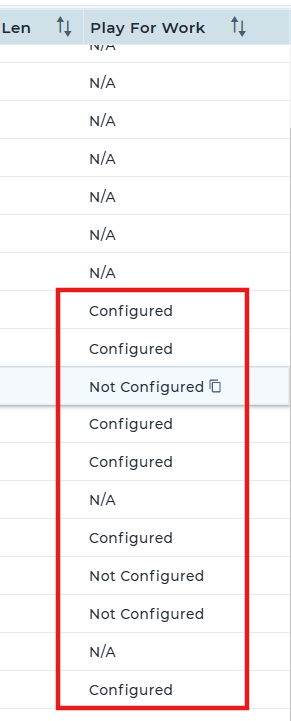
This article explains the addition of the Play for Work column in the device grid. The column helps identify whether Play for Work is correctly configured on newly enrolled or existing devices, displaying the status as Configured or Not Configured for easy verification and management within the console.
Prerequisites
The Play for work shows only for android devices.
Steps
1.Log in to the console and click on the Columns icon in the console to add the new columns.
2.Click on Grid Columns, search for the ‘Play for Work’ column, then check it and save.
3.After saving, the Play for Work column will be displayed in the SureMDM console, helping the administrator verify whether Play for Work is configured on all devices.
Conclusion
By adding the Play for Work column in the SureMDM console, administrators can quickly monitor the configuration status of all devices in one view. This improves visibility, ensures proper setup on newly enrolled and existing devices, and simplifies ongoing device management and compliance verification across the organization.
Need more help? Here’s how to get help from our experts.