
The purpose of this guide is for SureMDM administrators to check the Expired QR code in the SureMDM console under the Enrollment section.
Prerequisites
N/A
Steps
Please log in to the SureMDM Console -> Click on Enrollments -> Expand the option Expiry Date and time -> Select items per page to 100 and scroll down to the expired QR code.
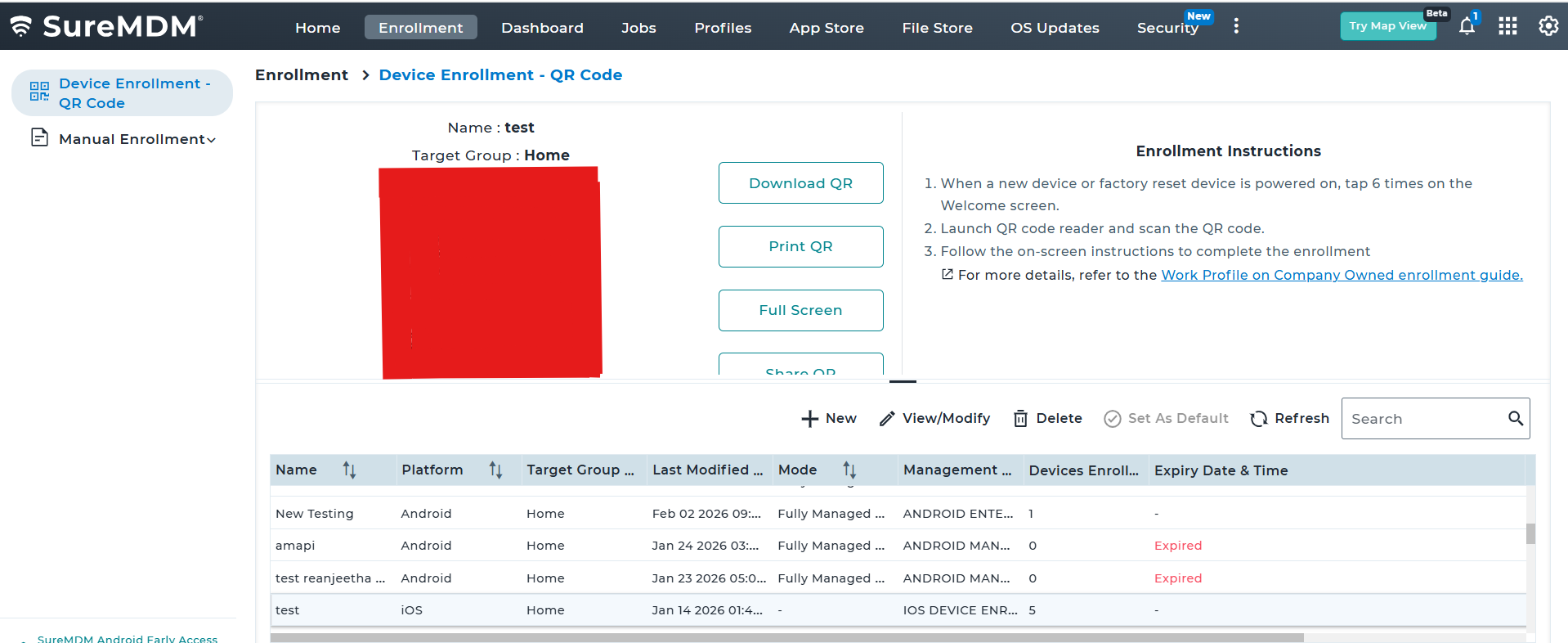
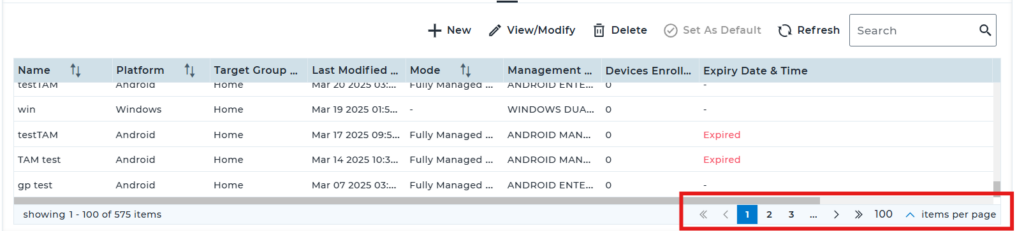
Please select the option Expiry Date and time.
Conclusion
If you have created the QR code based on the date of expiry, as soon as that particular date of the day completes, the Created QR code will expire in the enrollment sections.
Need more help? Here’s how to get help from our experts.
Was this helpful?
YesNo