
SureMDM empowers organizations to effortlessly secure, monitor, and manage macOS devices from anywhere. SureMDM Agent logs help in tracking the records of all events and activities that are performed on the device, making it easy to assist in diagnosing and resolving problems efficiently.
This article provides a detailed guide on how to collect SureMDM Agent logs from macOS devices using the SureMDM Console.
Prerequisites
- Access to the SureMDM console.
- The device should be online.
Steps
- Log into the SureMDM console.
- Select the target device in the device grid and click on the 3-dots icon.
- Click on Logs.

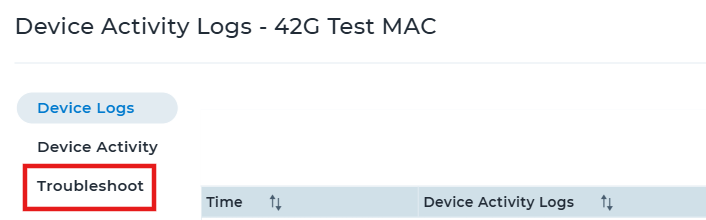
- Click on Troubleshoot.
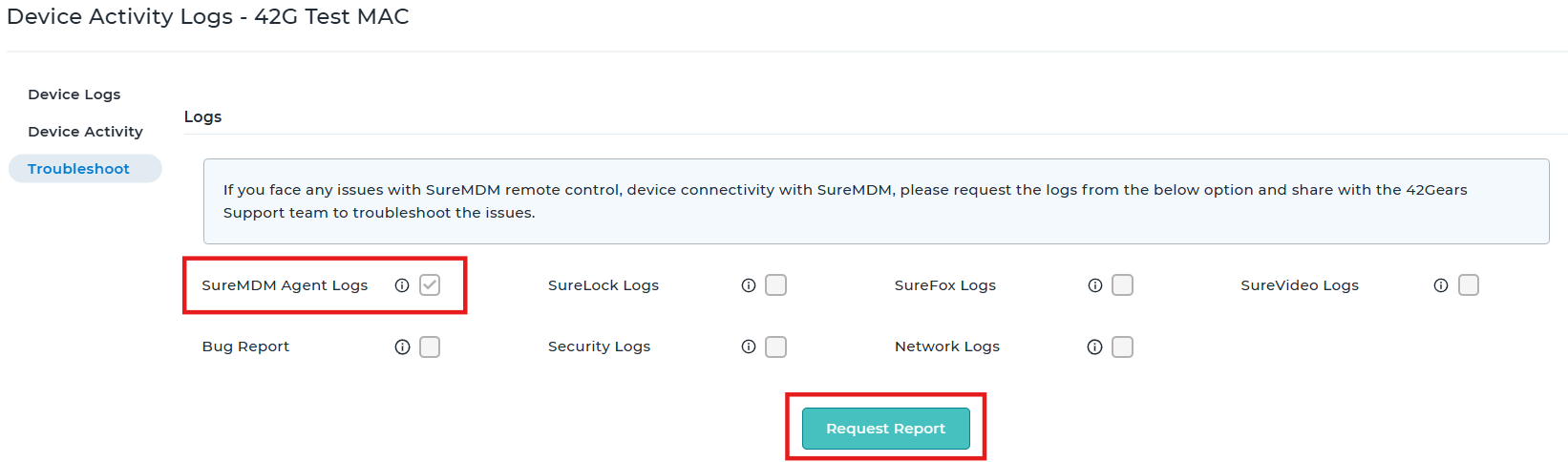
- Please ensure the SureMDM Agent Logs checkbox is checked. If not, please check it.
Then click on the Request Report.
- The requested log will be listed below, kindly wait for a while to get the Download link.
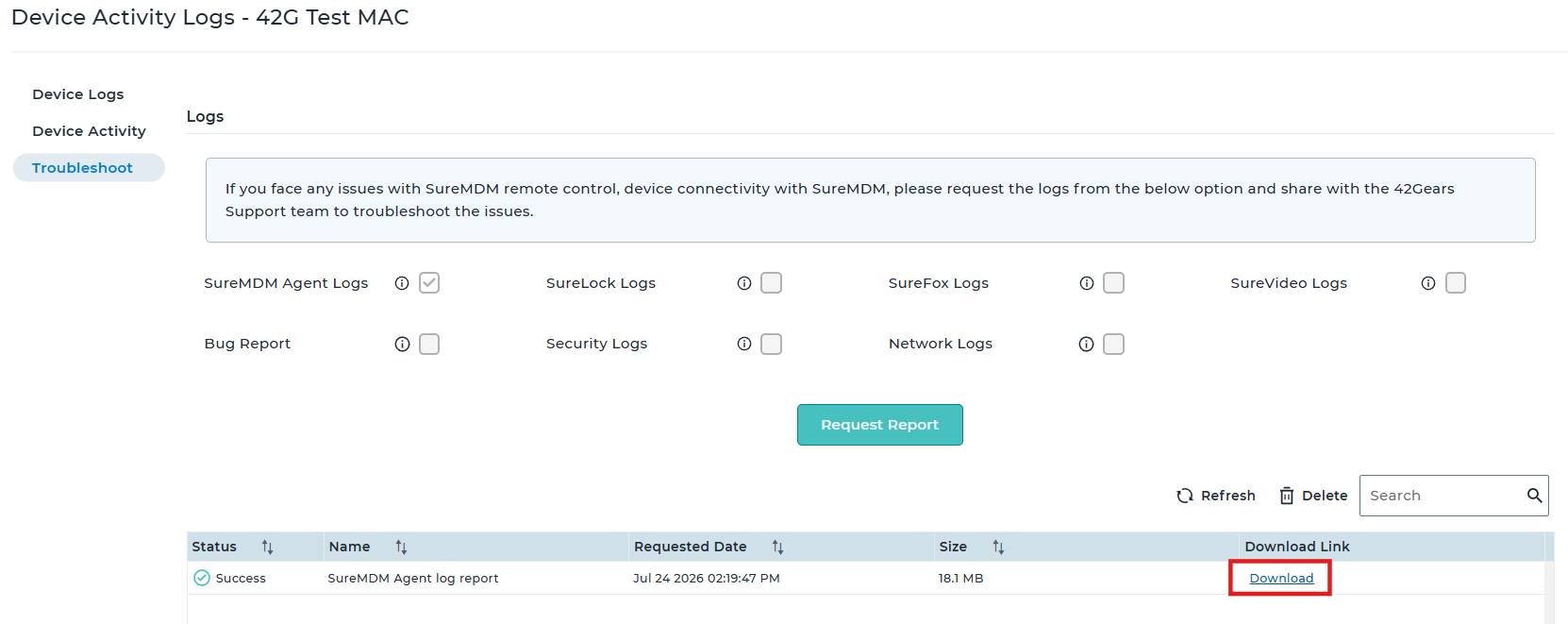
- Once the Download link is available, you may download the log file and share it with the 42Gears Technical support team to help them troubleshoot the reported issue. Please share this along with the timestamp when the issue occurred.
Conclusion
Collecting SureMDM Agent logs directly from the SureMDM Console simplifies troubleshooting on macOS devices. By eliminating the need for physical access or manual file retrieval, IT administrators can instantly gather the diagnostic data needed to investigate errors, monitor system activity, and resolve issues, keeping the devices secure, compliant, and running smoothly.
Need more help? Here’s how to get help from our experts.