
Purpose
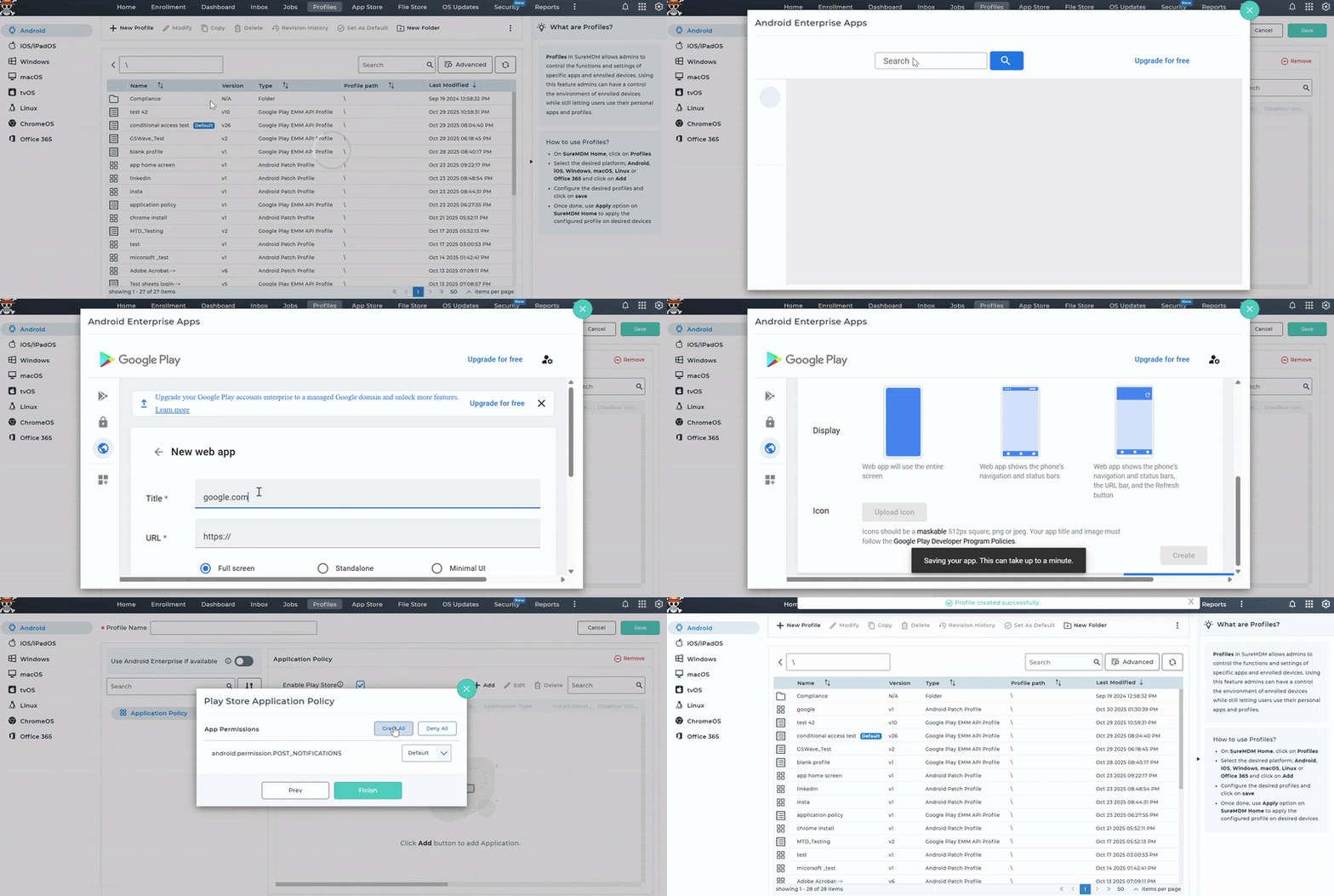
This article provides a step-by-step guide on how to create a Web App and apply it within a profile using the Google Play for Work store in SureMDM. Web Apps are a way to turn a website URL into a native-like application on an Android Enterprise enrolled device.
Prerequisites
A linked Google Play for Work account within SureMDM
Steps
- Navigate to Profiles in the SureMDM console.
- Edit/Create an Android Enterprise Profile and go to Application Policy.
- Click Add and select Play For Work.
- In the Google Play interface, select Web apps from the left menu.
- Click the + icon to create a new web app.
- Enter the Title and URL, select the Display mode, upload an icon as per your use case and click Create.
Note: It may take up to 10 minutes to publish and become available.
- Once the app is saved, select it from the list and click Select app.
- The Play Store Application Policy screen will appear. Configure the general application settings as needed.
- Install Silently: Check this option to install the app silently on the device.
- Network Type Constraint: Specify the network type required for installation (e.g., Any Network is selected).
- Click Next through the configuration screens, setting options like App Permissions (e.g., Grant All) > Click Finish > Name the Profile and Save it.
- Apply the Profile to the target devices/groups.
Conclusion
By following the above steps, administrators can seamlessly create and distribute Web Apps through Google Play for Work in SureMDM. This approach not only simplifies app management but also enables bulk deployment of web-based tools across multiple Android Enterprise devices to ensure consistency, centralized control, and efficient updates.
Need help?
CONTACT US
Was this helpful?
YesNo