
This knowledge base article explains how administrators can configure the default search provider in Google Chrome using SureMDM on Windows devices
Prerequisites
- A Windows device enrolled in SureMDM.
- Google Chrome installed on the device.
- Access to the SureMDM console to create or modify profiles.
- The required search provider URL and search query format.
Steps
Step 1: Access Google Chrome Configuration
- Log in to the SureMDM console.
- Navigate to the Profiles section.
- Create a new Windows profile or edit an existing profile.
- Open the Google Chrome configuration settings.
Step 2: Configure the Default Search Provider
- Expand Google -> Google Chrome -> Default Search Provider.
- Locate the available default search provider settings.
- Configure the required fields according to your organization’s requirements.
- Enter the search provider name and search URL, where applicable.
Example: Configure Google as the default search provider
- Search provider name: Google
- Search URL: https://www.google.com/search?q={searchTerms}
Ensure that {searchTerms} is retained in the URL so Chrome can substitute the user’s search query.
Search engine configuration values
| Search engine | Keyword | Default search provider search URL |
|---|---|---|
| DuckDuckGo | duckduckgo.com | https://duckduckgo.com/?q={searchTerms} |
| Microsoft Bing | bing.com | https://www.bing.com/search?q={searchTerms} |
| Startpage | startpage.com | https://www.startpage.com/sp/search?query={searchTerms} |
| Brave Search | brave.com | https://search.brave.com/search?q={searchTerms} |
| Perplexity AI | perplexity.ai | https://www.perplexity.ai/search?q={searchTerms} |
| ChatGPT Search | chatgpt.com | |
| Ecosia | ecosia.org | https://www.ecosia.org/search?q={searchTerms} |
| Yahoo! Search | search.yahoo.com | https://search.yahoo.com/search?p={searchTerms} |
| Swisscows | swisscows.com | https://swisscows.com/en/web?query={searchTerms} |
Step 3: Save and Apply the Profile
- Review all the configured settings.
- Click Save.
- Assign the profile to the required Windows device or device group.
- Allow the device to receive the updated configuration.
Step 4: Verify the Configuration
- Open Google Chrome on the managed Windows device.
- Enter a search query in the address bar.
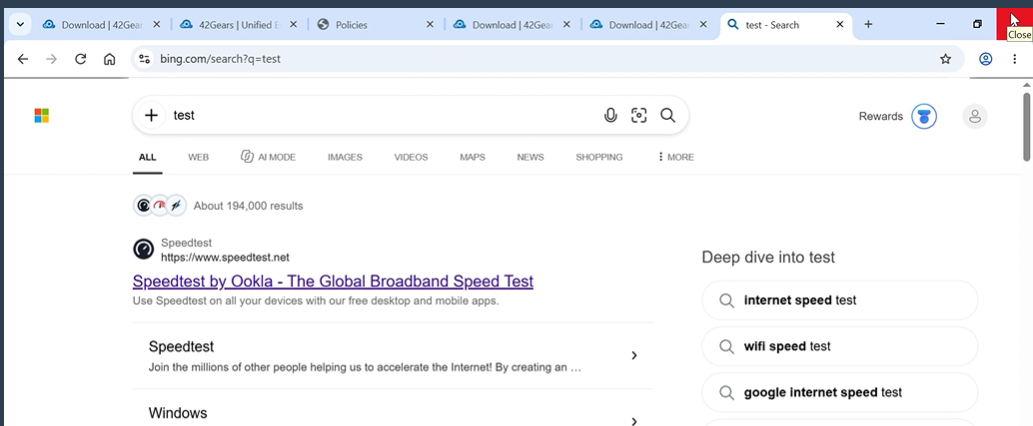
- Verify that the search is performed using the configured search provider.
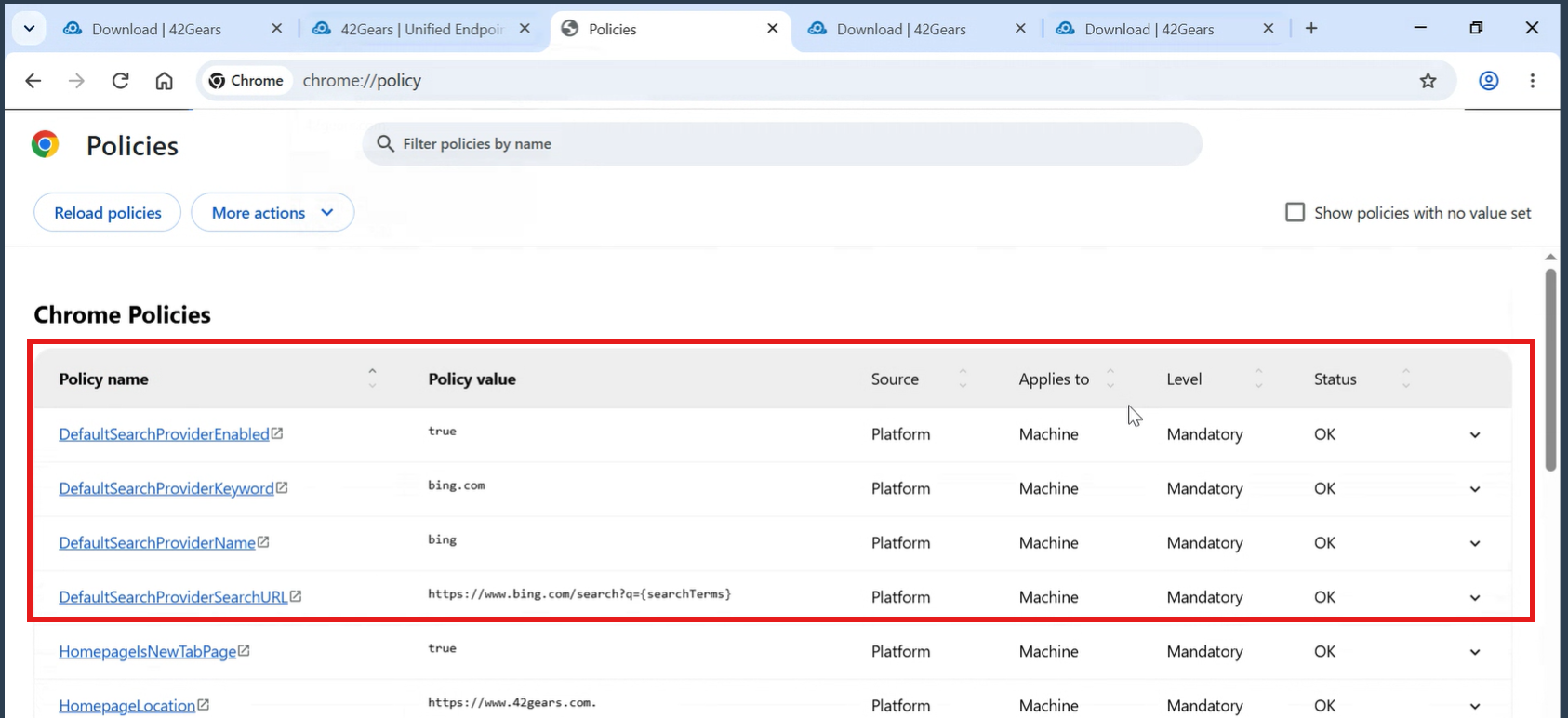
- If the configuration is not applied, navigate to chrome://policy, click Reload policies, and check the relevant policy status for errors.
For example, Configured for bing search:
Conclusion
SureMDM allows administrators to centrally configure the default search provider in Google Chrome on managed Windows devices, helping standardize the browser search experience according to organizational requirements.
Need more help? Here’s how to get help from our experts.
Was this helpful?
YesNo