
Purpose
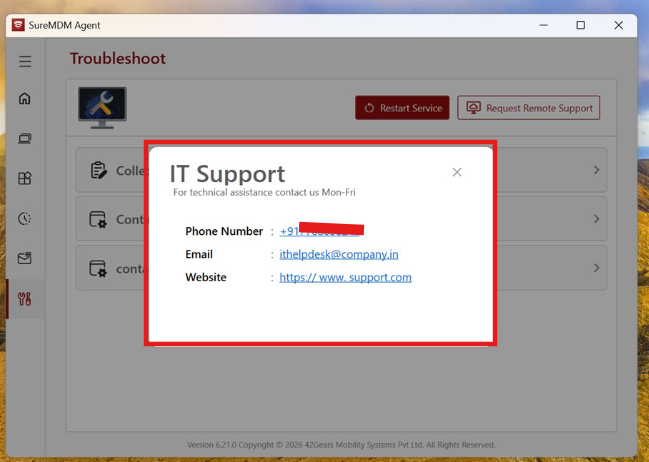
This article explains how to configure the Contact IT section in SureMDM Agent Settings for Windows devices. These features allow administrators to provide IT support contact details and create a custom support tile visible to end users on their devices.
Prerequisites
- Windows devices enrolled in SureMDM
- The device is online and successfully communicating with the SureMDM server.
- Administrative privileges to create and push jobs
- SureMDM Agent version 6.10.0 or later installed on the Windows devices
Steps:
- Log in to SureMDM Console
- Navigate to Jobs > New Jobs > Windows > SureMDM Agent Setting Job.
- Create a new SureMDM Agent Setting Job or edit an existing one.
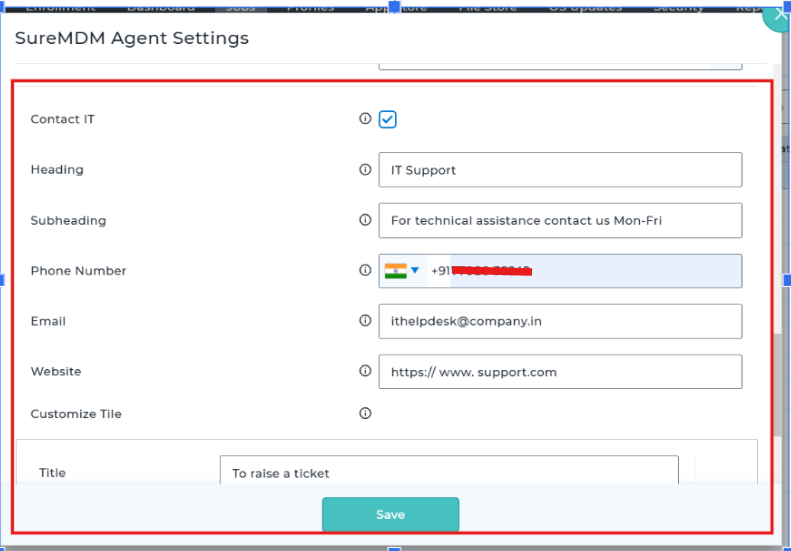
- Scroll to the Contact IT section -> Enable the Contact IT option.
- Enter the required details:
- Heading field – enter the title
- Subheading field – enter a short description.
- Phone Number field – enter a valid phone number with the correct country code
- Email field – enter the IT support email address.
- Website field – enter the support website URL
- Name the Job and Click Save
- Apply to the target Windows device(s) or group(s)
Conclusion
By configuring the Contact IT section in SureMDM Agent Settings, administrators can provide clear and accessible IT support information directly on Windows devices. This enhances user experience and ensures users can quickly reach support when needed.
Need more help? Here’s how to get help from our experts.
Was this helpful?
YesNo