
This knowledge base article explains how to configure Google Chrome homepage, New Tab page, and startup settings on Windows devices using SureMDM.
Administrators can centrally manage browser settings and provide users with quick access to required websites.
Prerequisites
- A Windows device enrolled in SureMDM.
- Google Chrome installed on the Windows device.
- Access to the SureMDM console with permission to create or modify profiles.
- The website URLs that need to be configured as the homepage, New Tab page, or startup pages.
Steps
Step 1: Access Google Chrome Configuration
- Log in to the SureMDM console.
- Navigate to the Profiles section.
- Create a new Windows profile or edit an existing profile.
- Open the Google Chrome configuration settings.
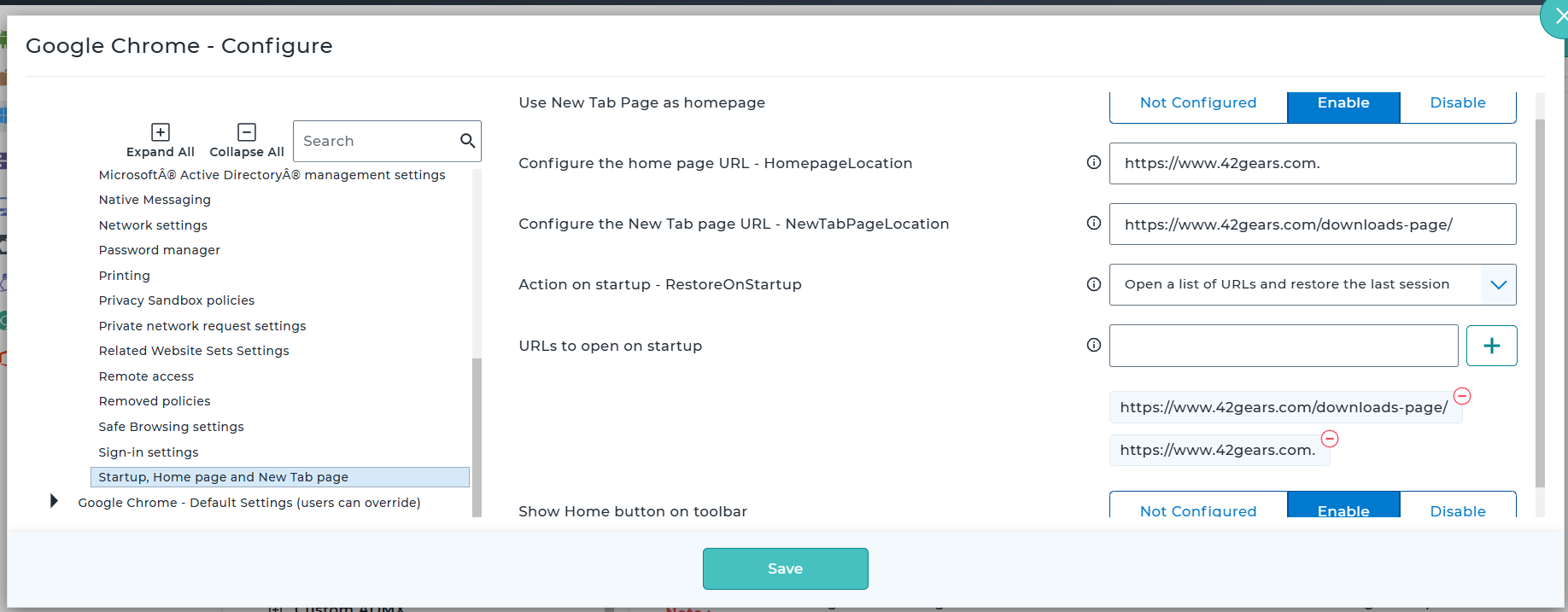
- Expand Google → Google Chrome → Startup, Home page and New Tab page.
Step 2: Configure the Homepage
- Locate Use New Tab Page as homepage.
- Select the required option:
- Enable: Use the New Tab page as the homepage.
- Disable: Use a custom homepage URL, subject to the applicable Chrome policies.
- Not Configured: Leave the policy unset.
- In Configure the home page URL – HomepageLocation, enter the required website URL.
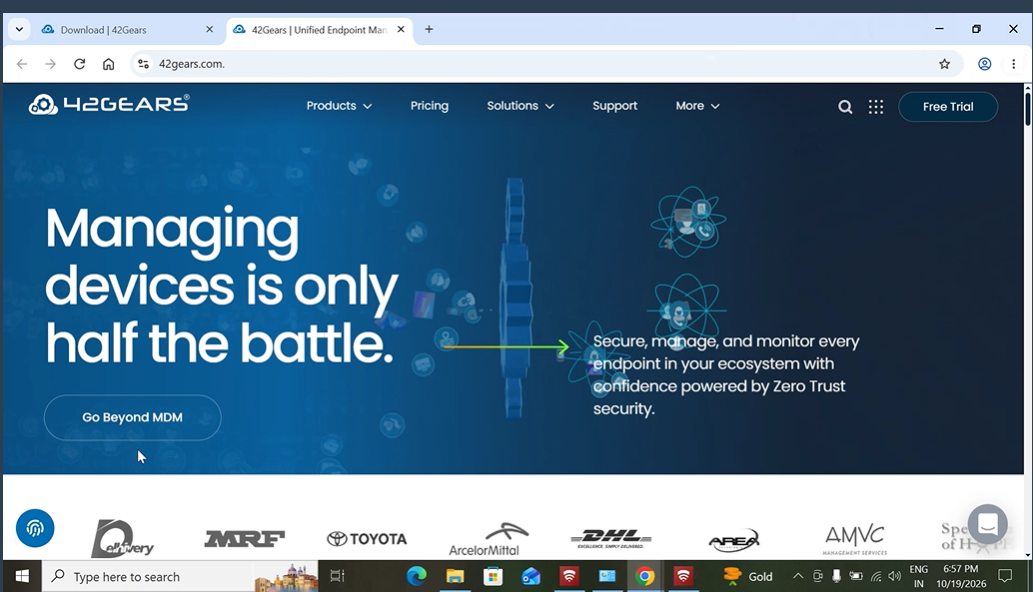
Example: https://www.42gears.com
Step 3: Configure the New Tab Page
- Locate Configure the New Tab page URL – NewTabPageLocation.
- Enter the website URL that should open when a new tab is created.
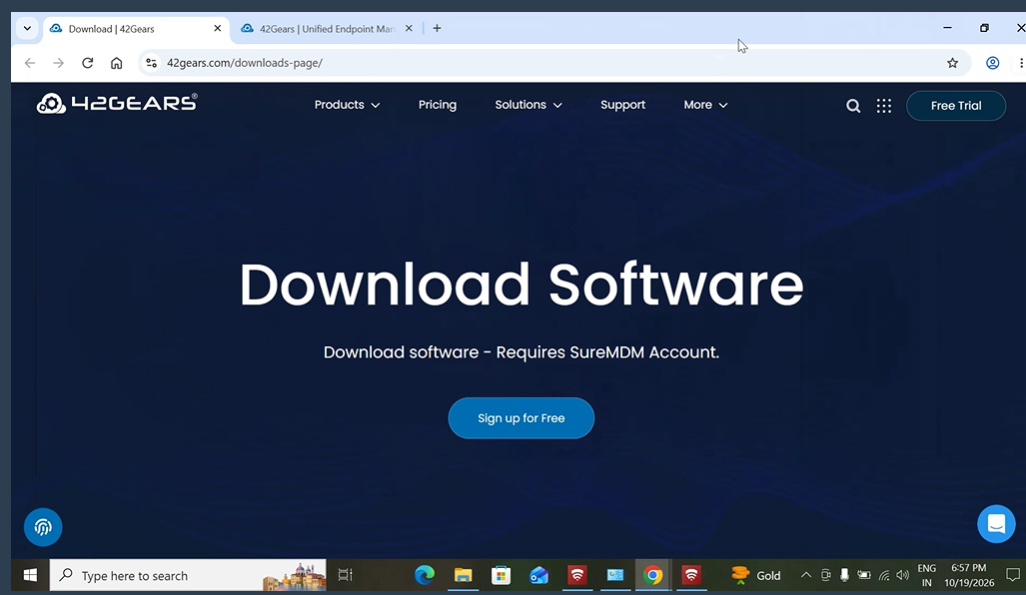
Example: https://www.42gears.com/downloads-page/
Step 4: Configure the Startup Action
- Locate Action on startup – RestoreOnStartup.
- Select one of the following options based on the requirement:
- Open New Tab Page: Opens Chrome’s New Tab page when the browser starts.
- Restore the last session: Restores the tabs from the previous browsing session.
- Open a list of URLs: Opens the configured startup websites.
- Open a list of URLs and restore the last session: Opens the configured startup websites and restores the previous session.
Step 5: Configure URLs to Open on Startup
- Locate URLs to open on startup.
- Enter the required website URL.
- Click the + icon to add the URL.
- Repeat the process to add additional websites, if required.
- Ensure that the startup action is configured to open a list of URLs, or to open a list of URLs and restore the last session.
Example URLs:
- https://www.42gears.com
- https://www.42gears.com/downloads-page/
Step 6: Configure the Home Button
- Locate Show Home button on toolbar.
- Select the required option:
- Enable: Displays the Home button in Chrome’s toolbar.
- Disable: Hides the Home button.
- Not Configured: Leaves the policy unset.
Step 7: Save and Apply the Profile
- Review all the configured settings.
- Click Save.
- Assign the profile to the required Windows device or device group.
- Allow the device to receive the updated configuration.
Step 8: Verify the Configuration
- Open Google Chrome on the Windows device.
- Navigate to chrome://policy
- Click Reload policies.
- Verify the relevant policies and check for errors.
- Restart Chrome and confirm that the homepage, New Tab page, startup websites, and Home button behave as configured.
For Example:
Reference configuration:
Result:
Use Case:
Administrators can configure Google Chrome to automatically open required company websites, such as the corporate homepage and download page, when users launch the browser on managed Windows devices. This helps users quickly access frequently used resources without manually entering URLs.
Conclusion
SureMDM enables administrators to centrally manage Chrome homepage and startup settings on Windows devices. By configuring the appropriate startup action and URL list, administrators can ensure that the required websites open when Chrome starts.
Need more help? Here’s how to get help from our experts.