
Purpose
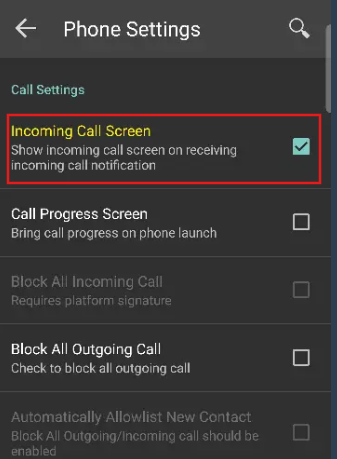
The purpose of this article is to provide guidance on configuring the “Incoming Call Screen” feature available in Phone Settings within SureLock.
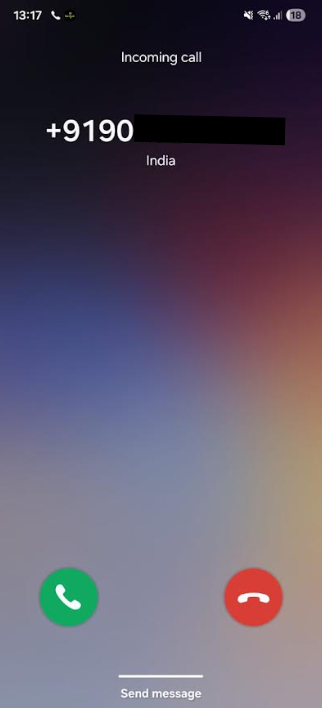
This feature ensures that users are presented with a proper incoming call interface when receiving calls via notifications. It enhances usability by allowing users to clearly view and respond to incoming calls, especially in kiosk or locked-down environments where standard call UI may be restricted.
Prerequisites
- The Android device must be successfully configured with SureLock and running in kiosk mode.
- Ensure that the default Phone Manager or Dialer application is allowed within SureLock.
- Notification Access Enabled
SureLock must have the necessary notification access permissions to detect and display incoming call alerts. - Disable Status Bar > None
- Suppress Notification Panel > Disable
Steps
- Launch SureLock Admin Settings
- Go to: SureLock Settings → Phone Settings
- Enable Incoming Call Screen
- Apply and Save Settings
- Test the Configuration
- Place a test call to the device.
- Verify that an incoming call screen appears when the call is received via notification.
Conclusion
The Incoming Call Screen feature in SureLock improves the calling experience in restricted environments by ensuring that users can clearly view and respond to incoming calls.
Need more help? Here’s how to get help from our experts.
Was this helpful?
YesNo