
Purpose
Safe Search in Google Chrome helps provide a secure and controlled browsing experience by filtering explicit content, including adult websites, images, and videos, from search results. When configured through SureMDM, IT administrators can centrally enforce Safe Search policies across managed devices without requiring user intervention. This helps organizations maintain compliance with internet usage policies, enhance user safety, reduce exposure to inappropriate content, and ensure a consistent browsing environment across all enrolled devices.
Prerequisites
N/A
Steps
1: Go to the profile section from the top navigation bar.
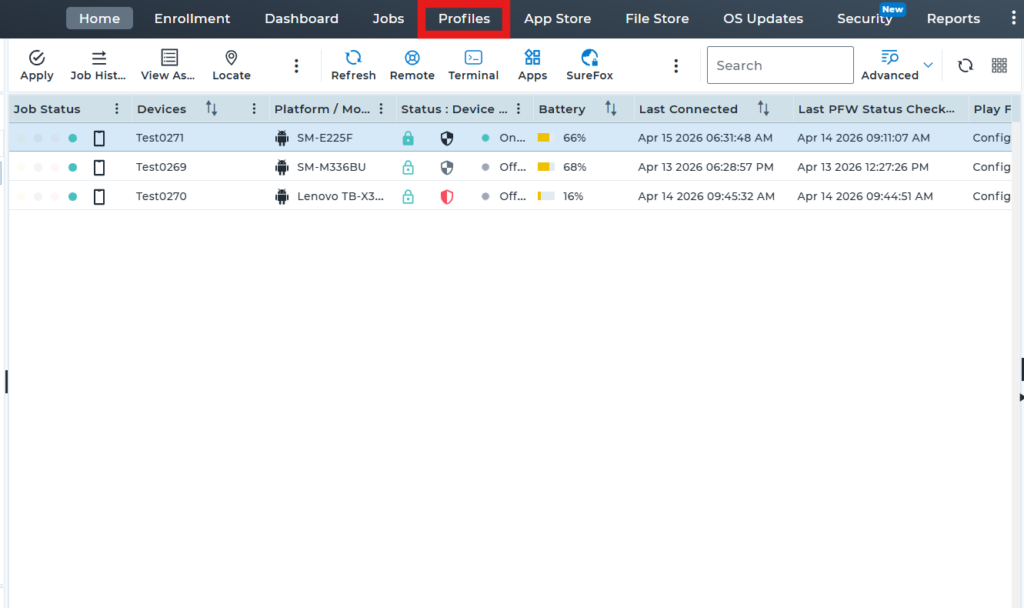
2: Select the option to create a new profile to set up the new profile
3: Scroll down and click on “Browser Management“. Under Browser Management, select Google Chrome, then click on “Configure”.
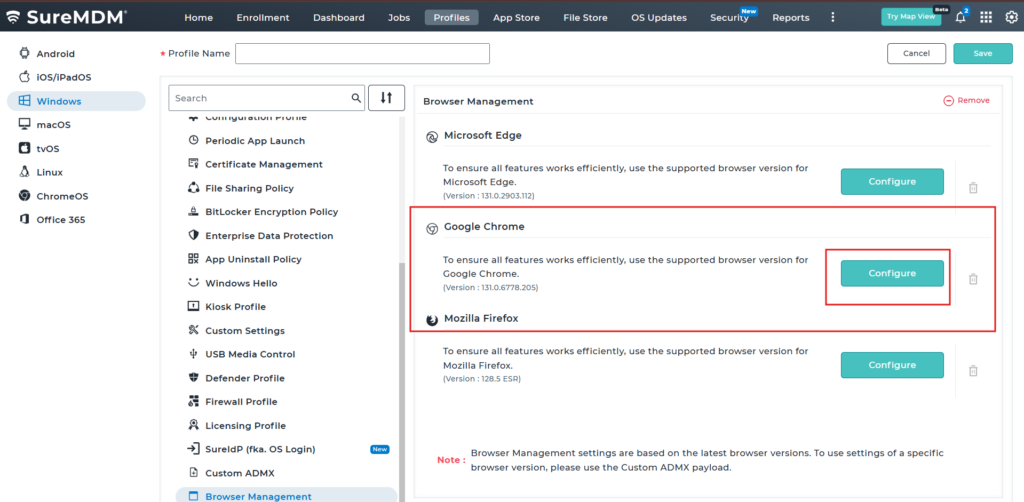
4: Under Google Chrome, use the search bar to search for “Safe Browsing”. Then locate “Safe Browsing Protection Level – SafeBrowsingProtectionLevel” and select any one of the following options:
* Safe Browsing is never active: Disables Safe Browsing protection, leaving users unprotected from phishing, malware, and unsafe websites.
* Safe Browsing is active in the standard mode: Protects against known dangerous websites, downloads, and extensions using Google’s security checks.
* Safe Browsing is active in the enhanced mode: Provides advanced, real-time protection against emerging threats by sharing more browsing data with Google.
5: Save the profile and deploy it to the device. Once the profile is successfully deployed, the configured Safe Browsing option will be automatically selected. End users will not be able to change this setting, and all other Safe Browsing options will be greyed out.
Before profile deployment :-
The end users can modify and configure the settings on their own.
After profile deployment :-
The end user will be restricted to the configured option, and all other options will be disabled (greyed out) and unavailable for selection.
Conclusion
Safe Browsing in Google Chrome helps protect users from phishing, malware, and unsafe websites. By configuring and enforcing this setting through SureMDM, IT administrators can ensure a secure browsing experience, maintain organizational compliance, and prevent end users from modifying the configured Safe Browsing policy.
Need more help? Here’s how to get help from our experts.
CONTACT US