
Purpose
Shared Device Mode in SureLock enables multiple users to securely access the same device using individual credentials. This article explains how to create users without any selected Authentication type, and display the currently logged-in Shared Device username on the SureMDM Console.
Prerequisites
Before proceeding, ensure the following:
- The SureLock version should be v22.59.07 or higher.
- Shared Device Mode is typically supported on Android Enterprise (Device Owner) enrolled devices.
- The SureMDM Agent must be granted all necessary permissions (Device Admin, Usage Access, Appear on Top, etc.) during enrollment to manage user sessions and security PINs.
Steps
1. Configuring Shared Device User Management.
This is to create users manually on the device without the need of any databases like LDAP, AzureAD or SureIdp.
- Access SureLock Admin Settings or SureLock settings job.
- On the Admin Settings screen, tap Shared Device Mode.
- On the Shared Device Mode Settings screen, tap User Authentication.
- For Server configuration set as “None”
- On the User Management screen, tap Add.
- In the Add User prompt, enter Username, Password, Confirm Password, Email ID and select the desired profile from the drop-down list.
- Enable Session PIN for Enhanced Security: This option allows users to create a temporary session PIN during the login process, adding an extra layer of security.
- Tap Save to complete.
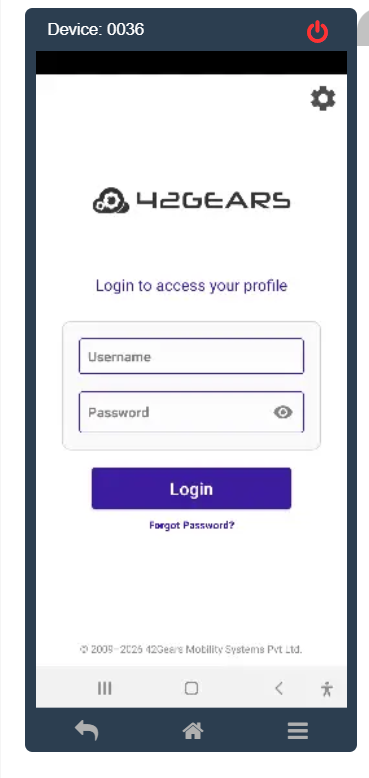
- Once saved and applied to the device, the device will ask the user to login to the device using the email id or pin created as shown below:
2. Displaying Shared Device Username on SureMDM Console
By default, the username of the person logged into a shared device may not appear in the standard device grid. You can achieve this by creating a custom column.
- On the SureMDM Console home screen, click on the Columns button (usually located at the top right of the device grid).
- Select Custom Columns from the dropdown menu.
- Add New Column:
- Click Add, and then click Add again in the configuration window.
- New Column Name: Enter User Name.
- Unique Values: Leave this checkbox unchecked.
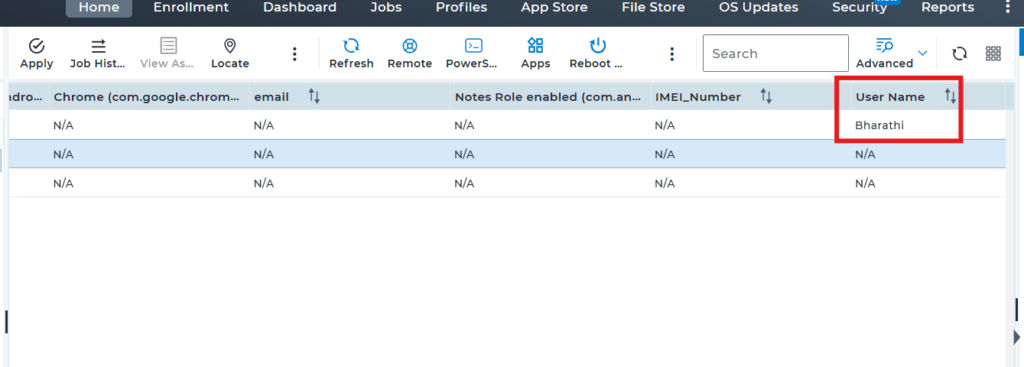
- Once saved, the Shared Device Username will now be visible in the newly created User Name column on your console grid as shown below:
Results
After completing the above configuration:
- Users can be created and managed through User Management.
- Devices can authenticate users using either a Static PIN or a Temporary Session PIN.
- Authentication can be performed locally by setting the server authentication method to None when LDAP or SSO is not used.
- The SureMDM Console will display the currently logged-in Shared Device username in the newly created User Name column, allowing administrators to easily identify the active user on each shared device.
Need more help? Here’s how to get help from our experts.
CONTACT US