
Purpose
To guide administrators on deploying these configurations through SureMDM using RunScript jobs. This ensures that ZDS continues to accurately collect and upload device analytics data across all Zebra devices.
Prerequisites
- Access to the SureMDM Console with appropriate administrative privileges to create and apply Jobs.
- The OEM agent has to be installed on the device.
Steps
A) To configure runscript to enable GPS/WLAN in ZDS:
- Login to SureMDM console.
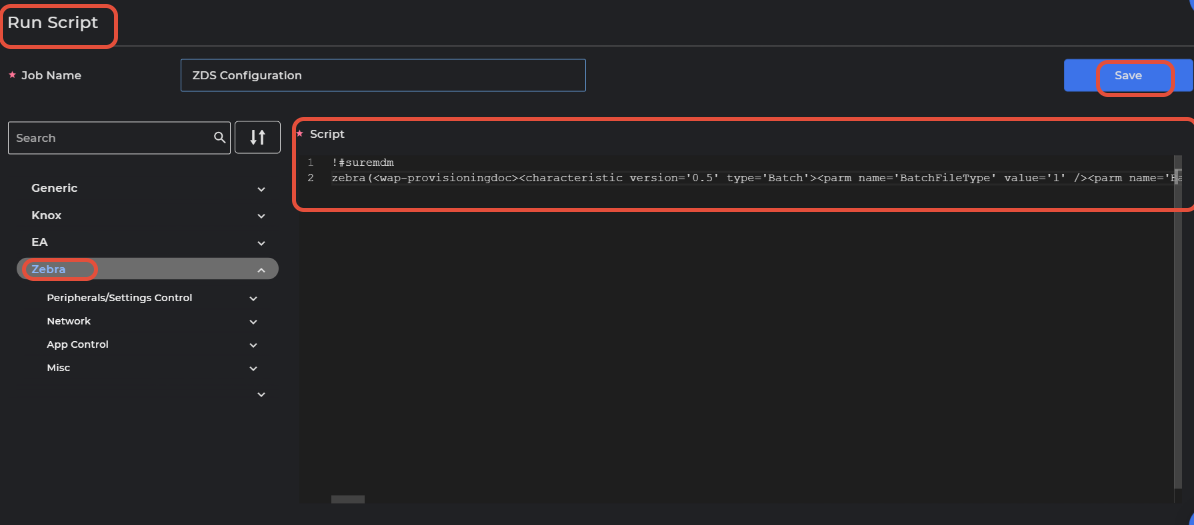
- Navigate to Jobs → New Job → Android → Runscript → Zebra.
- The XML(Configuration files) can be obtained here
- Select the XML based on the frequency you would need ZDS to collect data from the above shared file.
- Copy the XML content
- Now, create the runscript in SureMDM using the below format
!#suremdm
zebra(XML content without any spaces) - Save the Job.
- Select the target device(s) and Apply.
B) To configure the ZDS GPS and WLAN using Zebra MX configuration Job:
- Login to SureMDM console.
- Navigate to Jobs → New Job → Android → Zebra MX Config Job
- Click on Import > Add the XML file saved on the local device
- Click on Save to get the job added to the console.
- Select the target device(s) and Apply.
Need help?
CONTACT US
Was this helpful?
YesNo