
Purpose
The purpose of this article is to explain how administrators can remotely control Battery Saver settings on Android devices using the SureMDM Console, ensuring uninterrupted device management and consistent user experience.
Prerequisites
- Should have a SureMDM Account.
- Devices to be enrolled in SureMDM.
- Applicable for a Samsung device with Knox enabled.
- Applicable for a Platform Signed device.
- Enterprise Agent to be installed.
- SureMDM Agent version should be 27.37.00 and above.
Steps
- Login to SureMDM Console
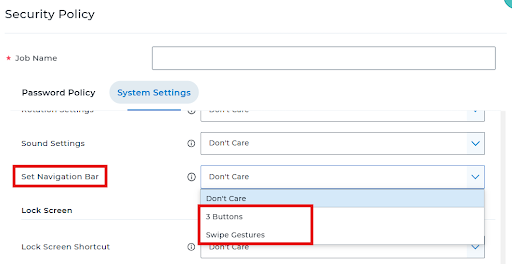
- Navigate to Jobs > New Jobs > Android > Security Policy > System Settings > Enable “Enforce System settings on device“ > Scroll down to find Power Management > Battery Saver Settings > Choose the option based on your requirement.
- Note: Don’t care here refers to the default Battery Saver Settings of the device.
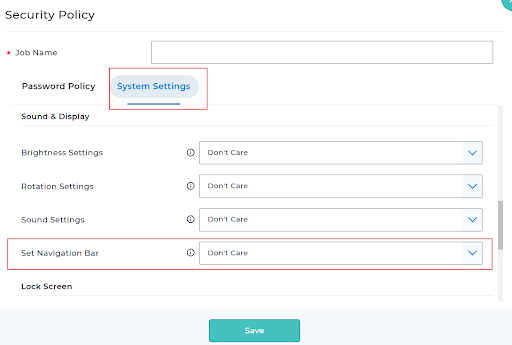
- If Battery Saver Settings is configured via Security Policy job and deployed on to the device, the end users will not be able to modify the setting. Screenshot below for reference:
Conclusion: SureMDM provides administrators with the flexibility to remotely manage Battery Saver settings on supported Android devices. By enforcing appropriate power management configurations, organizations can ensure reliable device performance, consistent policy enforcement, and seamless remote management.
Need more help? Here’s how to get help from our experts.
Was this helpful?
YesNo