
Purpose
This article explains how to create a device filter in the SureMDM console based on an IP address range using the Advanced Query option. This allows administrators to easily identify, group, and manage devices that fall within a specific network or IP range.
Prerequisites
- Access to the SureMDM web console.
- Devices are enrolled in SureMDM and reporting IP address information.
- Administrator privileges to create and manage device filters.
Steps
- Log in to the SureMDM Web Console.
- Click on Filters and select Create Filter.
- Choose Advanced Query as the filter type.
- Provide a name and condition for the filter.
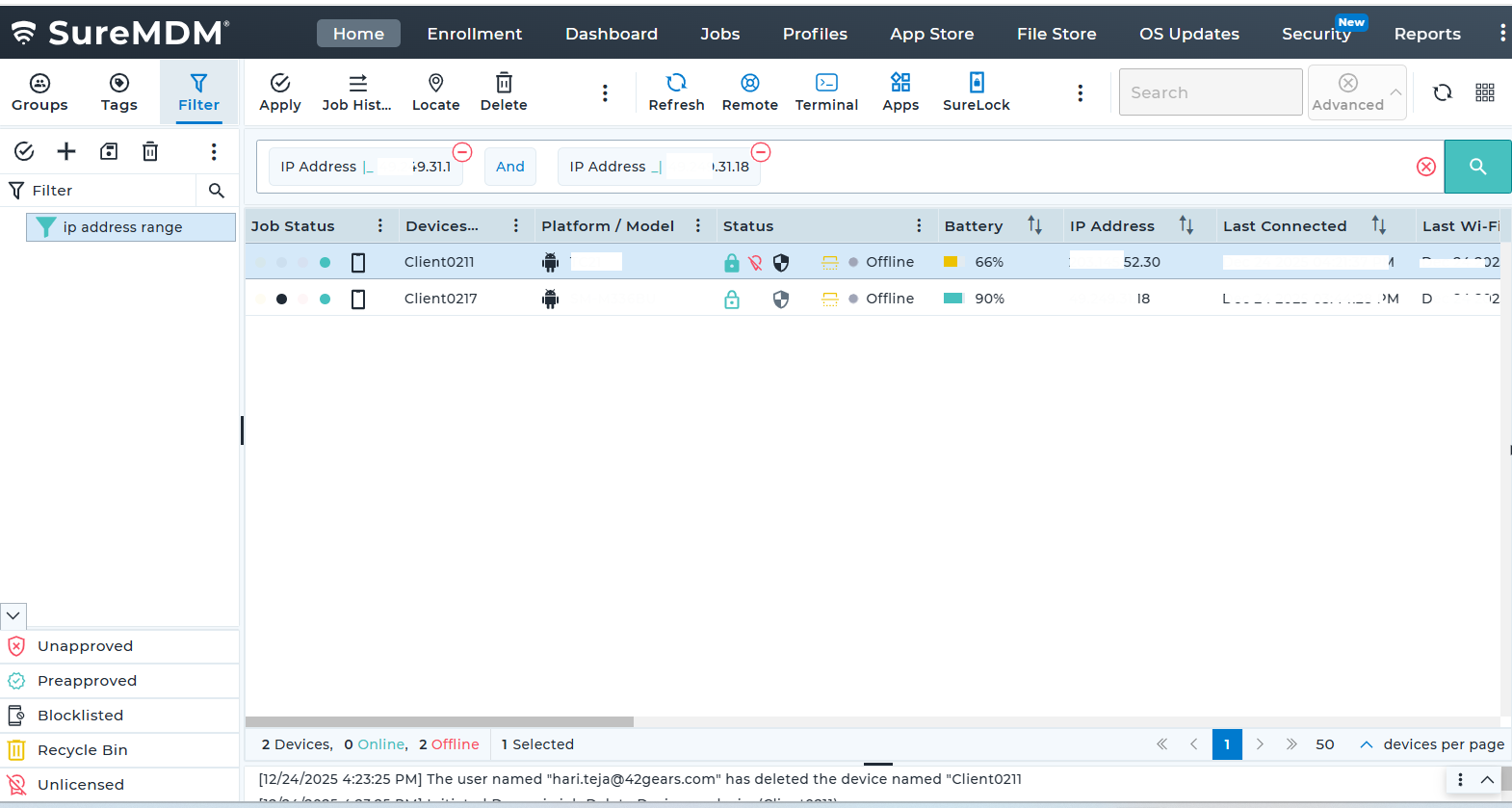
- Please enter by the below format
- Enter the field as ipaddress and operator as |_ for start , _| for end,
- Enter the Starting IP address and End IP address
- Condition as And
- Save the Filter.
Conclusion
By using the Advanced Query option in the SureMDM console, administrators can efficiently filter devices based on IP address ranges. This approach improves visibility into network-based device usage, simplifies device management, and supports location or network-specific administrative actions.
Need more help? Here’s how to get help from our experts.
Was this helpful?
YesNo