
Purpose
This article explains how to create and manage Customer Access in SureMDM Hub, which allows administrators to provide admins/end customers with limited, read-only access to their own devices and reports without exposing administrative settings or data belonging to other customers.
Prerequisites
- Administrator access to the SureMDM Hub with account admin level permissions.
- The customer organization must already exist in the SureMDM Hub.
- A valid and accessible customer email ID
Steps
To Create Customer Access
- Log in to the SureMDM Hub using Administrator credentials.
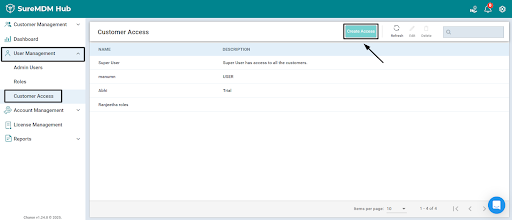
- From the left-hand navigation panel, go to User Management.
- Select Customer Access and Create Access.
- Enter the required details:
- Name: Enter the customer user’s name
- Description: Enter a brief description (optional but recommended)
- Customers: Select the required customer organization(s)
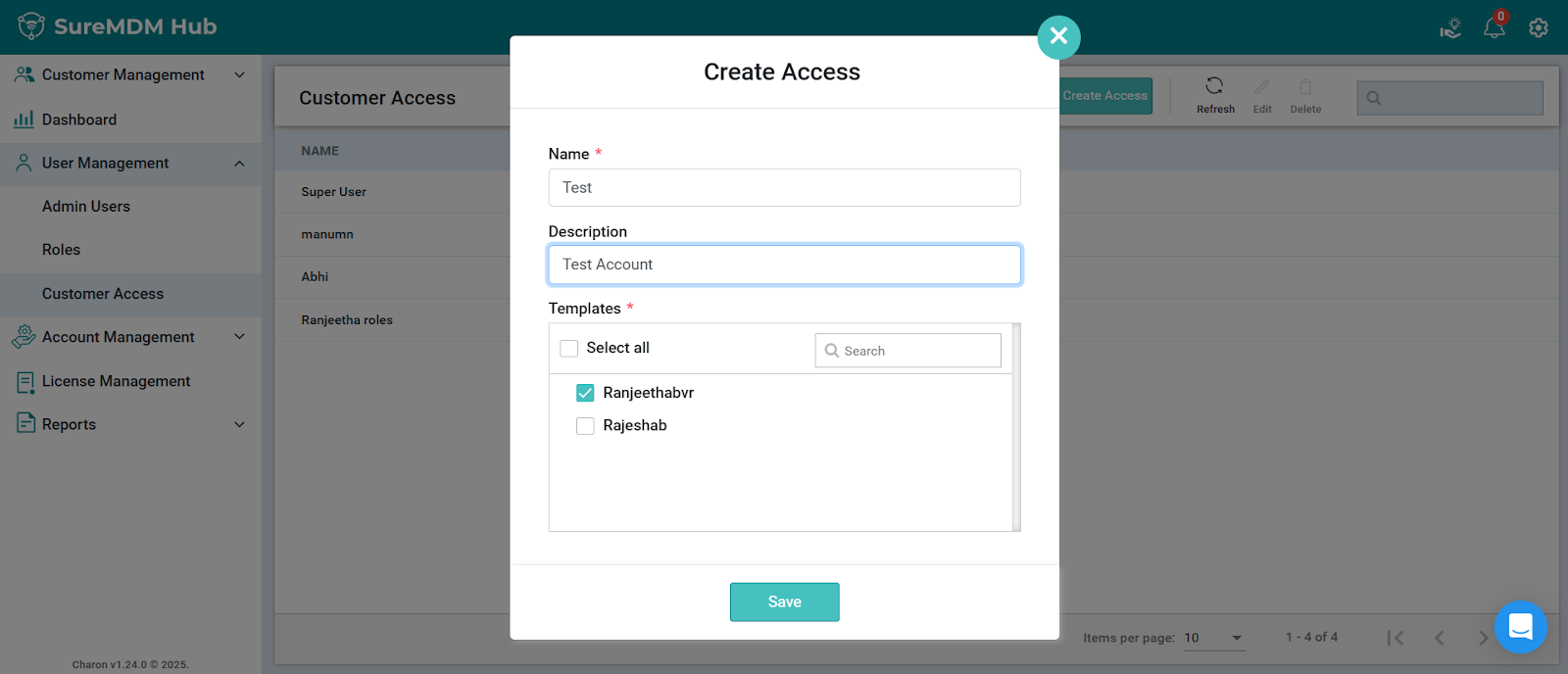
- Review the entered information.
- Click Save or Create to register the customer access account.
To Edit or Remove Customer Access
- Navigate to User Management > Customer Access.
- Locate the required customer access entry from the list.
- Choose one of the following actions:
- Edit – Modify the access details
- Delete / Revoke – Remove customer access
- Confirm the action to apply the changes.
Expected Results
- The customer receives controlled, read-only access to their assigned devices and reports.
- Administrative settings and data from other customers remain restricted.
- Secure data separation is maintained across multiple customers or business units.
Conclusion
Customer Access in SureMDM Hub enables administrators to securely share device visibility with customers while maintaining strict control over administrative privileges and data isolation. This feature is ideal for MSPs and enterprises managing multiple customer organizations.
Need more help? Here’s how to get help from our experts
Was this helpful?
YesNo