
Prerequisite
- The compliance rule can be used to push certain jobs if the SureMDM agent permissions are not granted.
- Supported only on macOS devices with SureMDM Agent version >= 7.2
Steps
- Navigate to SureMDM Web Console > Jobs > New Job > macOS > Compliance Jobs.
- In the Compliance Job prompt, enter a Job Name and Enable Compliance Job
- Navigate to Agent permissions.
- Enable Device must comply with the selected Agent Permissions applied. You may now select the Agent permissions from the list
- Full Disk Permission
- Location Permission
- Remote Support Permission
- Modern Remote Support Permission
- Notification Permission
- If the devices are not compliant with the Agent permissions. Select Trigger Actions when Devices are Out of Compliance/In Compliance/Both
Select the appropriate action from the following, when the compliance rules are violated, and add delay as per your requirement
- Send Message
- Move to Blocklist
- Wipe the Device
- Lock Device (Android/iOS/iPadOS)
- E-mail Notification
- Apply Job
- Send SMS
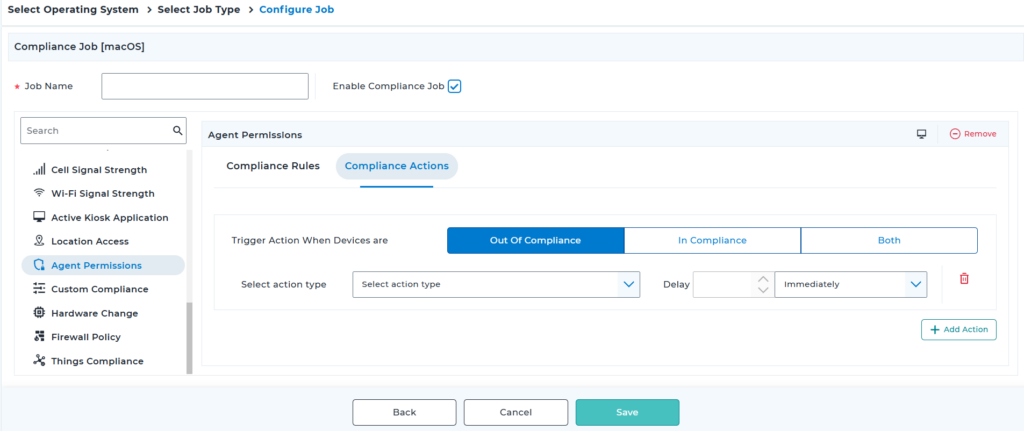
- Save and apply the job
Conclusion
Compliance Rules for Agent Permissions in SureMDM help ensure that macOS devices have the required permissions for proper device management and security. By automatically detecting missing permissions and triggering predefined administrative actions, administrators can quickly address non-compliant devices, reduce manual intervention, and maintain consistent policy enforcement across their macOS fleet. This proactive approach improves device compliance, enhances security, and ensures uninterrupted functionality of the SureMDM agent.
Need more help? Here’s how to get help from our experts.
CONTACT US
Was this helpful?
YesNo