
Purpose
Administrators may need to ensure that the SureFox application is automatically installed on Android devices before applying configurations. This article explains how to use the SureFox Settings job in SureMDM to auto-install SureFox if it is not already present on the device.
So, SureMDM provides an option within the SureFox Settings job to automatically install the SureFox application on Android devices if it is not already installed. By enabling the Install If Not Installed option and configuring the activation code, administrators can seamlessly deploy SureFox and apply the required configurations in a single step.
Prerequisites
- Android devices enrolled in SureMDM and are
- Devices are online
- SureMDM console access with job creation permissions
- Valid SureFox activation code
Steps
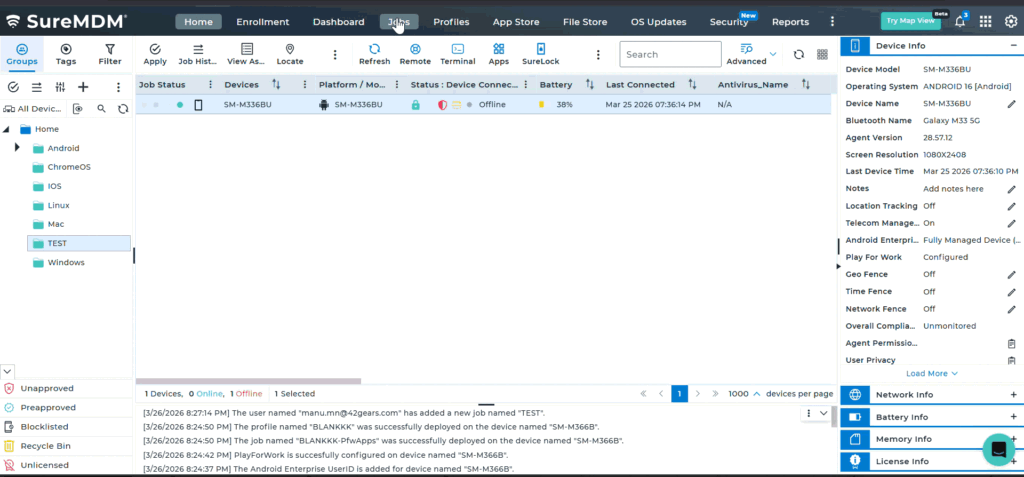
- On the SureMDM console -> click on Jobs -> New Job -> Android as the platform.
- Click on SureFox Settings and Configure the required SureFox settings as needed.
- Click on the Advanced Options (Gears Icon) at the top-right corner.
- Enable Install If Not Installed by checking the box.
- Enter the SureFox Activation Code in the provided field.
- Click OK to save the advanced settings. and Save
Expected Results
- If SureFox is not installed on the device, it will be automatically installed.
- The provided activation code will be applied.
- Configured SureFox settings will be pushed and applied successfully.
Conclusion
Using the SureFox Settings job with the Install If Not Installed option simplifies deployment by combining application installation and configuration into a single workflow. This ensures a consistent setup across Android devices without requiring manual installation.
Need more help? Here’s how to get help from our experts.