
Purpose
This article explains how to configure Google Chrome policies to exclude a specific URL from Safe Browsing restrictions. By allowing trusted websites, IT administrators can ensure uninterrupted access to approved business resources while maintaining Safe Browsing protection for all other websites. This helps balance security requirements with organizational productivity and operational needs.
Prerequisites
N/A
Steps
1: Go to the profile section from the top navigation bar.
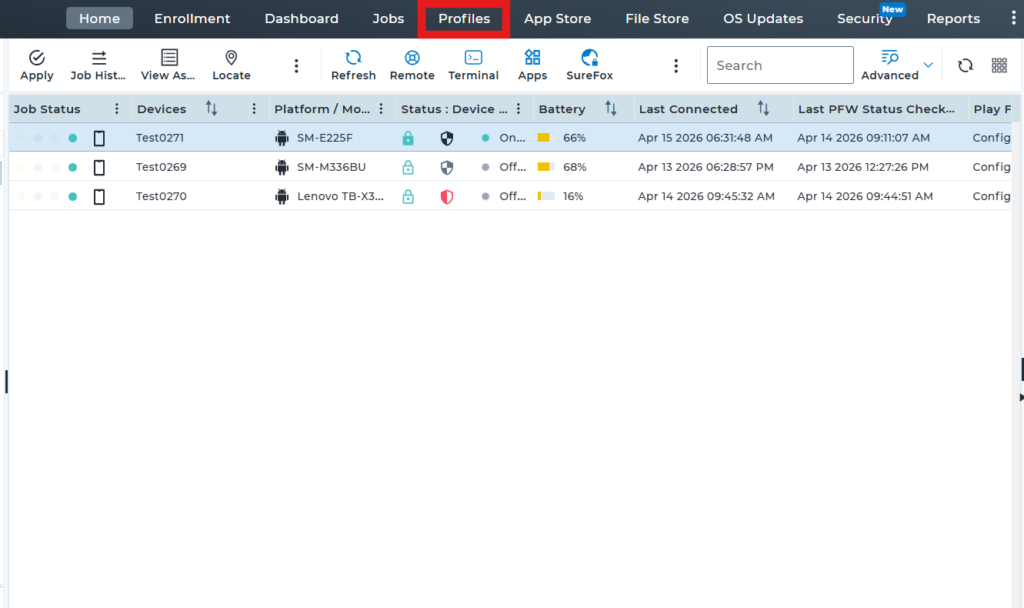
2: Select the option to create a new profile to set up the new profile
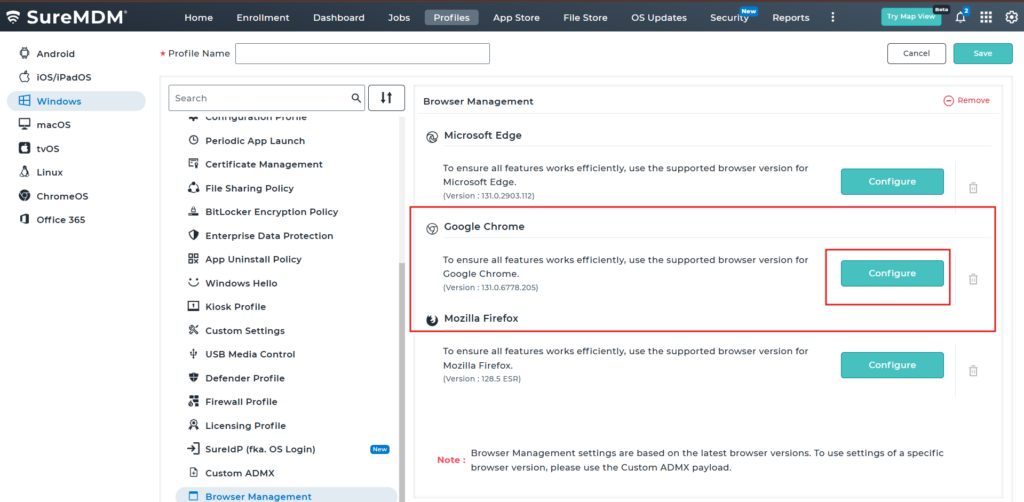
3: Scroll down and click on “Browser Management“. Under Browser Management, select Google Chrome, then click on “Configure”.
4. Under Google Chrome, use the search bar to search for “Safe Browsing”. Then locate “Configure the list of domains on which Safe Browsing will not trigger warnings” and add the required URL(s). Next, locate “Safe Browsing Protection Level – SafeBrowsingProtectionLevel” and configure it to “Safe Browsing is active in the enhanced mode”. Save the settings after adding the Domain name(s).
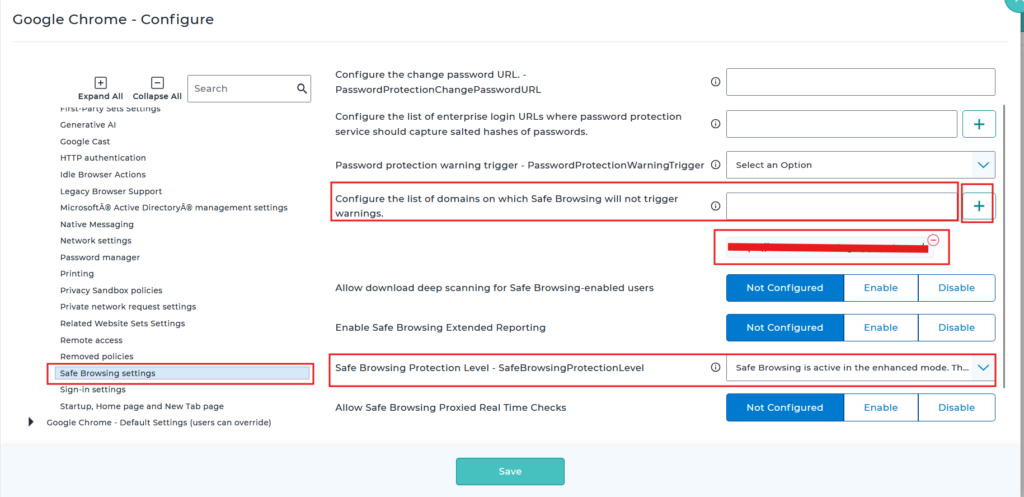
5: Save the profile and deploy it to the device. Once the profile is successfully deployed, Safe Browsing warnings will no longer be triggered for the domains added to the exclusion list. However, Safe Browsing protection will continue to detect and warn users about other malicious, phishing, or unsafe websites whose domains are not included in the exclusion list.
Before deploying the profile :-
Apart from the domains added to the exclusion list, Safe Browsing protection will continue to be enforced on all other domains, and warnings will be displayed for websites identified as malicious, phishing, or unsafe.
After deploying the profile :-
Any domain added to the exclusion list will be accessible without triggering Safe Browsing warnings, while Safe Browsing protection will continue to apply to all other domains.
Conclusion:
This configuration enables administrators to exempt specific trusted domains from Google Chrome Safe Browsing warnings while keeping Safe Browsing protection active for all other websites. As a result, users can access approved resources without interruption, while the organization continues to benefit from enhanced protection against potentially harmful, deceptive, or unsafe web content.
Need more help? Here’s how to get help from our experts.
CONTACT US