
Purpose:
The KB document helps us and provides detailed instructions on how SureMDM administrators can disable USB access on Windows devices. The guide covers the various configuration methods available within the console to ensure you can select the approach that best fits your security requirements.
Prerequisites:
- Devices must be enrolled in Dual enrollment mode.
- Devices must be online and reporting to the SureMDM console.
- The latest version of the SureMDM Agent must be installed
Steps :
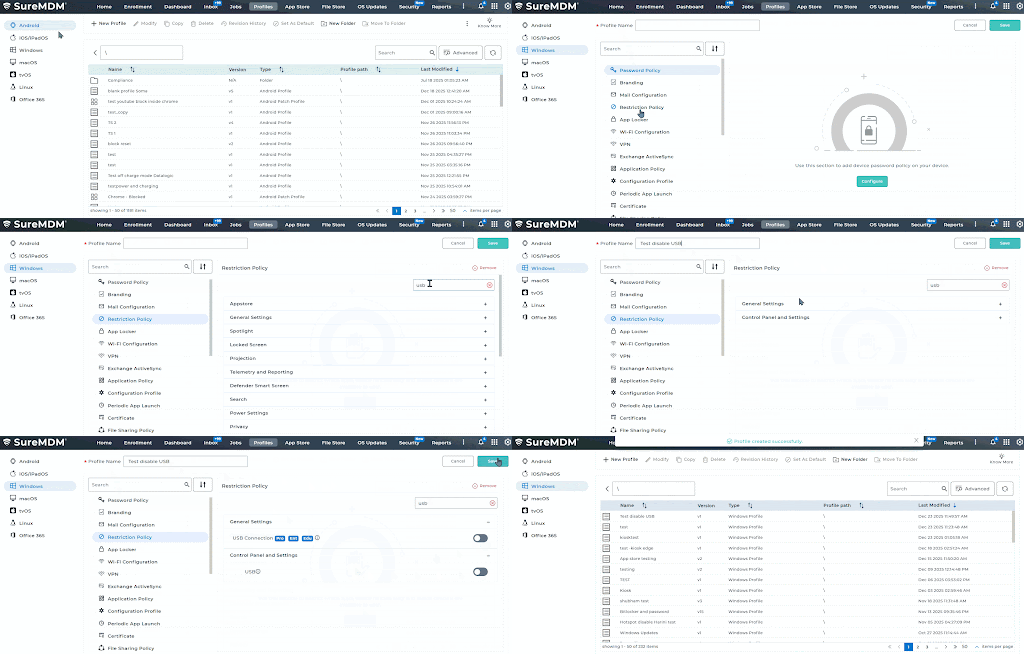
To disable USB access on Windows devices using a Restriction Profile in SureMDM, follow these steps:
- Goto Profiles ->Windows ->Add -> Restriction Policy from the list and click Configure ->Enter Profile Name.
- Configure USB Restriction – >Device Control and Panel Settings – >Locate the USB option and check it to enable the restriction, – >Save and Deploy on target Windows devices,
- Reboot Device: Once the profile status is confirmed as Succeeded in the device log, select the device and use the Reboot command from the dynamic toolbar to ensure the settings are fully implemented.
Conclusion:
To conclude the process, verify that the job or profile status is marked as Success in the SureMDM console and initiate a mandatory device reboot to ensure the Windows operating system applies the hardware-level restrictions. Once the device restarts, perform a physical test by inserting a USB drive to confirm it is no longer recognized or accessible.
Need more help? Here’s how to get help from our experts.