
This KB explains how to deploy a Google Chrome web clip to iOS devices that seamlessly install the stable, enterprise-grade version of Google Chrome. This ensures that all managed devices run a consistent, secure, and policy-compliant browser version, optimized for performance and enterprise use.
Purpose
The job deploys a web clip to iOS devices, guiding users to install the stable, enterprise-ready Google Chrome from the App Store for consistent, secure, and optimized browsing across managed devices.
Prerequisites
N/A
STEPS
The following steps outline the process for deploying the job on Linux devices.
Step 1:- Go to the Jobs section from the top navigation bar.
Step 2:– Click “New Job” located at the top-left corner of the console.
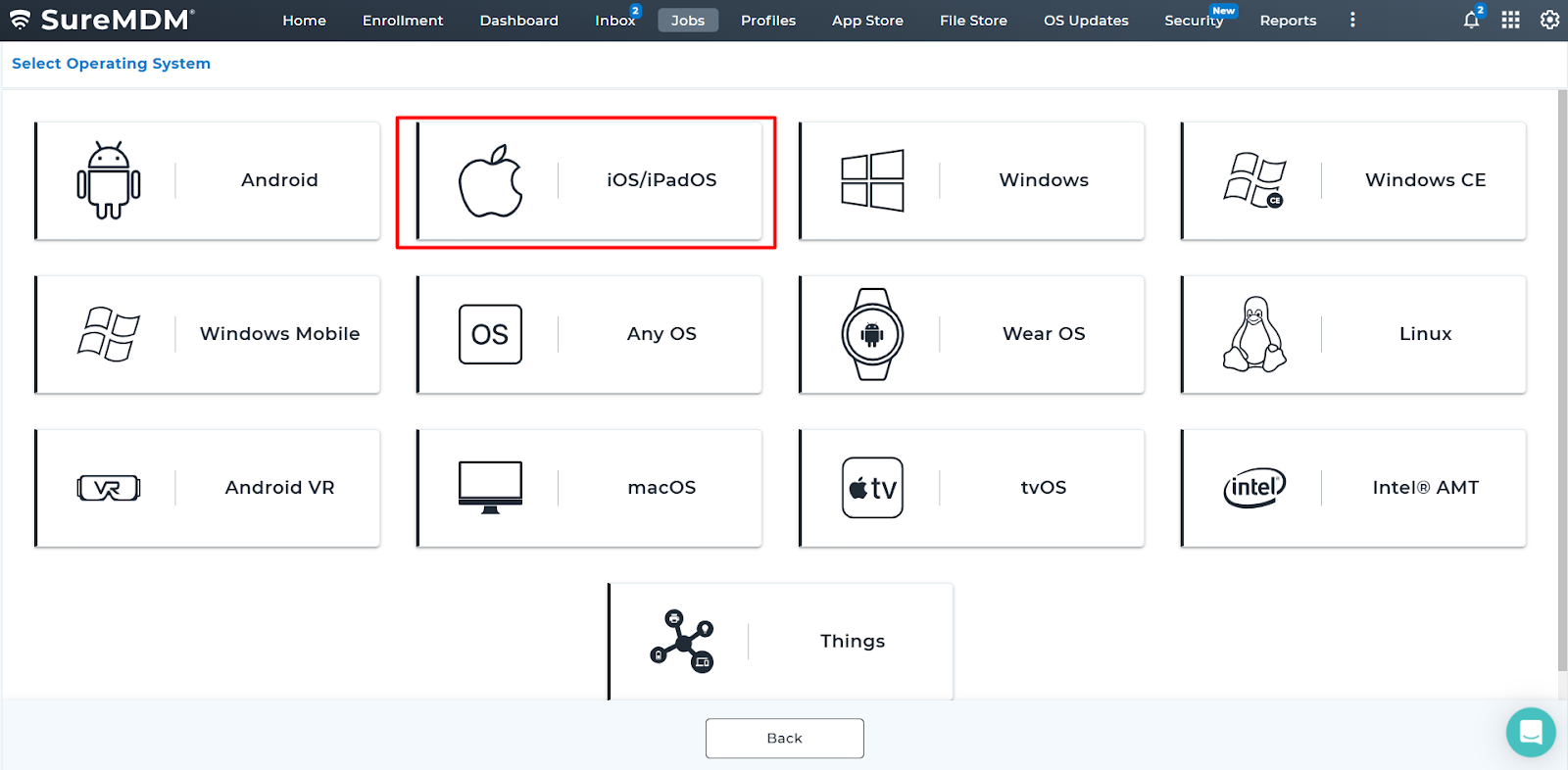
Step 3:- Select the appropriate OS platform (iOS/iPadOS).
Step 4:- Locate the job named [Deploy Google Chrome WebClip] from the list.
Step 5: Enter the job name and click “Save”.
Step 6: Select the device or group where the job should be deployed, then click the “Apply” icon.
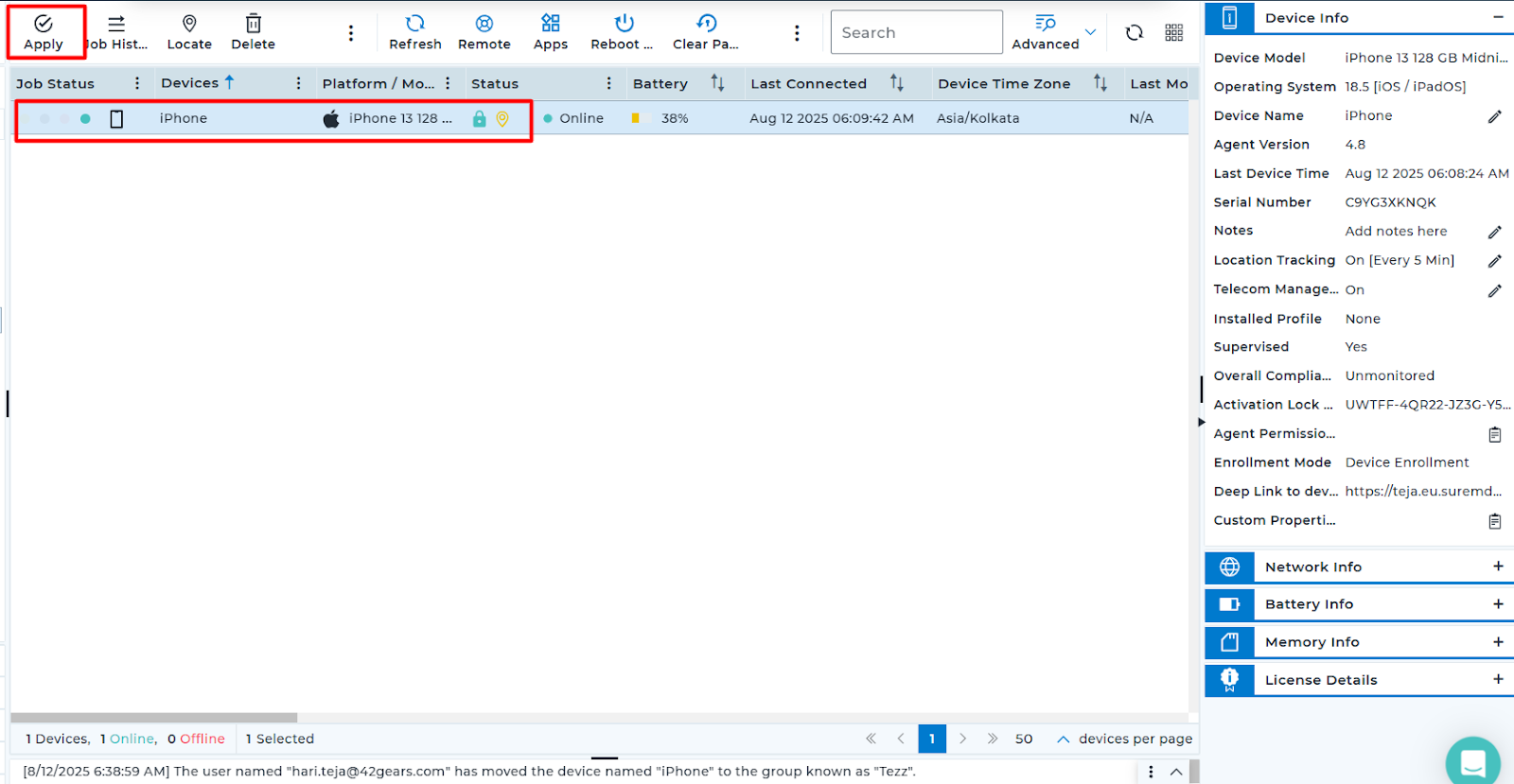
Step 7: Search for the job in the search bar, select it, and click “Apply” to deploy it to the selected device or group.
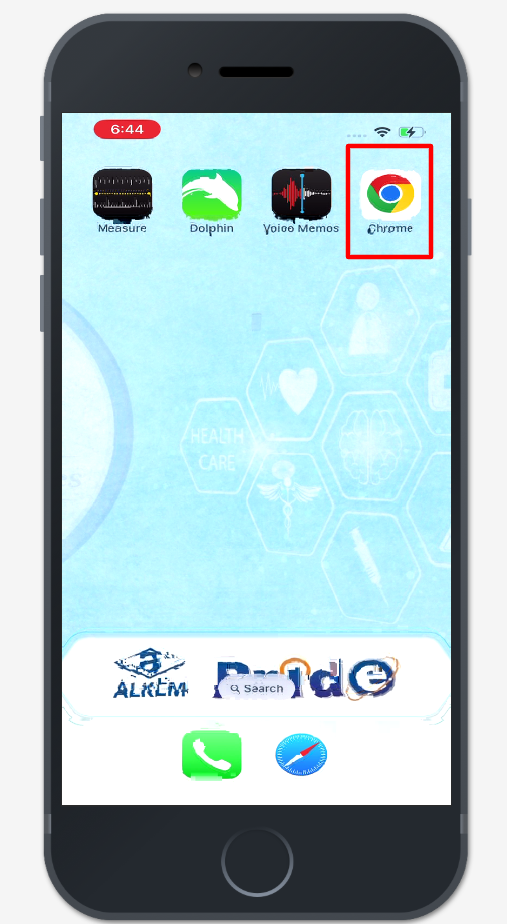
Step 8: After the job is successfully deployed on the device, the Chrome shortcut icon will appear. Click the icon to proceed.
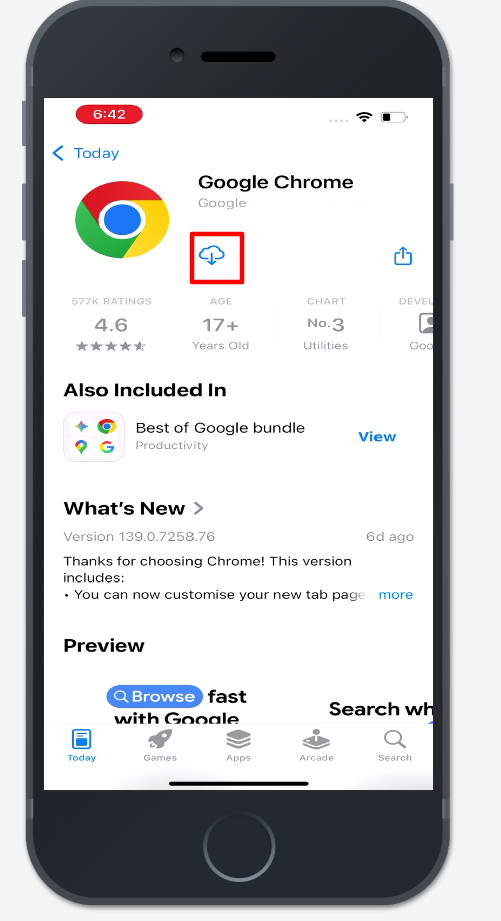
Step 9: Clicking the Chrome shortcut icon will redirect you to Chrome in the App Store, where you can download the application.
Step 10: The stable version of the Chrome application will be installed on the device.
Need more help? Here’s how to get help from our experts.