
The purpose of this article is for SureMDM administrators to download the created QR code in the SureMDM console under the Enrollment section.
Prerequisites
N/A
Steps
Log in to the SureMDM Console -> Click on Enrollments-> Select the QR code -> Click on Download,
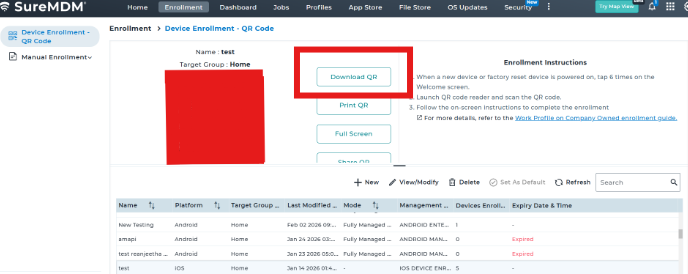
Please select the Include QR Name-> Include Group Path-> Include Note -> Click on the Confirm to download.
Conclusion
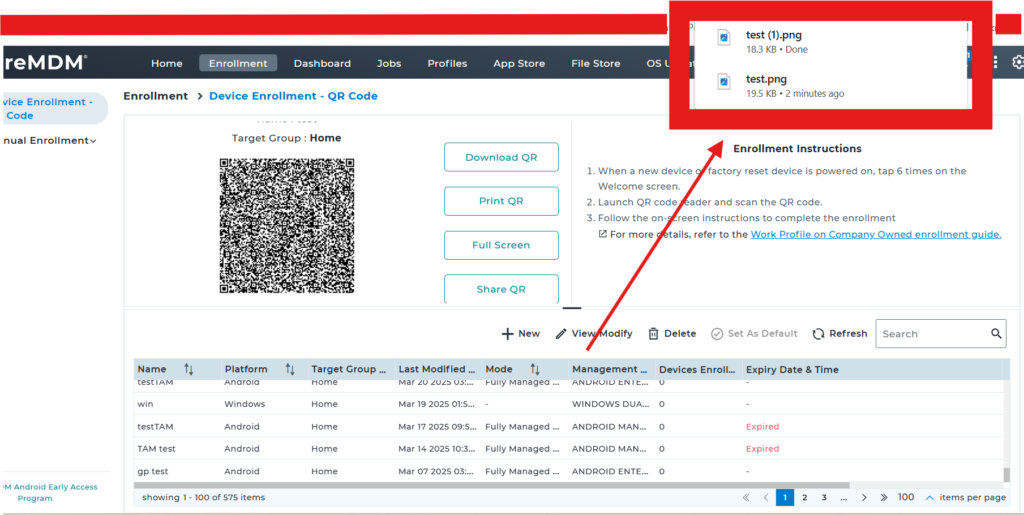
Once you click on the Confirm option, you should be able to download the PNG image file for use.
Need more help? Here’s how to get help from our experts.
Was this helpful?
YesNo