
Purpose
This configuration in SureMDM enables administrators to control users’ ability to modify display settings on Windows devices. It helps maintain standardized display configurations, prevents unauthorized changes, ensures consistent user experience across managed endpoints, and supports organizational security and compliance requirements by restricting or allowing display configuration modifications as needed.
Prerequisites
NA*
Steps
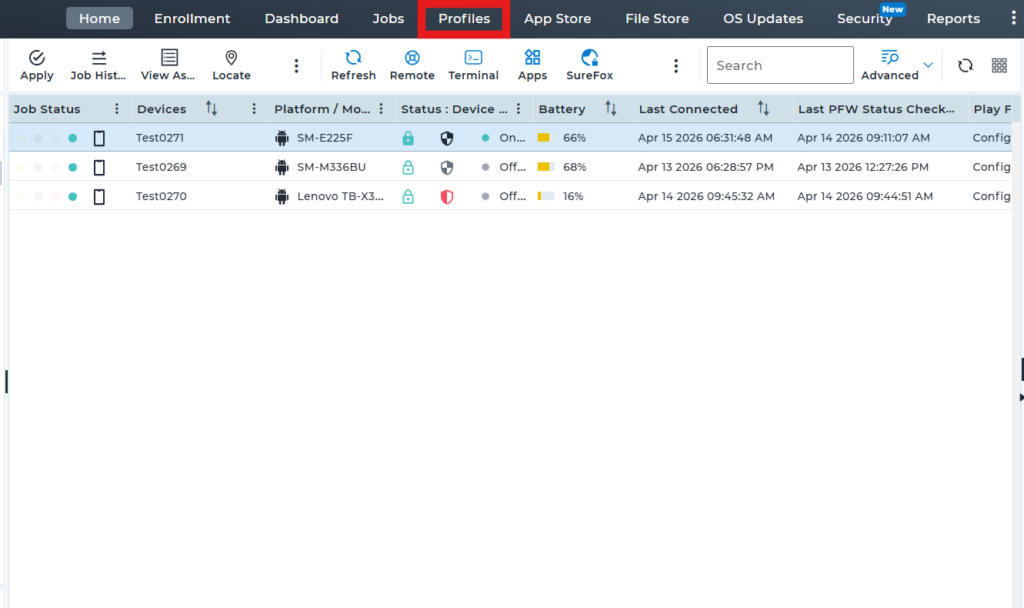
1.Go to the profile section from the top navigation bar.
2.Select Windows as the operating system (OS) to create and configure a new profile.
3.In the profile, click on Restriction Policy, then select Configure to view the available features and settings.4.After completing the above step, expand Control Panel and Settings, search for the Display option, and disable it. Then, save the profile and deploy it to the device.
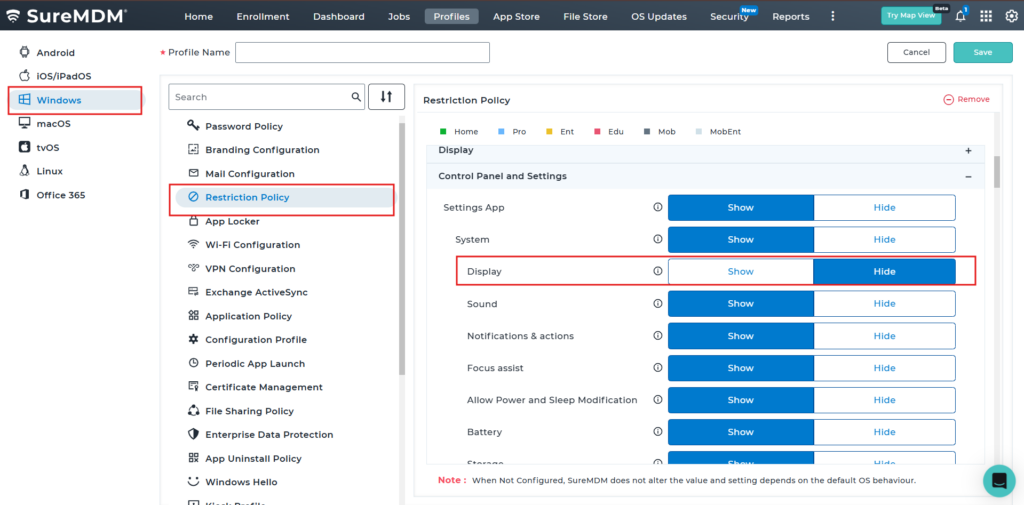
5. After successful deployment of the profile, the Display option will be hidden on the device.
Before Profile Deployment:-
After Profile deployment :-
Conclusion
Using SureMDM to manage Display configuration settings on Windows devices allows administrators to control user access to display-related options. This ensures consistent device settings, minimizes unauthorized changes, and improves overall device management, security, and compliance within the organization.
Need more help? Here’s how to get help from our experts.