
Purpose
To automatically approve enrolled devices without manual intervention or authentication, configure the Automatically approve all devices setting in Device Enrollment Rules. This helps streamline bulk or quick enrollments but comes with security risks.
Prerequisites
- Access to the SureMDM console with admin privileges
- Navigation access to Device Enrollment Rules
Steps
- Log in to the SureMDM console -> Click on the Gears icon (Settings).
- Navigate to Account Settings → Device Enrollment Settings → Device Enrollment Rules
- Under Enrollment Authentication, Set the Enrollment Authentication Type to No Authentication
- Next, Automatically approve all devices -> Enable the toggle (turn it ON).
- Acknowledge the pop-up that appears on the Screen
- Select a Time Frame from the dropdown:
- 12 Hours
- 24 Hours (1 Day)
- 48 Hours (2 Days)
- 7 Days
- Click Save
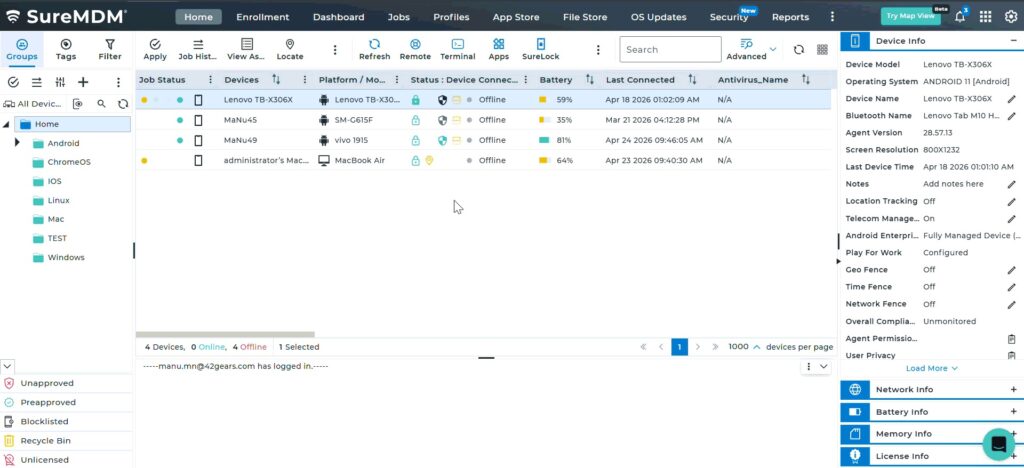
Expected Results
- Devices enrolled within the selected time frame are automatically approved without manual intervention.
- A confirmation message appears: “Settings updated successfully.”
Conclusion
Enabling auto-approval simplifies the enrollment process by removing manual approval steps. However, since authentication is disabled, it is recommended to use this setting cautiously and only for controlled environments or limited durations.
Need more help? Here’s how to get help from our experts.
Was this helpful?
YesNo