
Purpose
This article describes the steps to enable email alert notifications in SureLock when a user exits or accesses SureLock settings. This helps administrators monitor device activity and quickly respond to unauthorized changes or exits from SureLock lockdown mode.
Prerequisites
- SureLock must be installed on the Android device.
- Administrative access to SureLock settings.
- The device has an active internet connection.
- A valid email address to receive alert notifications.
Steps
Enable Email Notifications on the Device (SureLock)
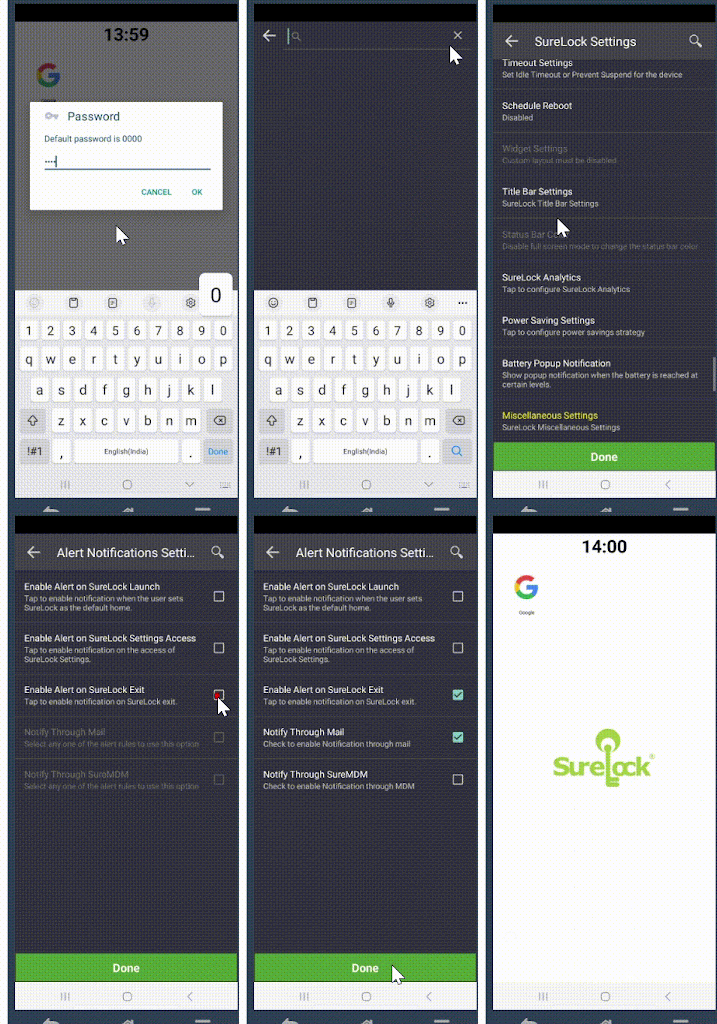
- Open SureLock Admin Settings on the Android device.
- Enter the SureLock Admin Password to access the admin menu.
- Navigate to SureLock Settings.
- Select Miscellaneous Settings.
- Under Notification Settings, tap on Alert Notifications
- Enable the option Enable alert on SureLock settings.
- Check the box Notify through Mail.
- Enter the email address to receive notifications.
Tap Done to save the configuration.
Enable Email Notifications via SureMDM Console
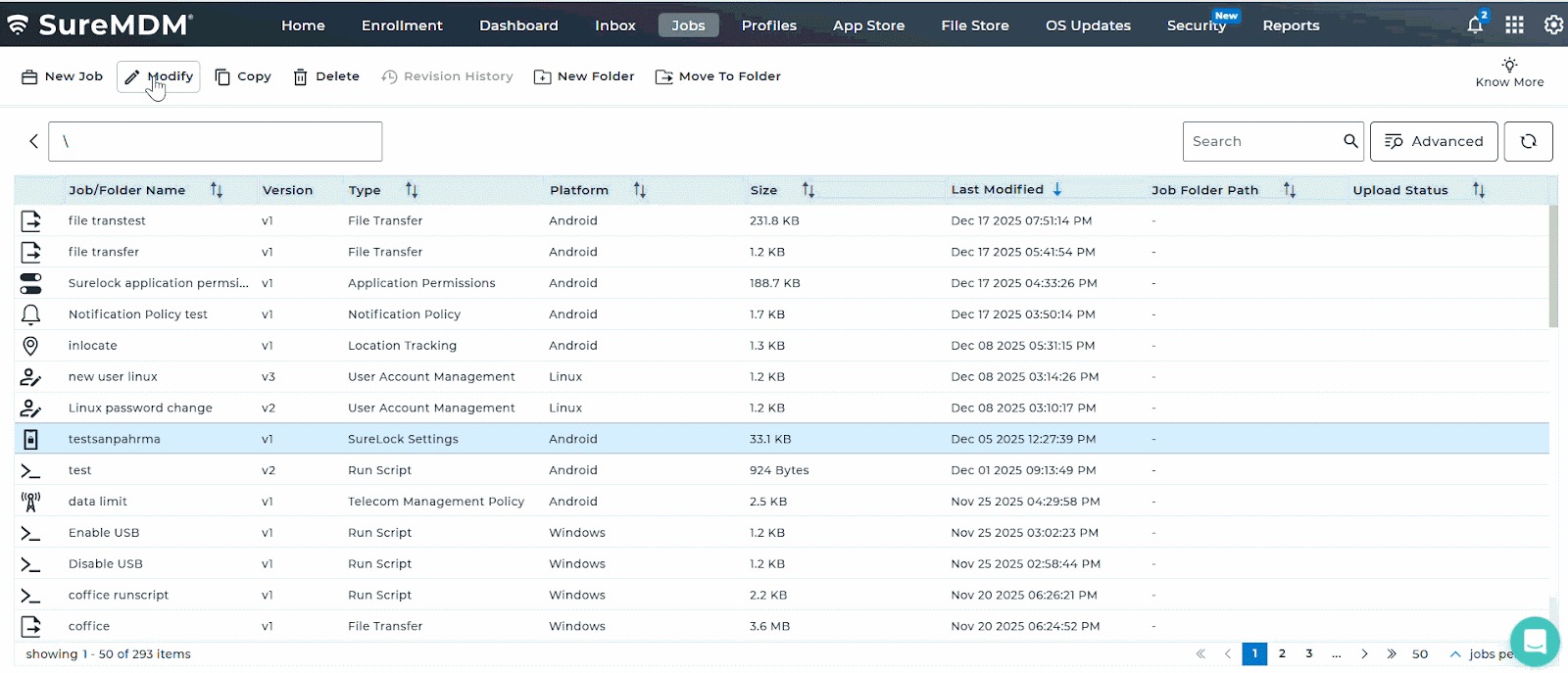
- Log in to the SureMDM Web Console.
- Navigate to Jobs and create a new SureLock Job, or edit an existing one.
- In the SureLock configuration settings, go to Miscellaneous Settings.
- Under Notification Settings, locate Alert Notifications.
- Enable Enable alert on SureLock settings.
- Select Notify through Mail.
- Enter the email address that should receive the alert notifications.
- Save the job and push it to the target device or device group.
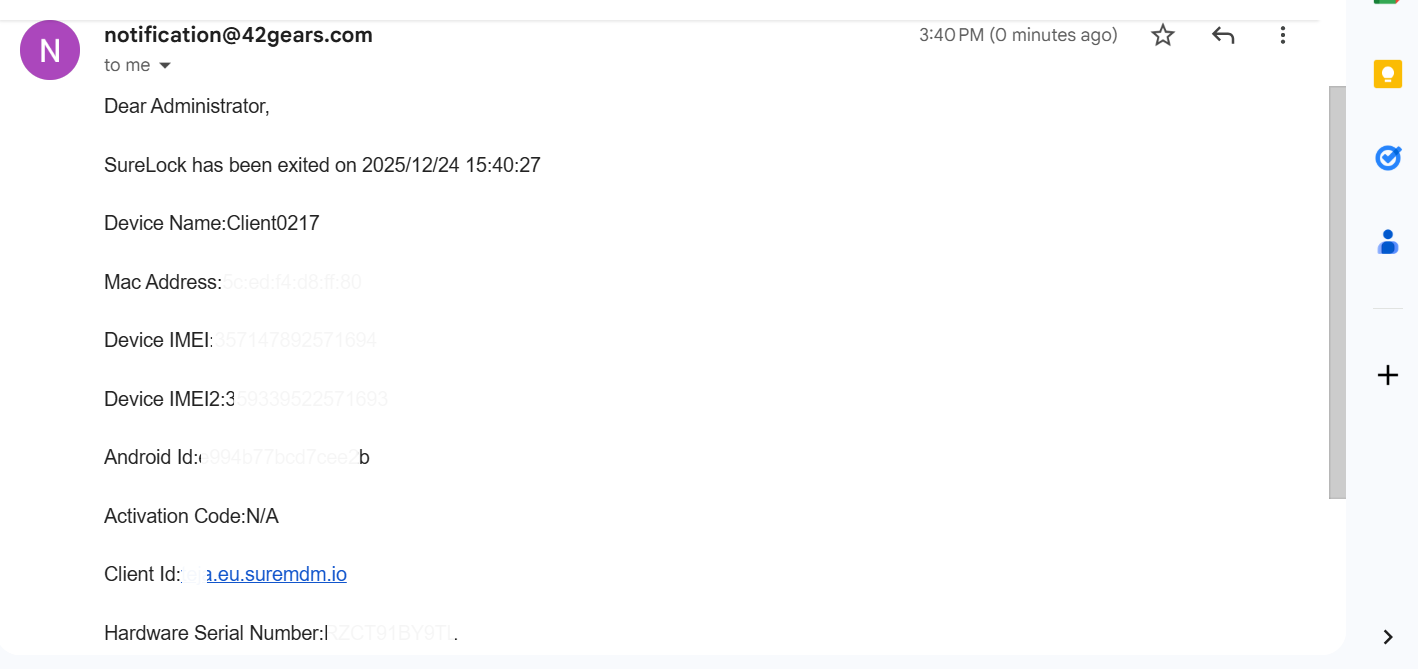
- Once applied, the device will send an email alert whenever a user exits or accesses SureLock settings.
Result:
Conclusion
By enabling email alert notifications for SureLock exit or settings access events, administrators can proactively monitor unauthorized actions on managed Android devices. Whether configured directly on the device or centrally through the SureMDM console, this feature ensures improved visibility, consistent security enforcement, and streamlined device management across the organization.
Need more help? Here’s how to get help from our experts.