
Purpose
This article explains how to configure and enable Samsung Quick Share within SureLock by creating a custom shortcut. This allows users to access the Quick Share settings directly from the SureLock home screen while the device remains in kiosk mode.
Prerequisites
- SureLock installed and configured on the Samsung device.
- Administrative access to SureLock Settings.
- Samsung device with Quick Share supported and available.
- Required applications and permissions already configured on the device.
Steps
1. Open SureLock Settings
- Launch SureLock Settings.
- Authenticate using the administrator password, if prompted.
2. Navigate to Manage Shortcuts
- Tap Manage Shortcuts.
- Inside Manage Shortcuts, tap Manage Shortcuts again.
3. Create a New Shortcut
- Tap Add Shortcut.
Enter the following details:
| Field | Value |
| Shortcut Name | Enter the name you want to display on the SureLock home screen (for example, Quick Share) |
| Category | android.intent.category.DEFAULT |
| Package Name | com.samsung.android.app.sharelive |
| Class Name | com.samsung.android.app.sharelive.presentation.main.TileServiceMainActivity |
4. Save the Configuration
- Save the shortcut configuration.
- Navigate back to the SureLock Home Screen.
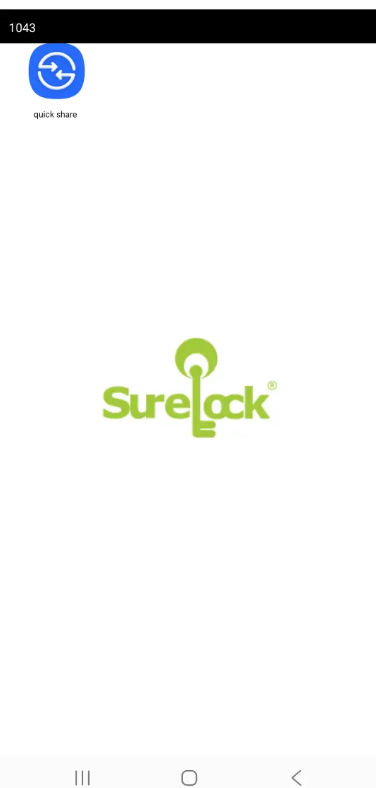
5. Verify the Shortcut
After returning to the SureLock home screen:
- Verify that the newly created Quick Share shortcut is displayed.
- Tap the shortcut.
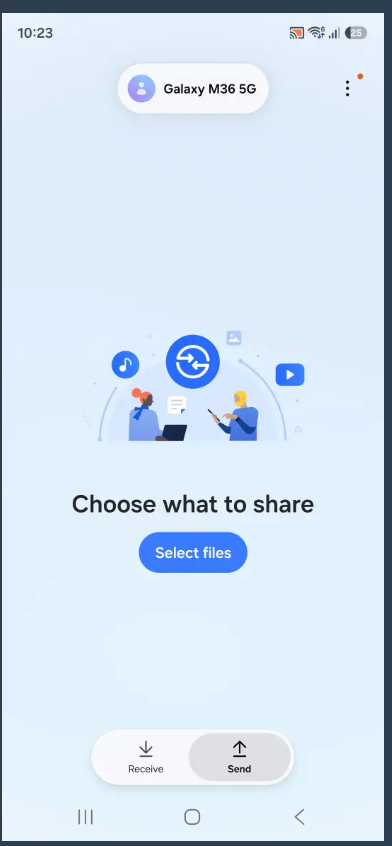
- Confirm that the Quick Share page launches successfully.
Expected Result
The Quick Share shortcut is available on the SureLock home screen. Users can tap the shortcut to access the Samsung Quick Share interface without exiting the SureLock kiosk environment.
Conclusion
By configuring a custom shortcut in SureLock, administrators can provide users with direct access to Samsung Quick Share while maintaining the device in kiosk mode. This approach enables controlled access to Quick Share functionality without exposing other device settings.
Need more help? Here’s how to get help from our experts.
CONTACT US