
Purpose
Samsung Smart Switch is an application that seamlessly transfers contacts, photos, music, videos, messages, notes, calendars, and more to virtually any Samsung Galaxy device.
By default, Samsung and Android Enterprise intentionally block Smart Switch applications on fully managed (Device Owner) devices for Data Leakage Prevention (DLP).
Prerequisites
Devices Enrolled in Fully Managed
Samsung Device
Steps
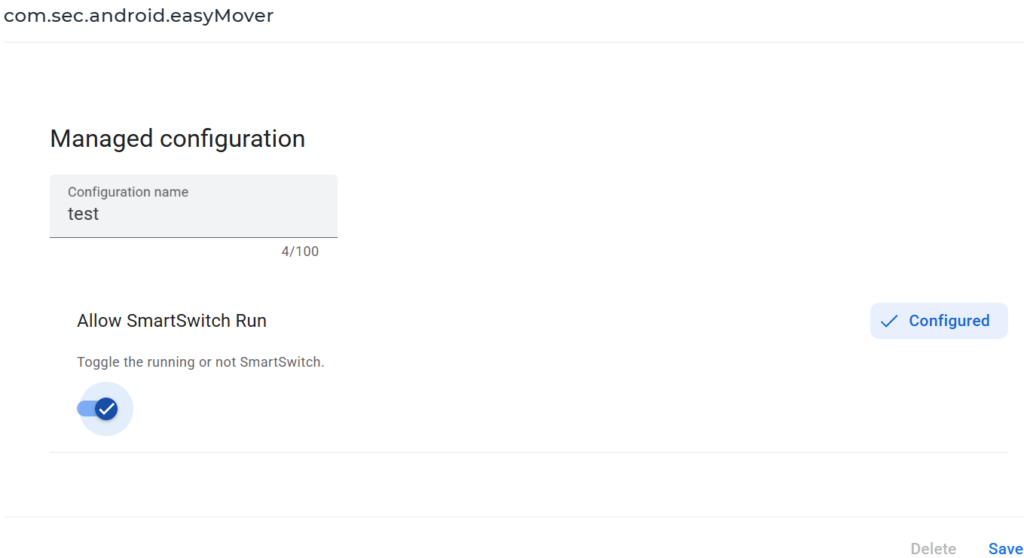
1. Go to Profile -> New -> Android -> Application Policy -> Play For Work -> Add Samsung Smart Switch. Under configuration, enable Allow SmartSwitch Run, Save and deploy it to the device.
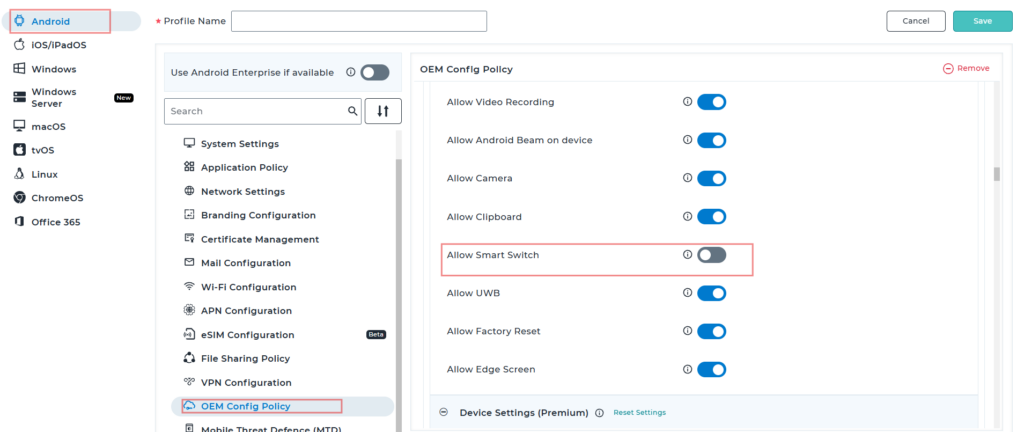
2. On the same Profile navigate to OEM config policy -> Configure -> Select Knox service plugin -> Expand All -> Look for Smart Switch -> Enable (it will be disabled by default). Save the profile and deploy it to the device.
Conclusion
By default, Samsung Smart Switch is disabled on Android Enterprise Fully Managed (Device Owner) devices to help prevent data leakage. To allow its use, administrators must explicitly enable it through both the Application Policy (by turning on Allow SmartSwitch Run) and the Knox Service Plugin OEM Config (by enabling the Smart Switch setting). After saving and deploying the updated profile to the device, Samsung Smart Switch will be available for use while remaining under enterprise policy management. This approach enables secure data migration without removing device management or compromising organizational control.
Need more help? Here’s how to get help from our experts.
CONTACT US