
Purpose
This KB article provides detailed steps on how to enable a password for the SureMDM App Store on Windows devices. Currently, employees can install or uninstall any application from the SureMDM App Store, which can lead to unnecessary installations, performance degradation, and storage constraints. Additionally, as multiple departments require different applications, creating and maintaining separate profiles for each project becomes complex and difficult to manage.
Prerequisites
> SureMDM agent version greater than 6.18.0.
> Devices need to be dual enrolled.
Steps
- Login to SureMDM console.
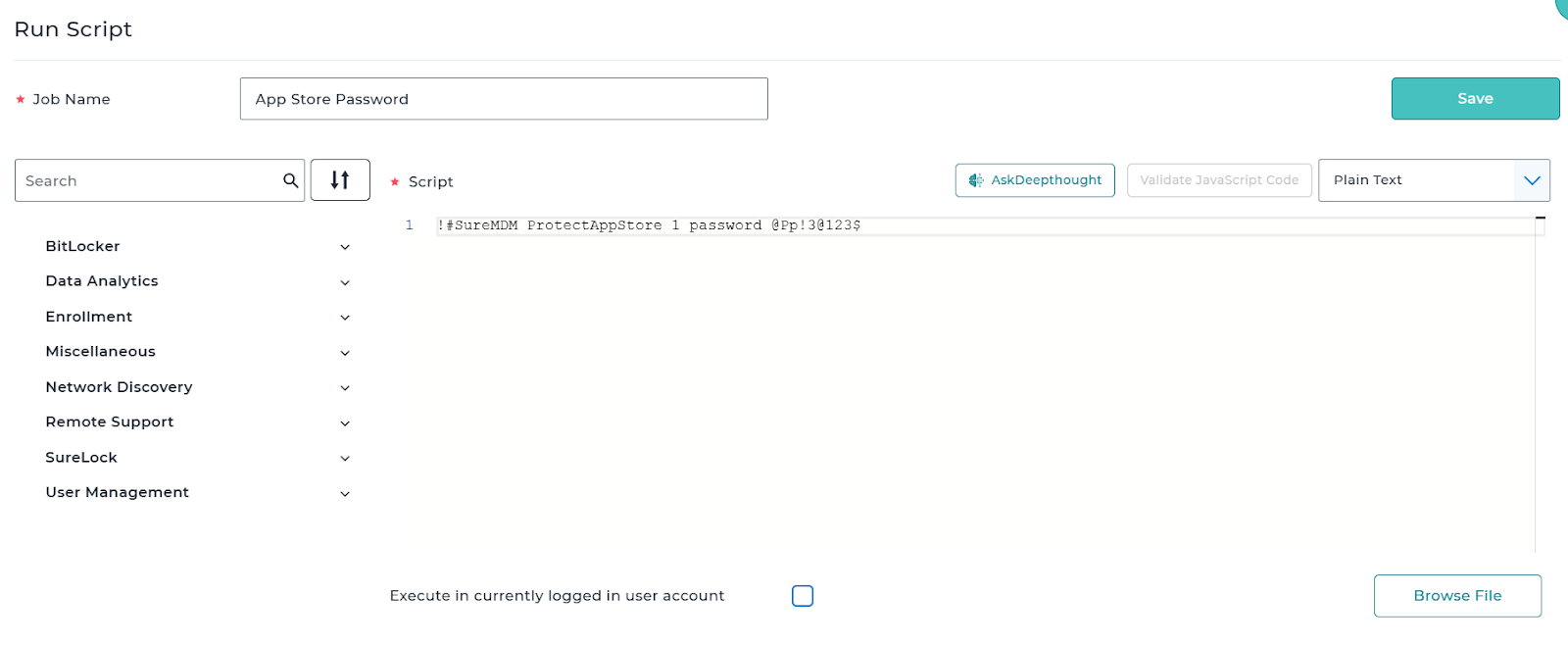
- Navigate to Jobs> New Job> Windows> Runscript> Enter the below mentioned Runscript:
!#SureMDM.
ProtectAppStore 1 password 147258369
Replace 147258369 with the password of your choice and apply the job to the required devices.
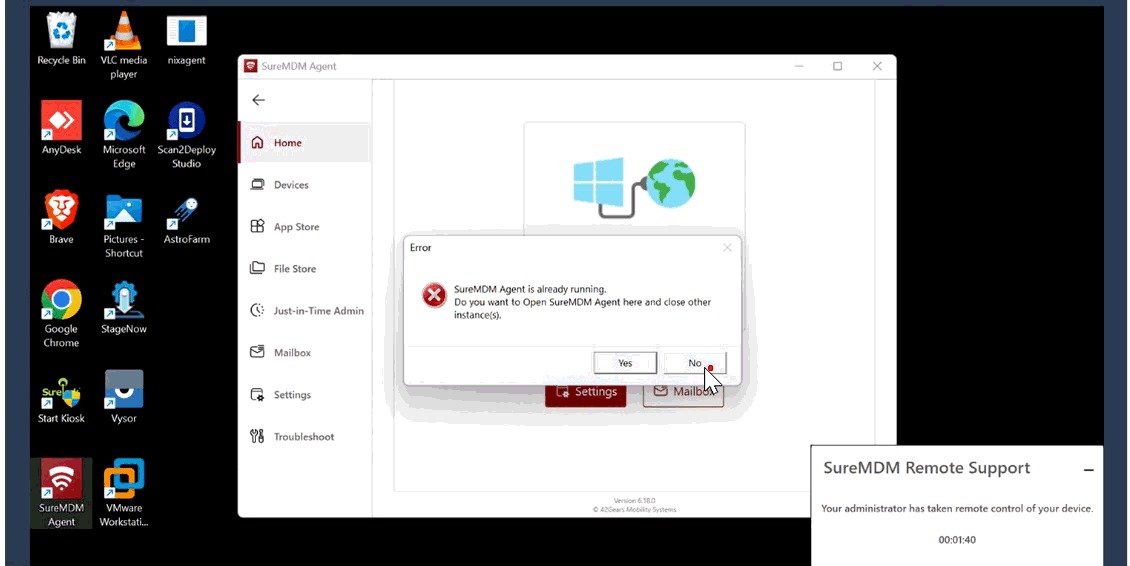
- Apply the job to the device, then open the SureMDM agent on the device. Navigate to the SureMDM App Store you should be prompted to enter the password, as shown below.
Conclusion
Once the App Store is unlocked by IT using the password, employees can install or uninstall applications as required. Automatic application updates will continue without interruption. The SureMDM App Store will automatically re-lock after the IT administrator closes the SureMDM Agent, ensuring continued control and security.
Need more help? Here’s how to get help from our experts.