
Purpose
The Touch Screen Keyboard on Windows devices in Kiosk mode is helpful in smooth and secure user interaction on touch-enabled devices where physical keyboards may not be available or allowed.
This article helps the SureMDM admins to understand how to enable the touch screen keyboard on windows devices using the Surelock Settings Job.
Prerequisites
- Enrollment: Device must be enrolled in Dual enrollment mode.
- Connectivity: Device must be online and reporting to the SureMDM console.
- Agent Version: .SureMDM Agent version 4.39 or higher
Steps
- Login to SureMDM console > Jobs > New Job > Select the Operating System as Windows.
- Look for SureLock Settings > Click on SureLock Settings > Navigate to TaskBar Settings > Look for Configure Touch Keyboard > Choose Touch Keyboard > Give Job a Name and Save the job.
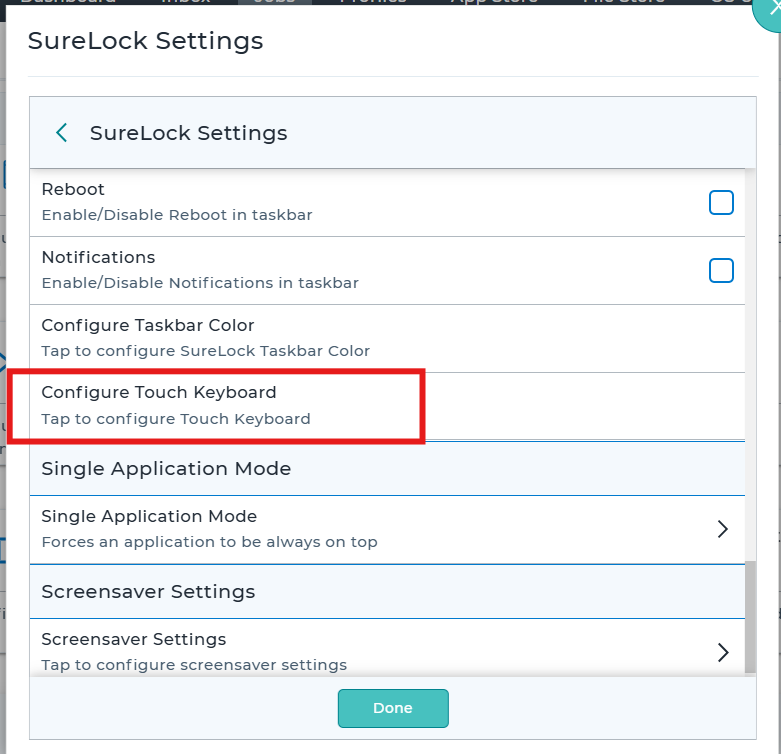
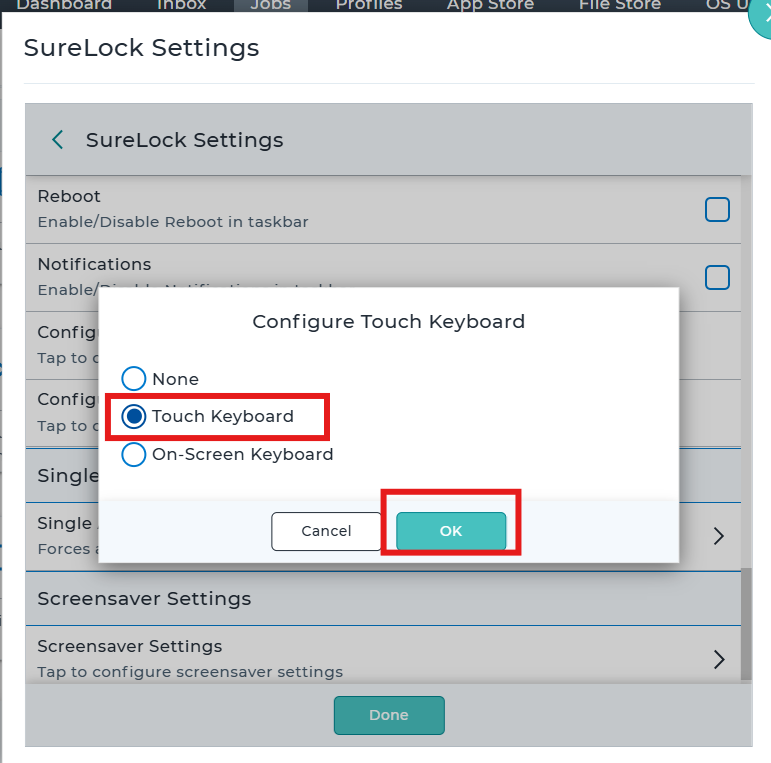
3. Deploy the saved to the target Windows devices.
Conclusion
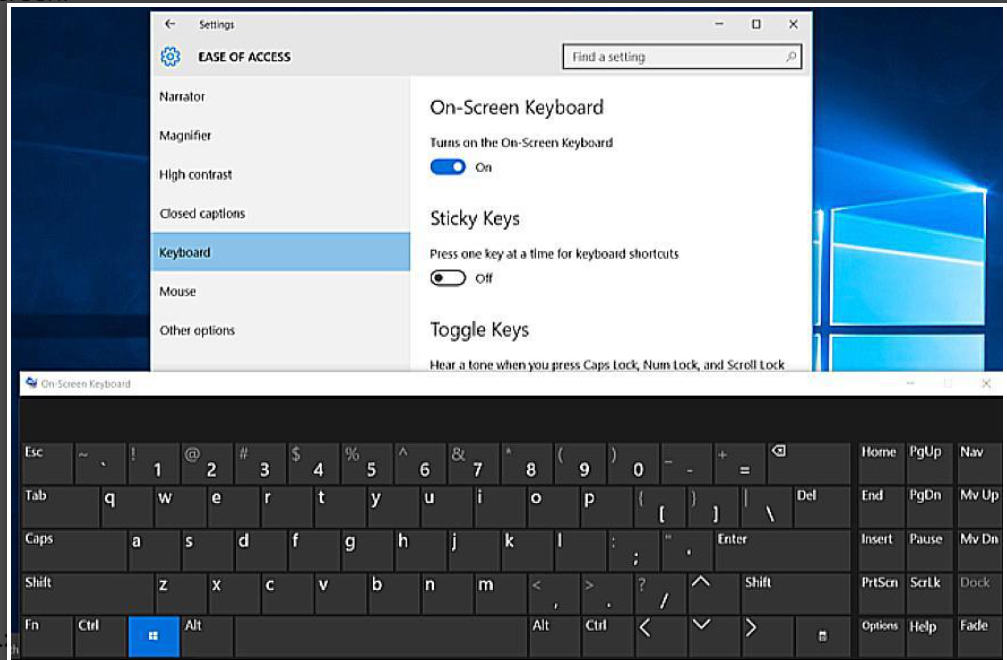
After configuring the appropriate settings within the SureLock settings and deployed to the devices that will enable the touch keyboard on the target devices’ end.
Need more help? Here’s how to get help from our experts.
Was this helpful?
YesNo