
Purpose
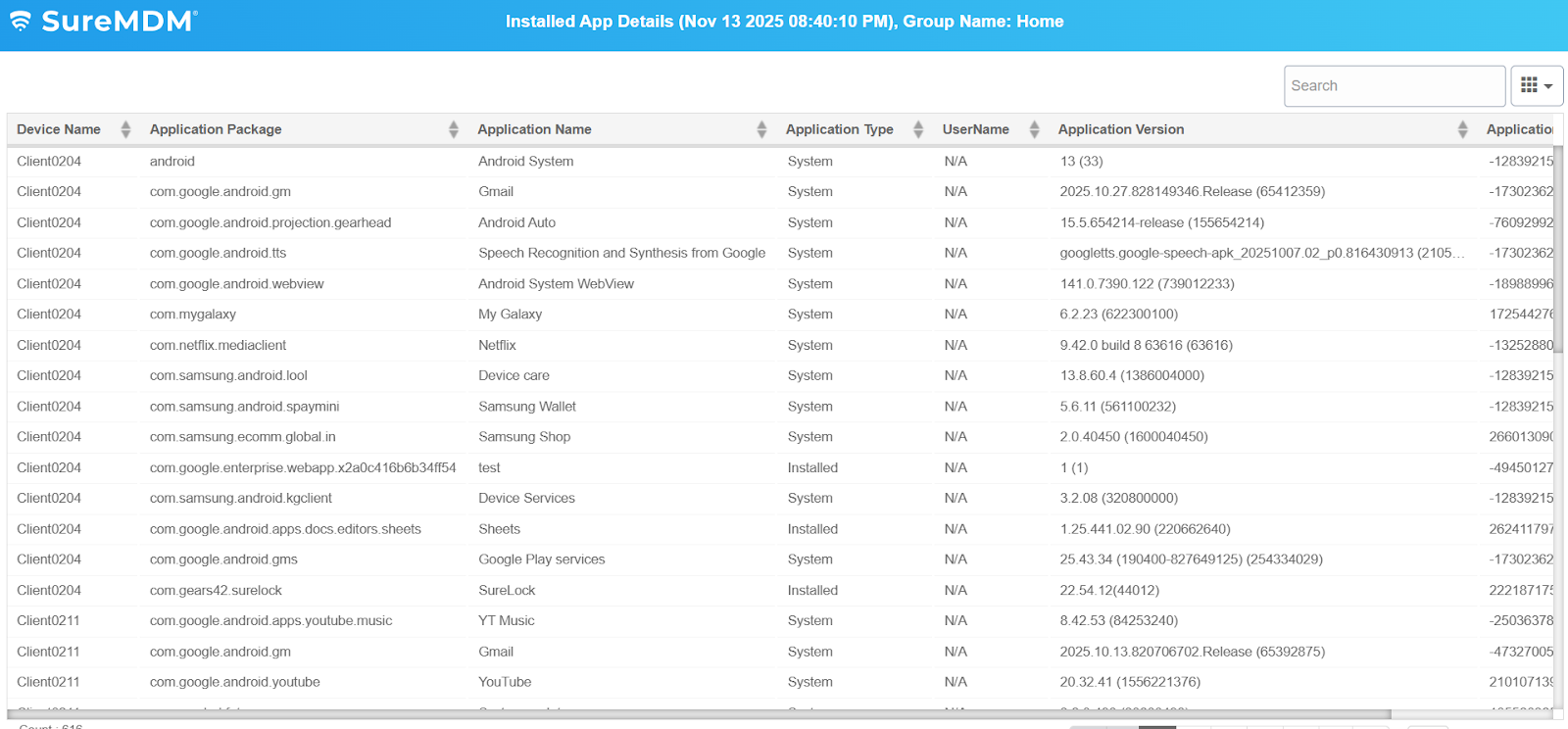
The purpose of this article is to guide users on how to generate and view reports for installed application details across all devices. It helps administrators track which applications are installed on each device, along with key information such as Device Name, Application Package, Application Name, Application Type, Username, Application Version, and Application Signature Key. This ensures better visibility, monitoring, and management of applications within the device fleet.
Prerequisites
The Custom Reports feature is available only for Premium and Enterprise subscriptions.
Steps
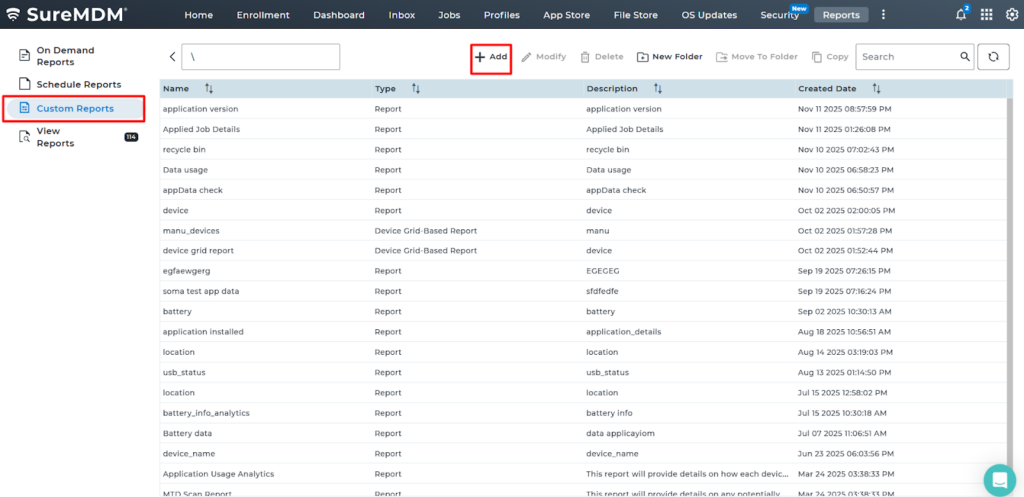
1. Login to the SureMDM console > Click on the Reports tab > Choose Custom Reports and click Add.
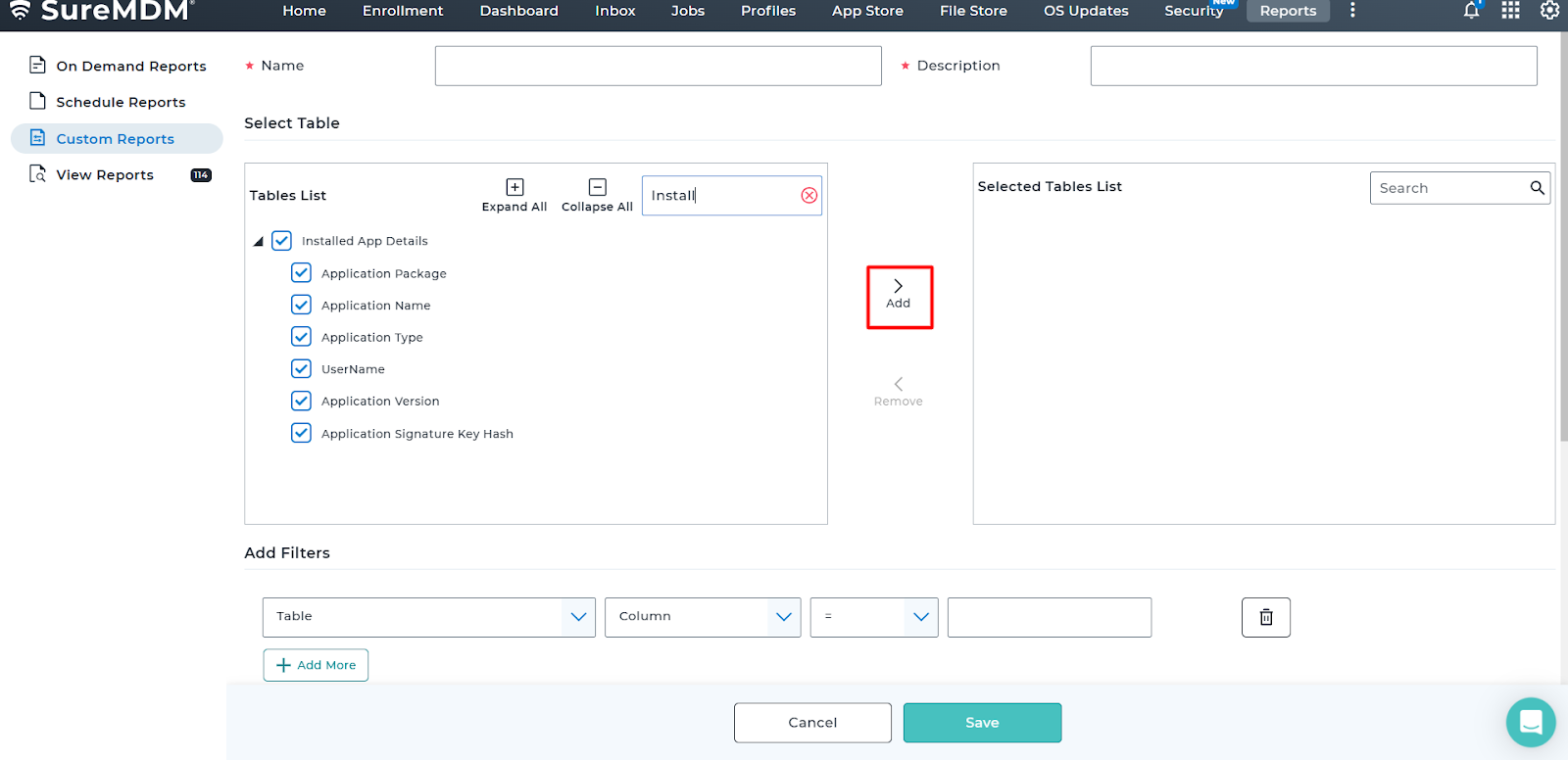
2. Search for Installed App Details and add it to the Selected Table List.
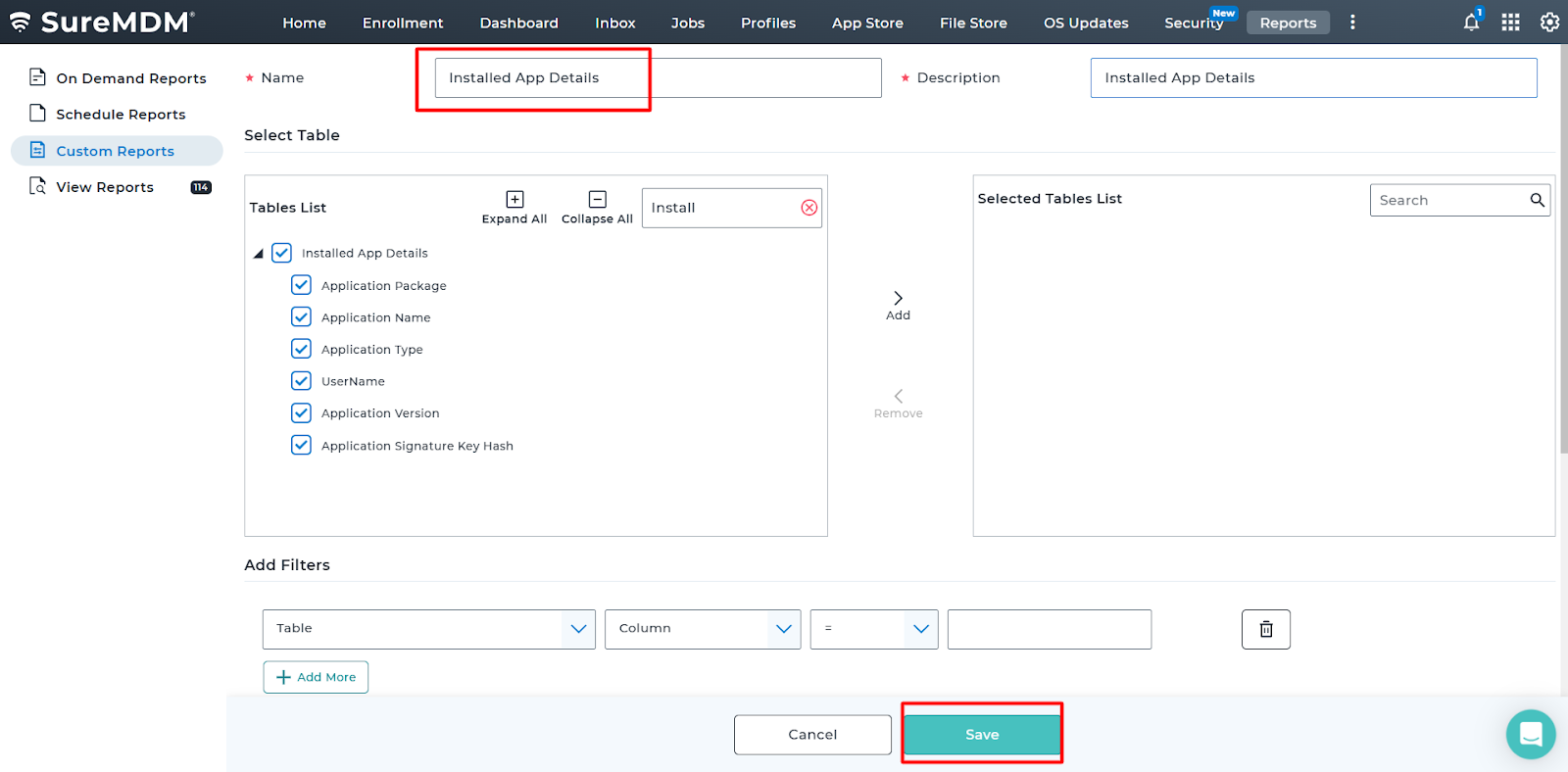
3. Enter the Job Name and Description, then click Save.
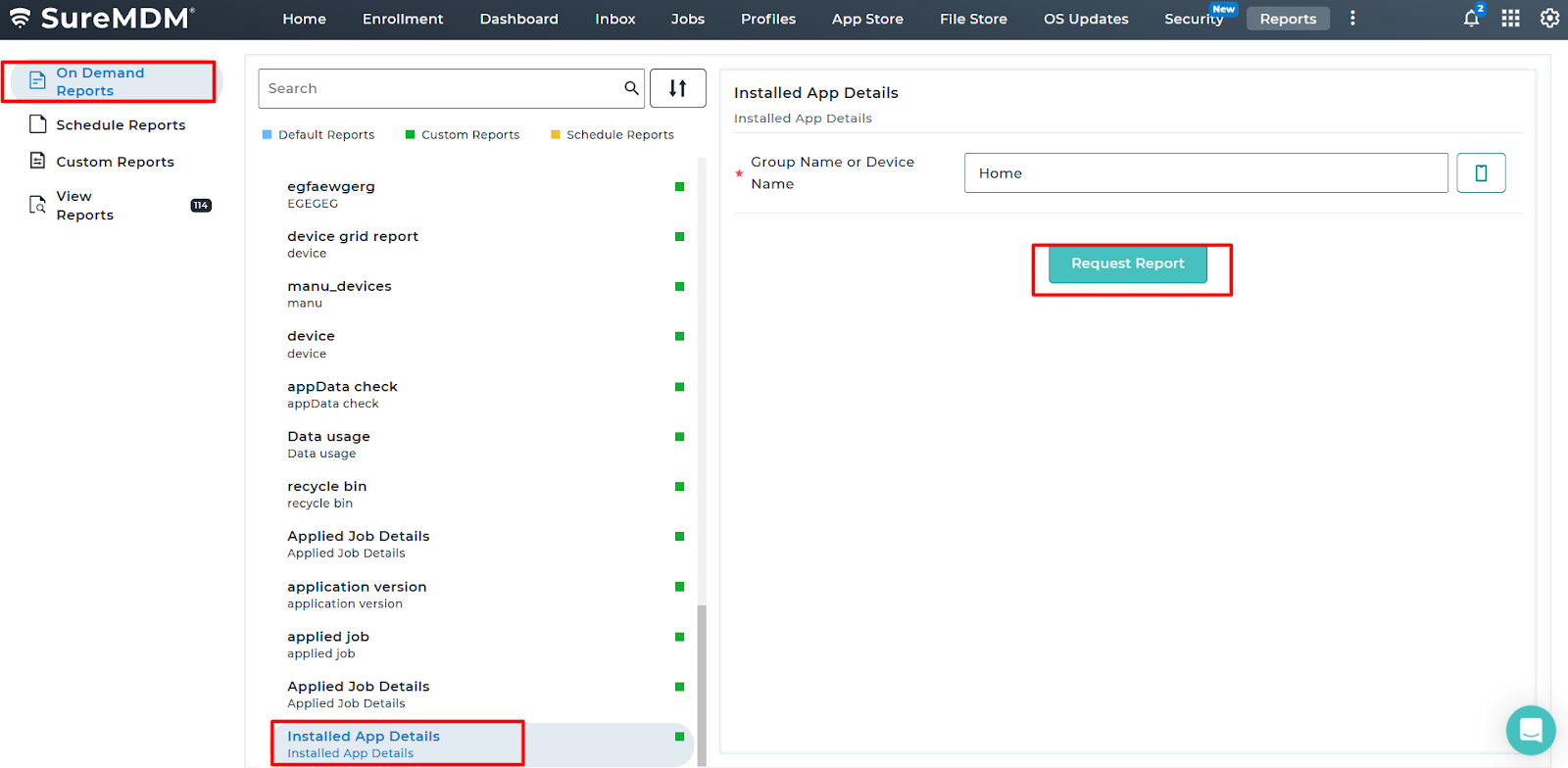
4. Navigate to On-Demand Reports and look for the job name Installed App Details > click Request Report.
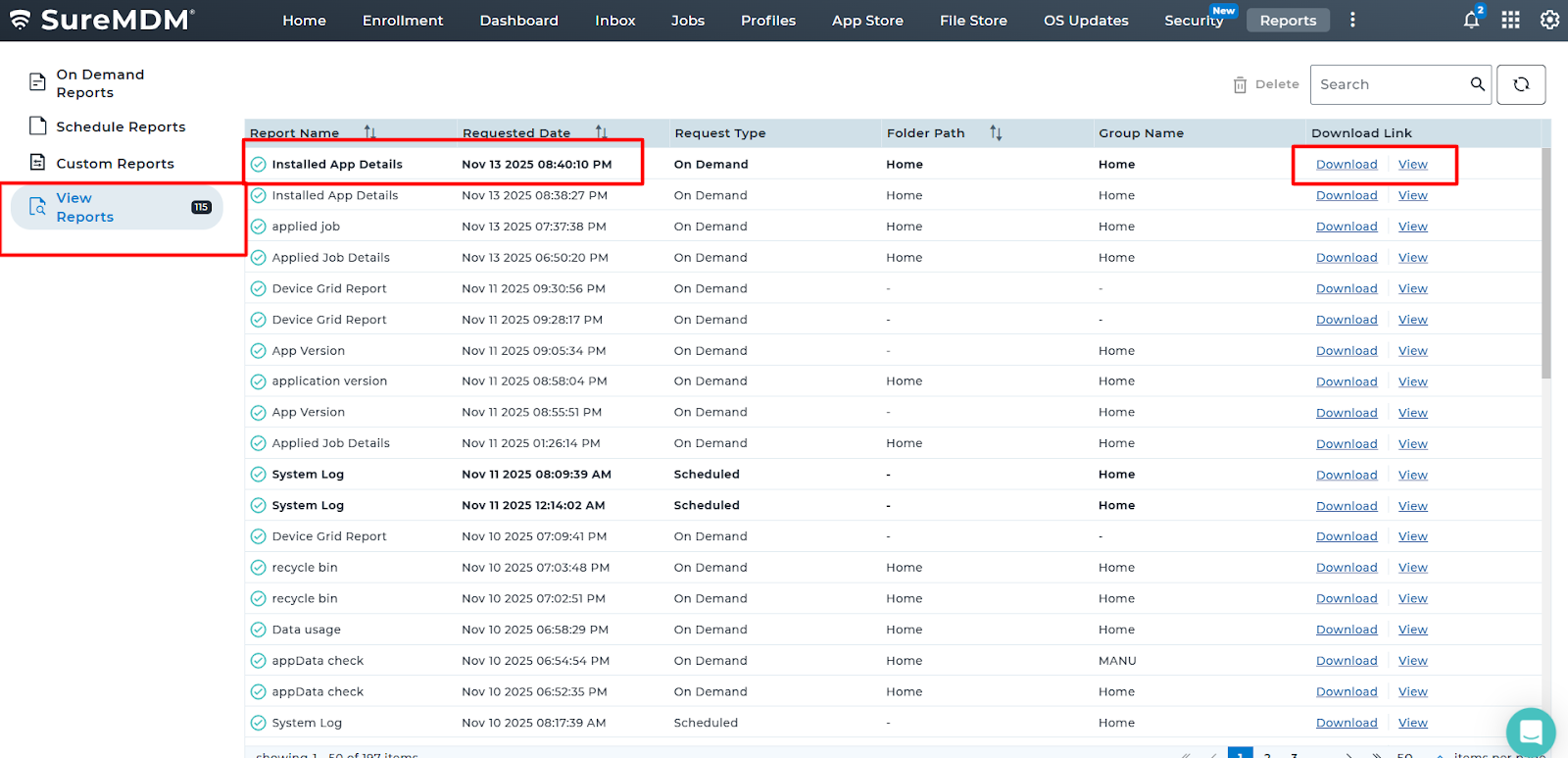
5: Go back to View Reports > Extracted report will be generated.
CONCLUSION:
When an Administrator would like to have a list of installed applications across the devices, for Security, Cost management, Asset Management or for any sort of troubleshooting purposes. This article would guide them to extract the report at once for all the devices.
Below is output of the extracted report looks like:
Need help?
CONTACT US