
Purpose
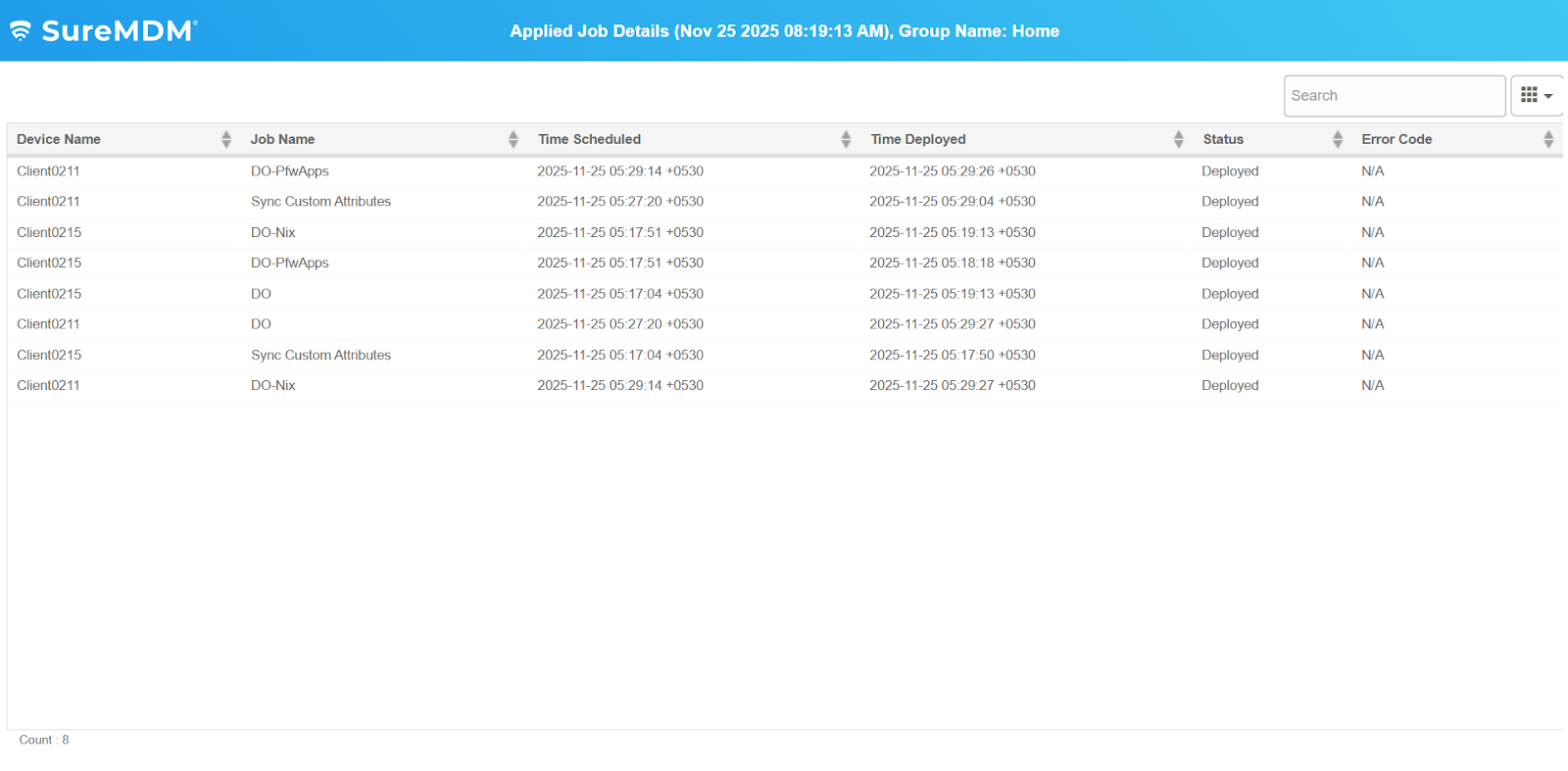
This article guides users on generating and viewing SureMDM job deployment reports. These reports fetch device name, job name, schedule, deployment time, status, and error codes, which help identify job failures and their causes, enabling administrators to monitor device activity and manage job operations effectively across the device fleet.
Prerequisites
The Custom Reports feature is available only for Premium and Enterprise subscriptions.
Steps
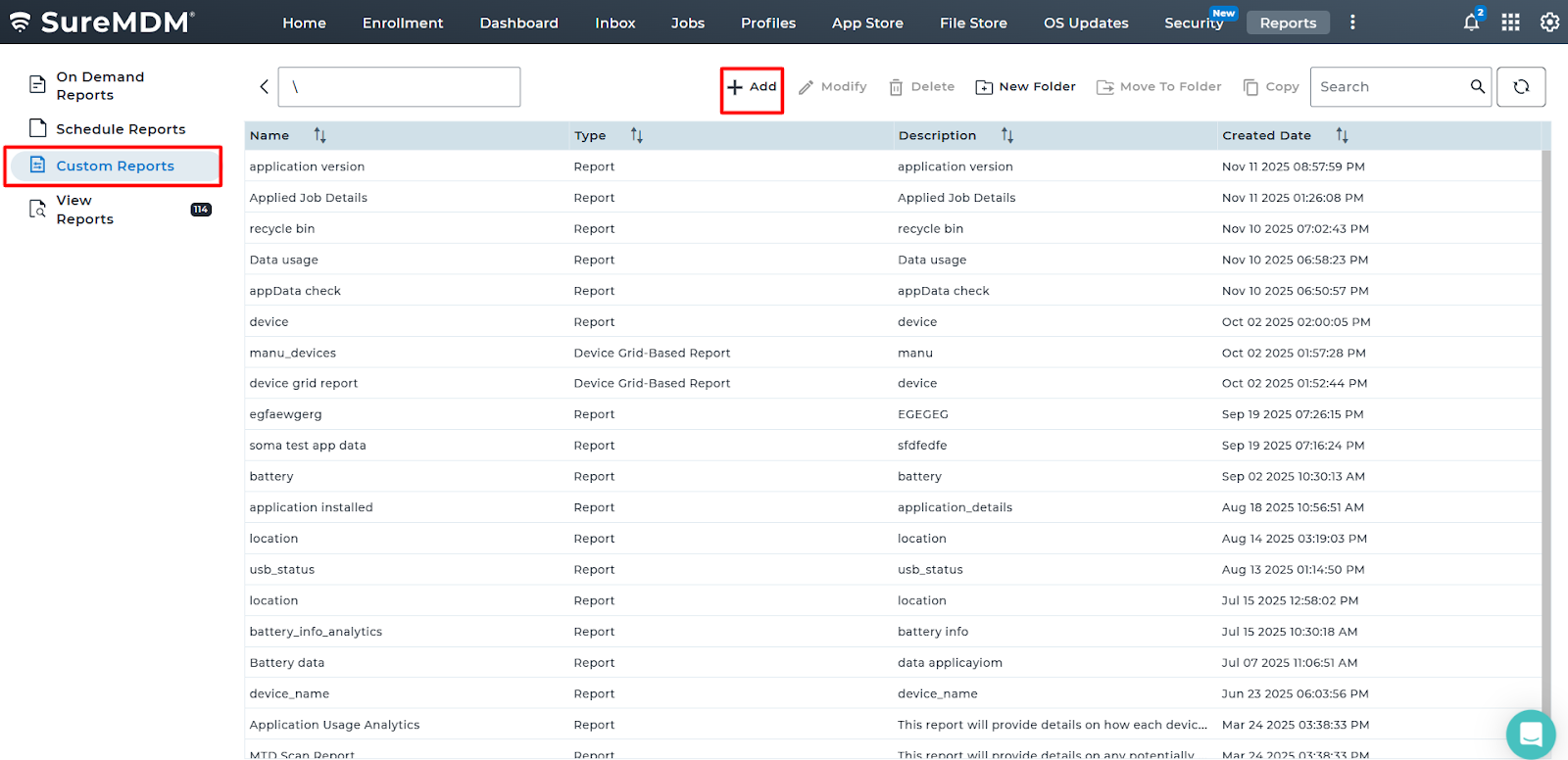
1. Login to the SureMDM console > Click on the Reports tab > Choose Custom Reports and click Add.
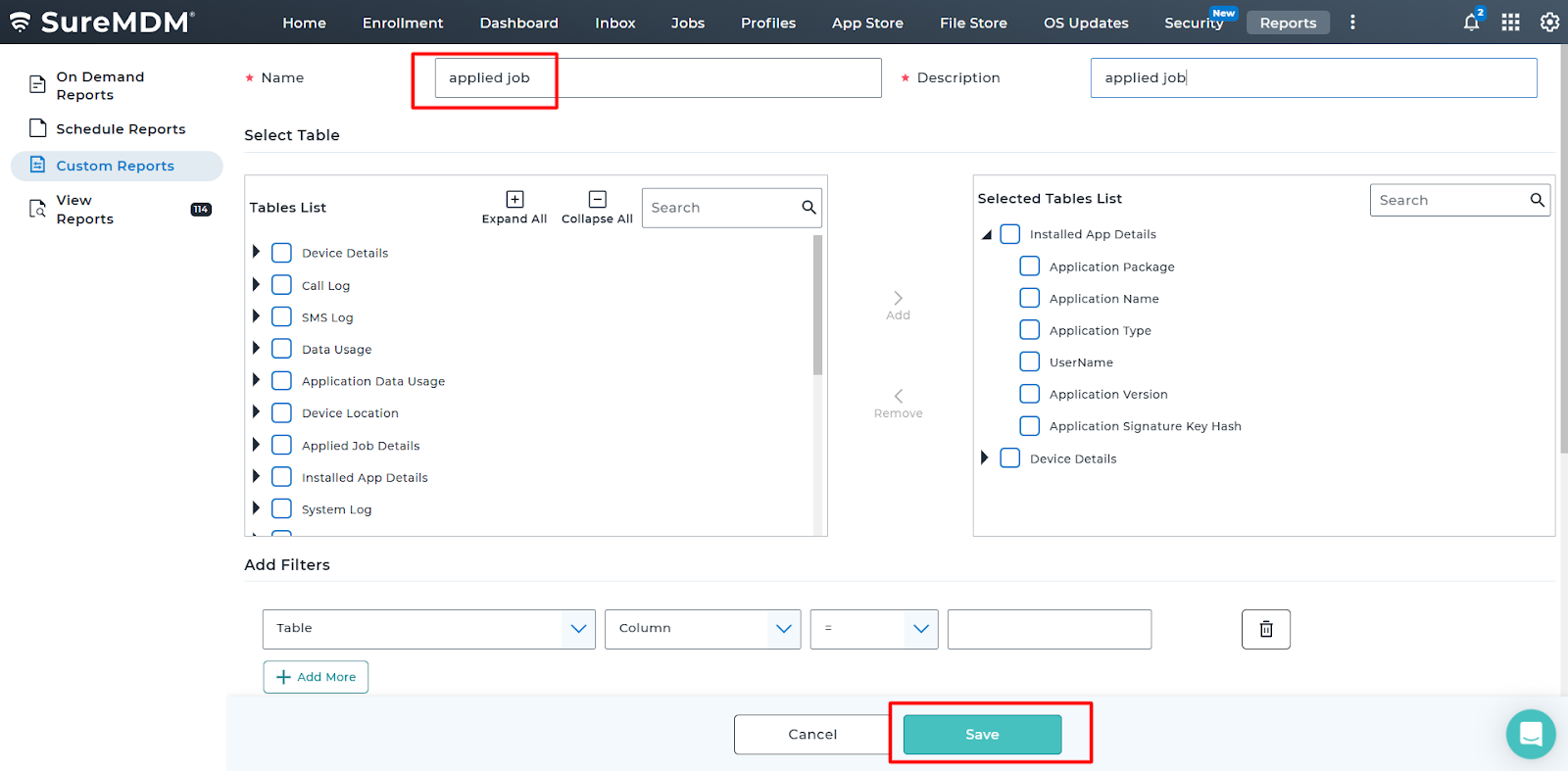
2. Search for Applied Job Details and add it to the Selected Table List.

3. Enter the Report Name and Description, then click Save.
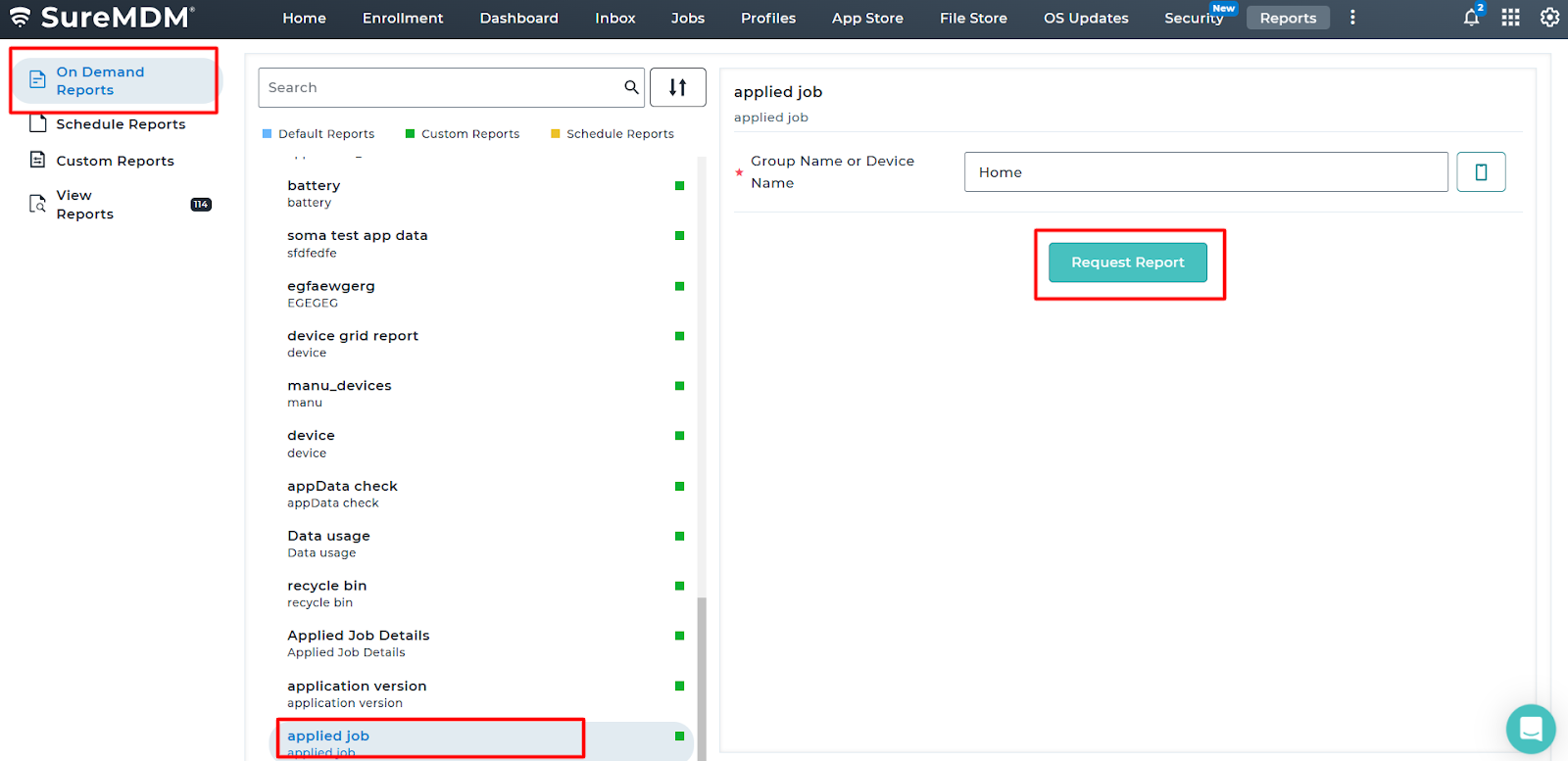
4. Navigate to On-Demand Reports and look for the job name Applied Job Details > click Request Report.
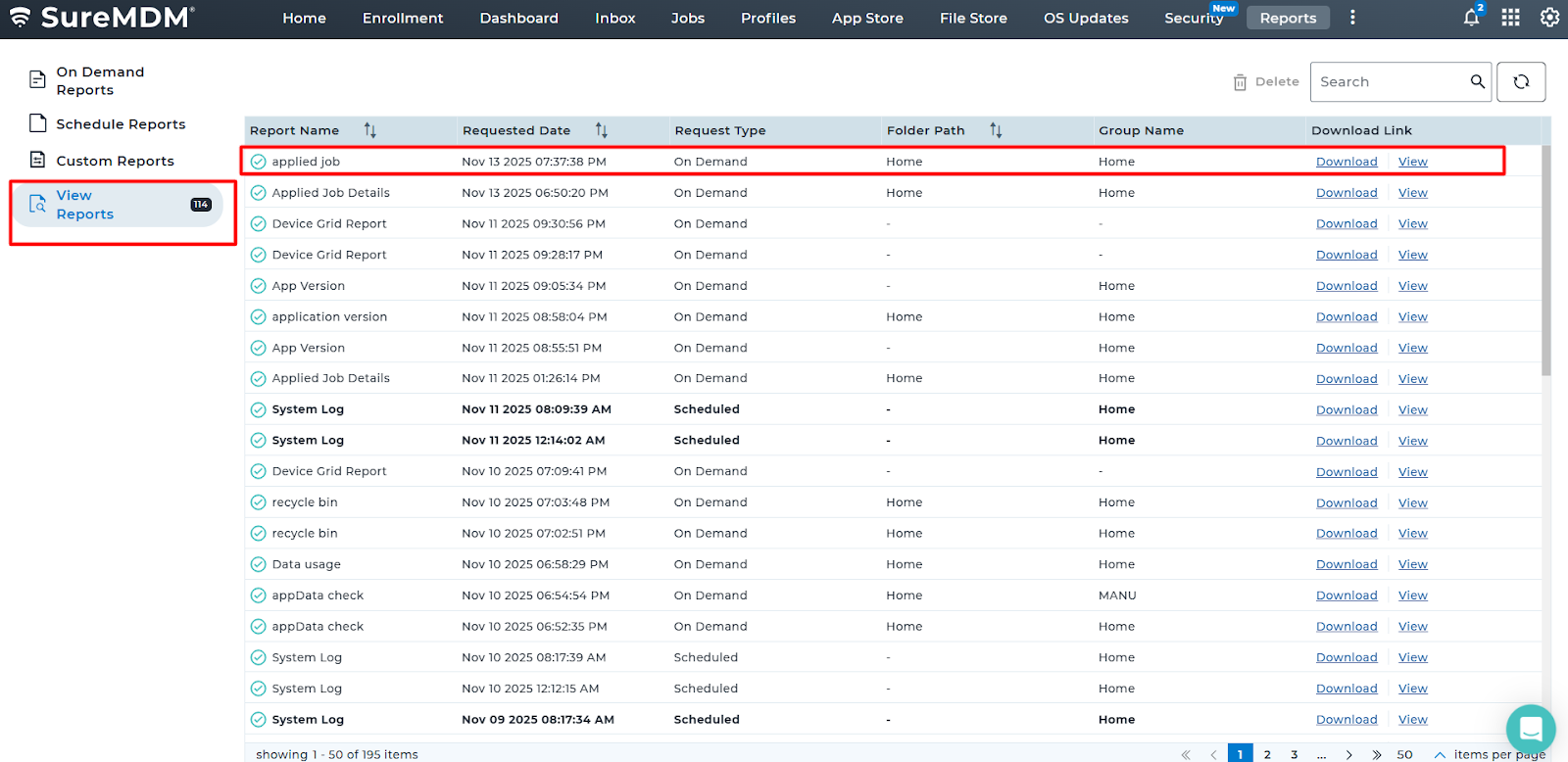
5.Go back to View Reports, the requested report will be generated.
Conclusion:
Considering a situation where a job is deployed to the fleet of devices, and the job fails with different error codes which are unique to each of the Job failures. And it may be difficult to track the error codes individually to know the actual error message with the cause. The report extraction explained in this article will help the administrator to extract the report of the Job deployed with an error and share it with the 42Gears Support team for analysis.
Below is the result of the report extraction:
Need help?
CONTACT US