
Purpose
Administrators may occasionally need to free up SureMDM licenses or perform cleanup activities in the SureMDM console by removing unwanted devices. Before deleting these devices, it is often important to maintain a record of them either for auditing, tracking, or internal reference.
This article explains how to generate and view the list of devices in the Recycle Bin. It is intended to help administrators identify which devices have been deleted, review their details, and monitor their status before permanently removing them from the system.
Prerequisites
The Custom Reports feature is available only for Premium and Enterprise subscription.
Note:
For any sort of subscription the same report can be extracted from the Recycle Bin tab, the results would be different as explained later in this article.
Steps
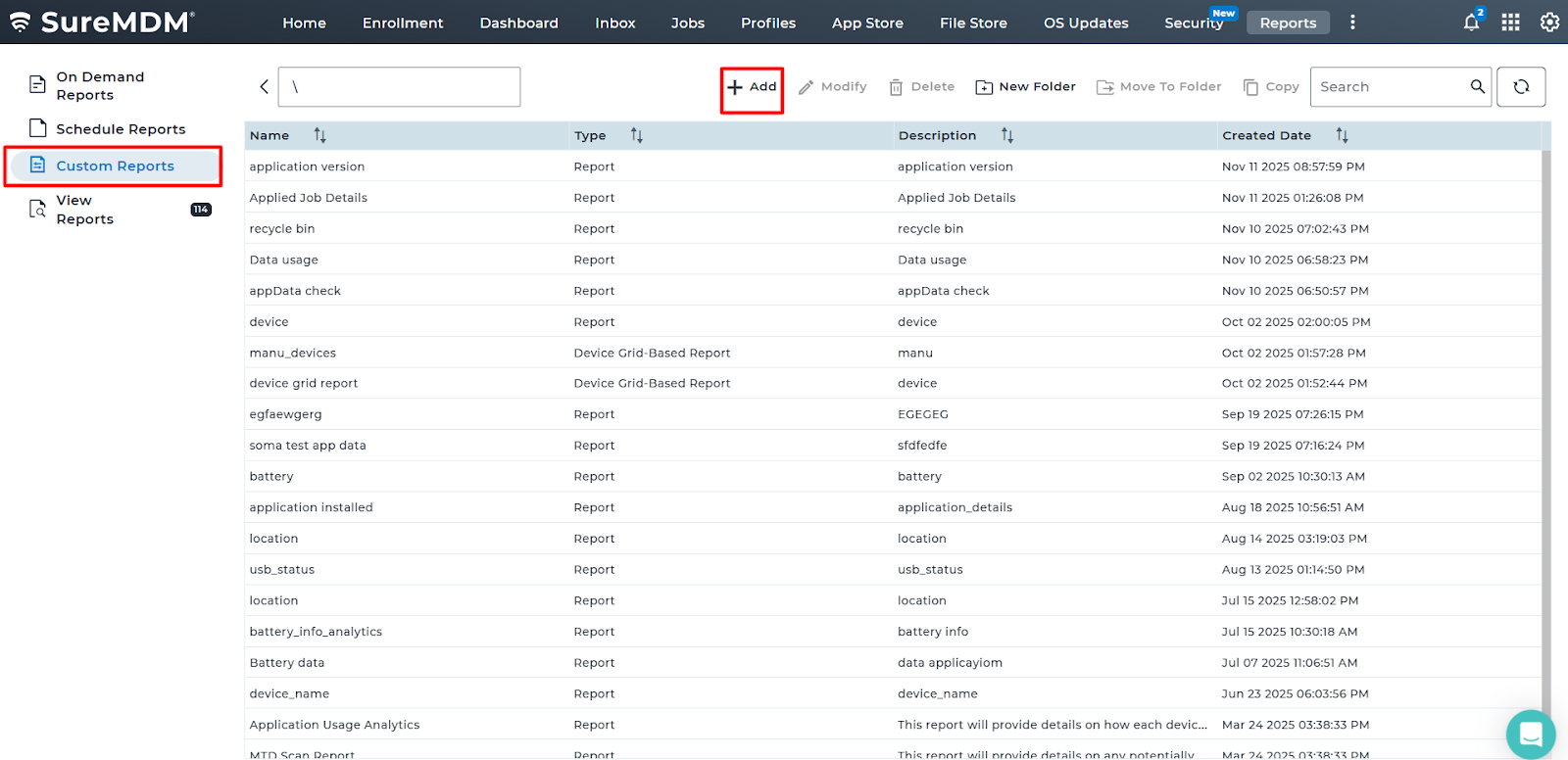
1. Login to the SureMDM console > Click on the Reports tab > Choose Custom Reports and click Add.
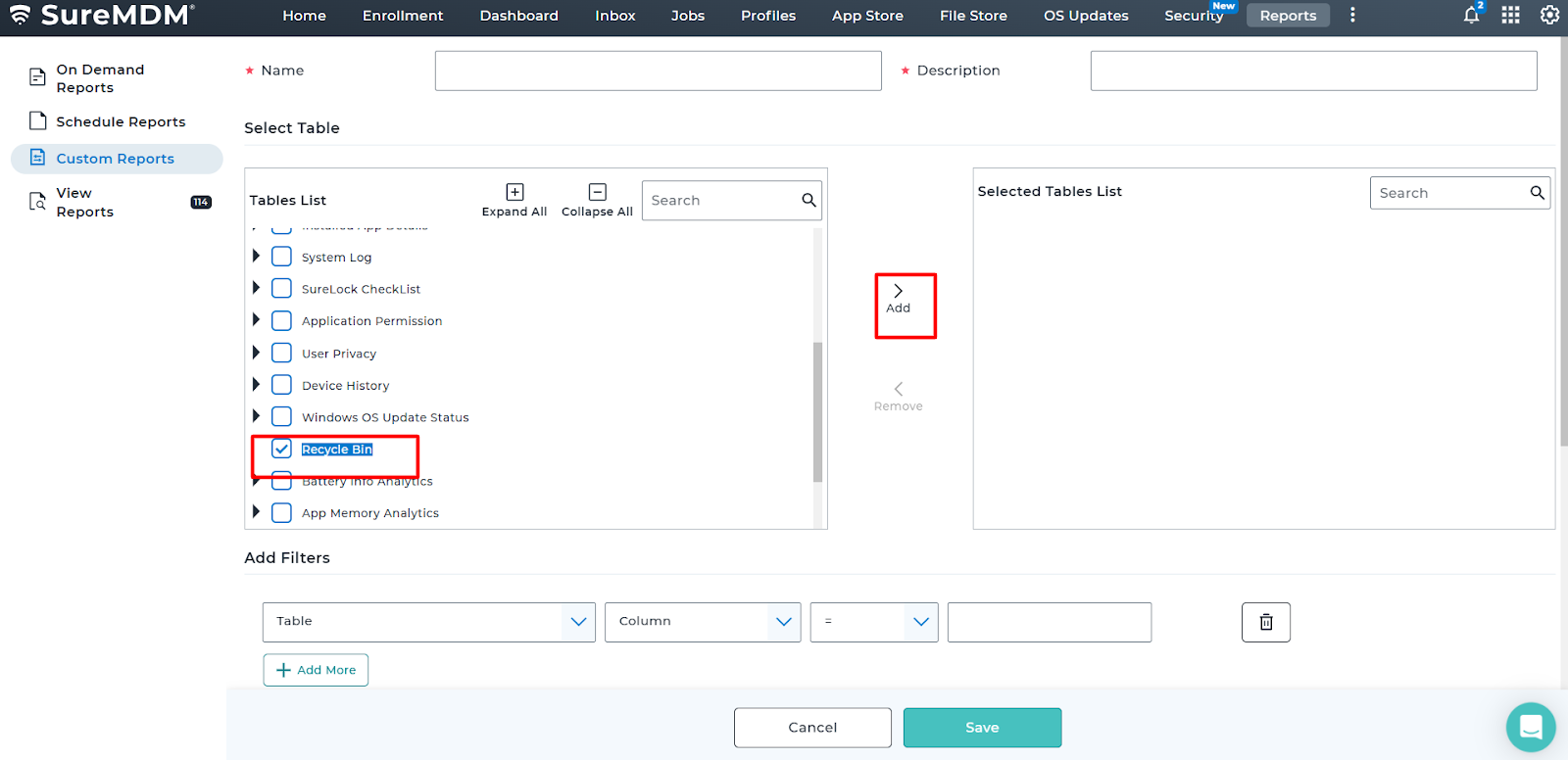
2. Search for Recycle Bin and add it to the Selected Table List.
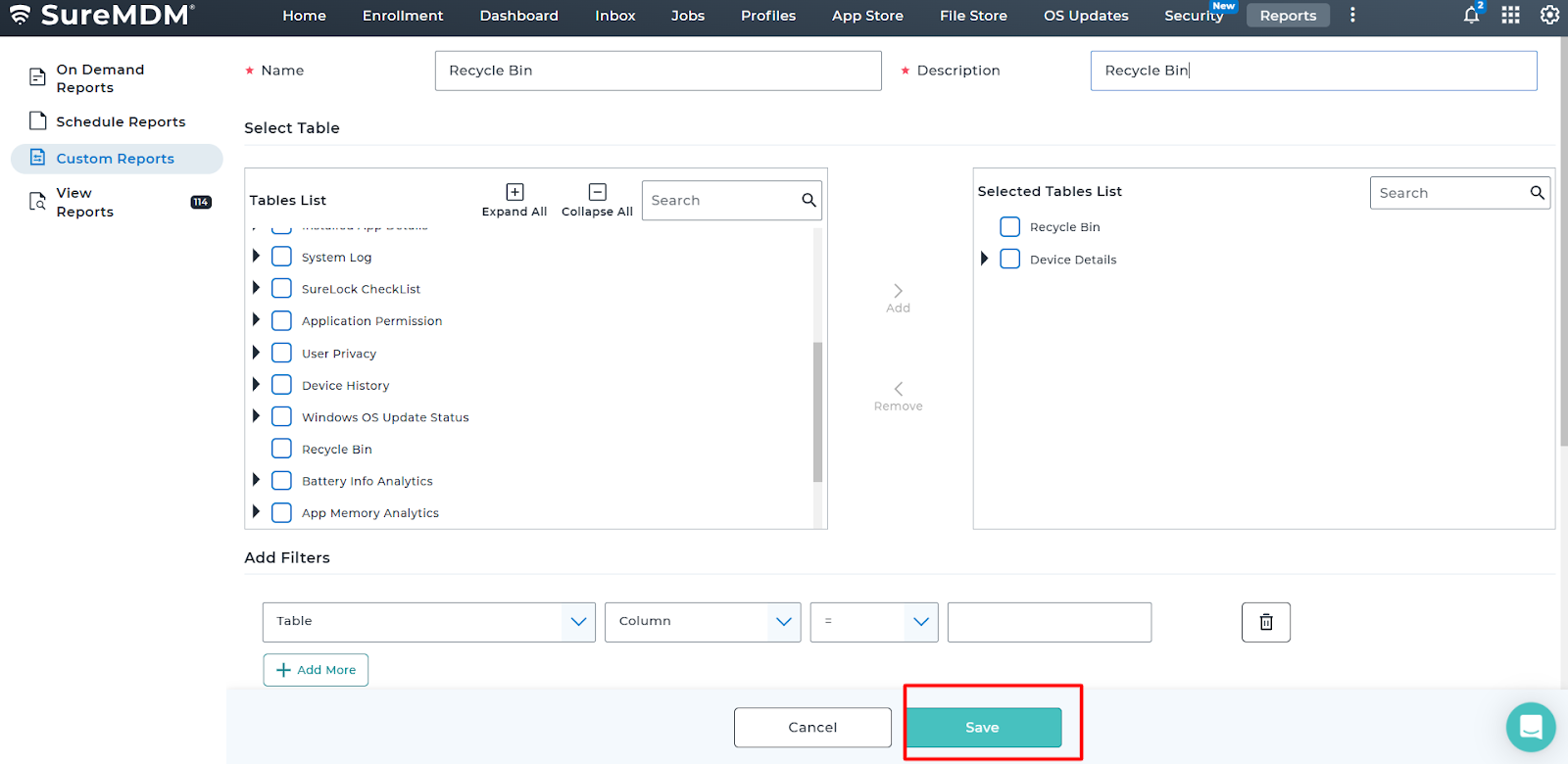
3. Enter the Job Name and Description, then click Save.
4. Navigate to On-Demand Reports and look for the job name Recycle Bin > click Request Report.
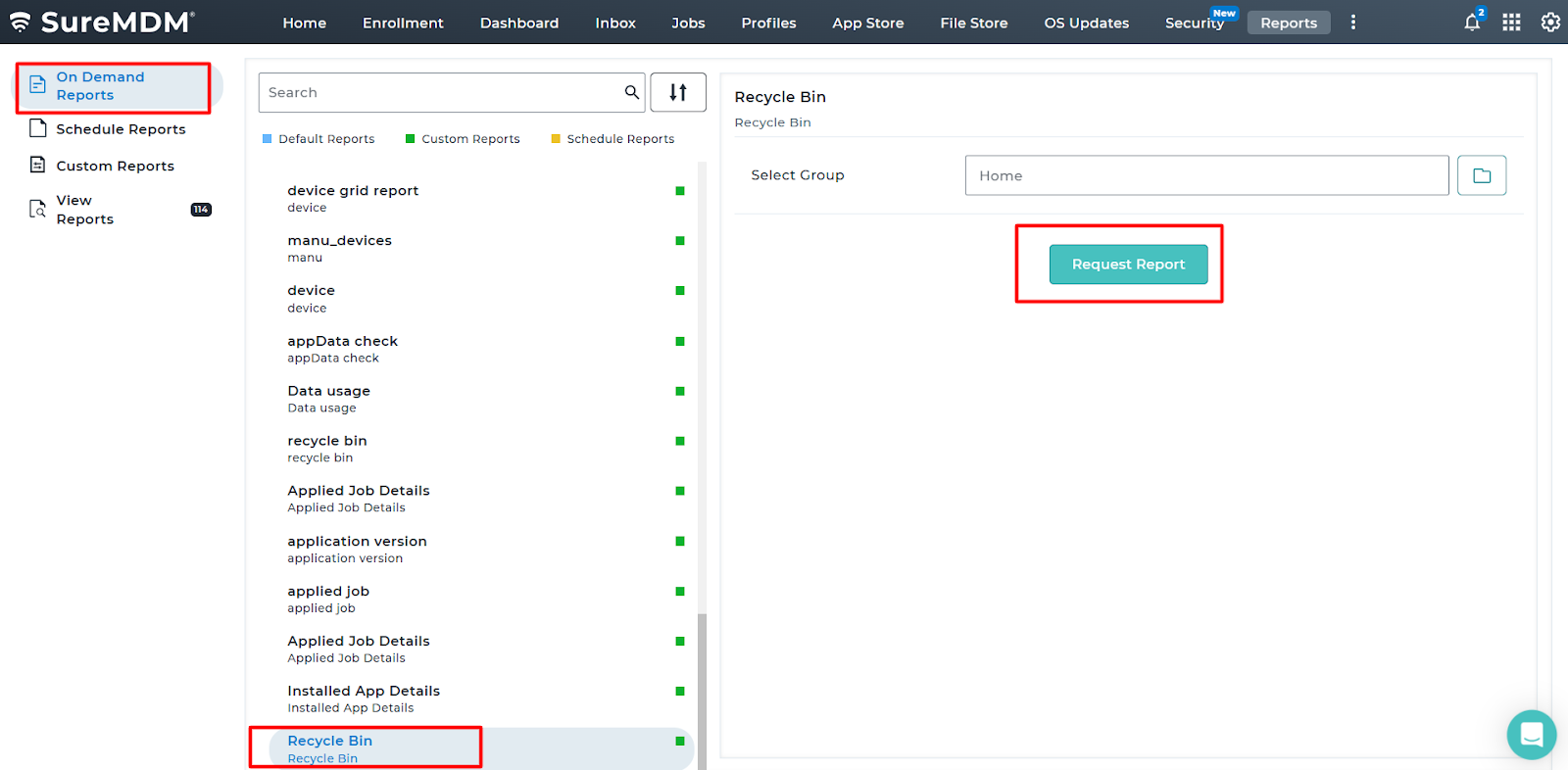
5.Go back to View Reports, the requested report will be generated.
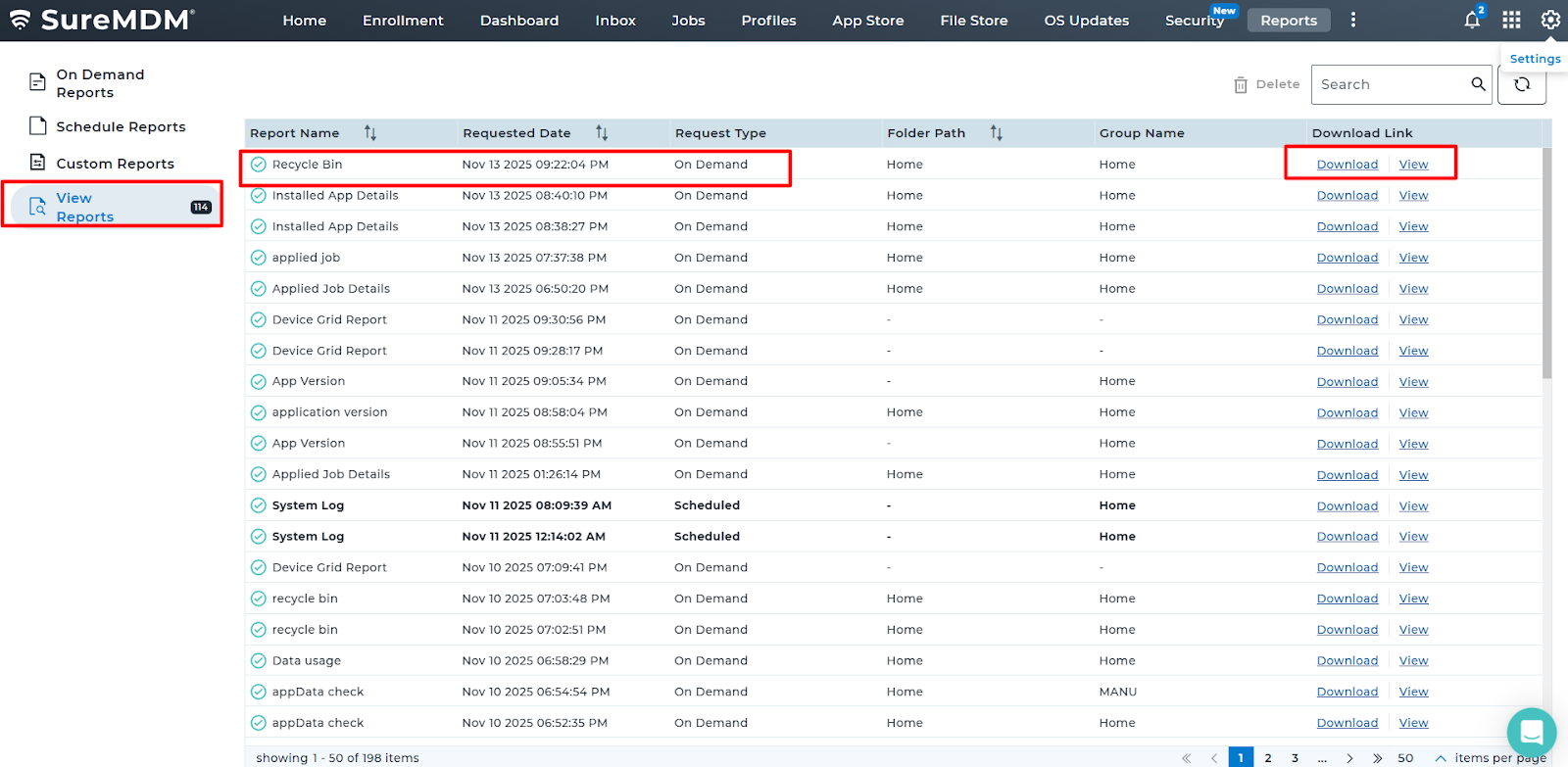
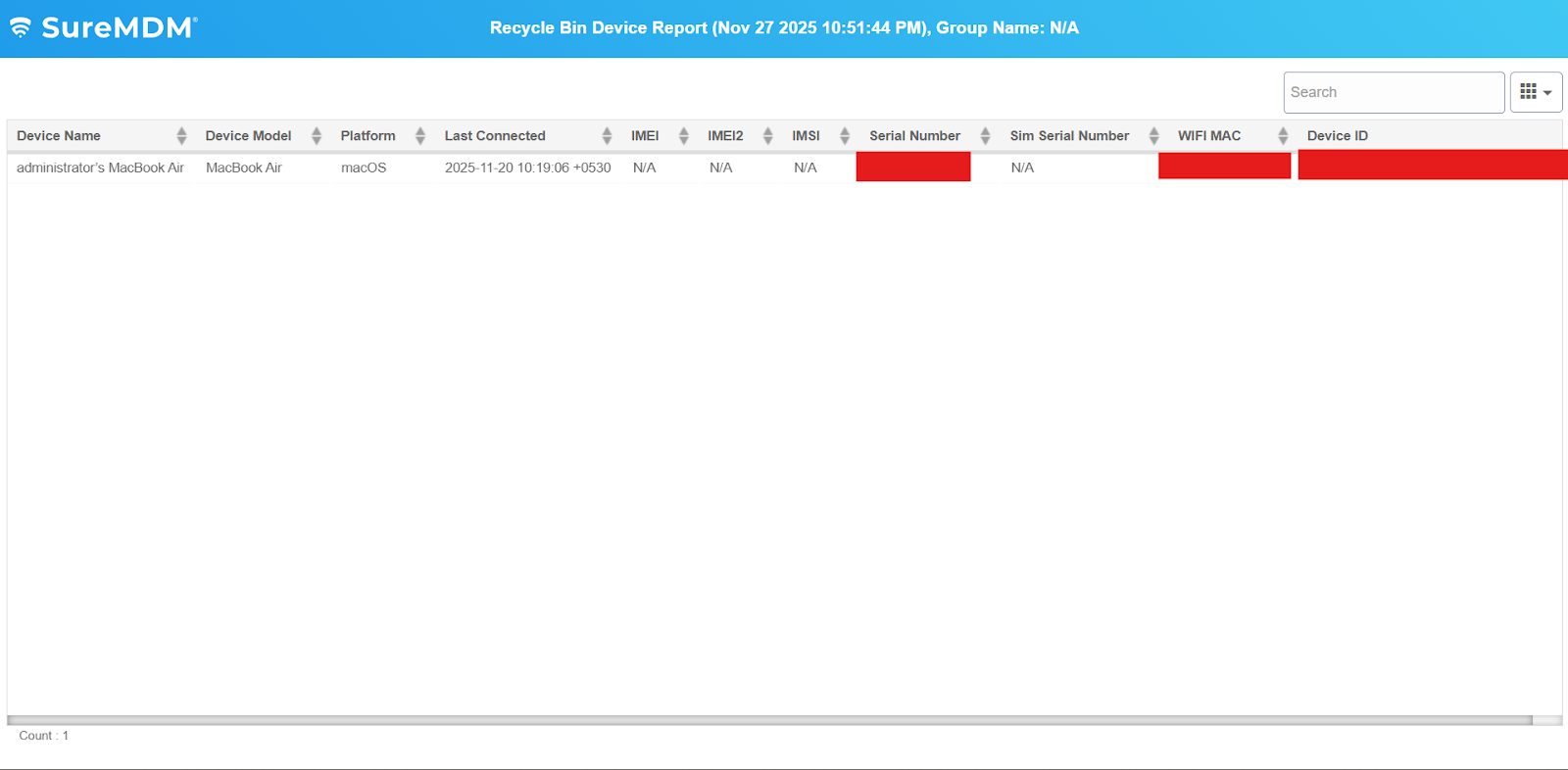
6. When you click View, you can see the device details present under Recycle Bin.
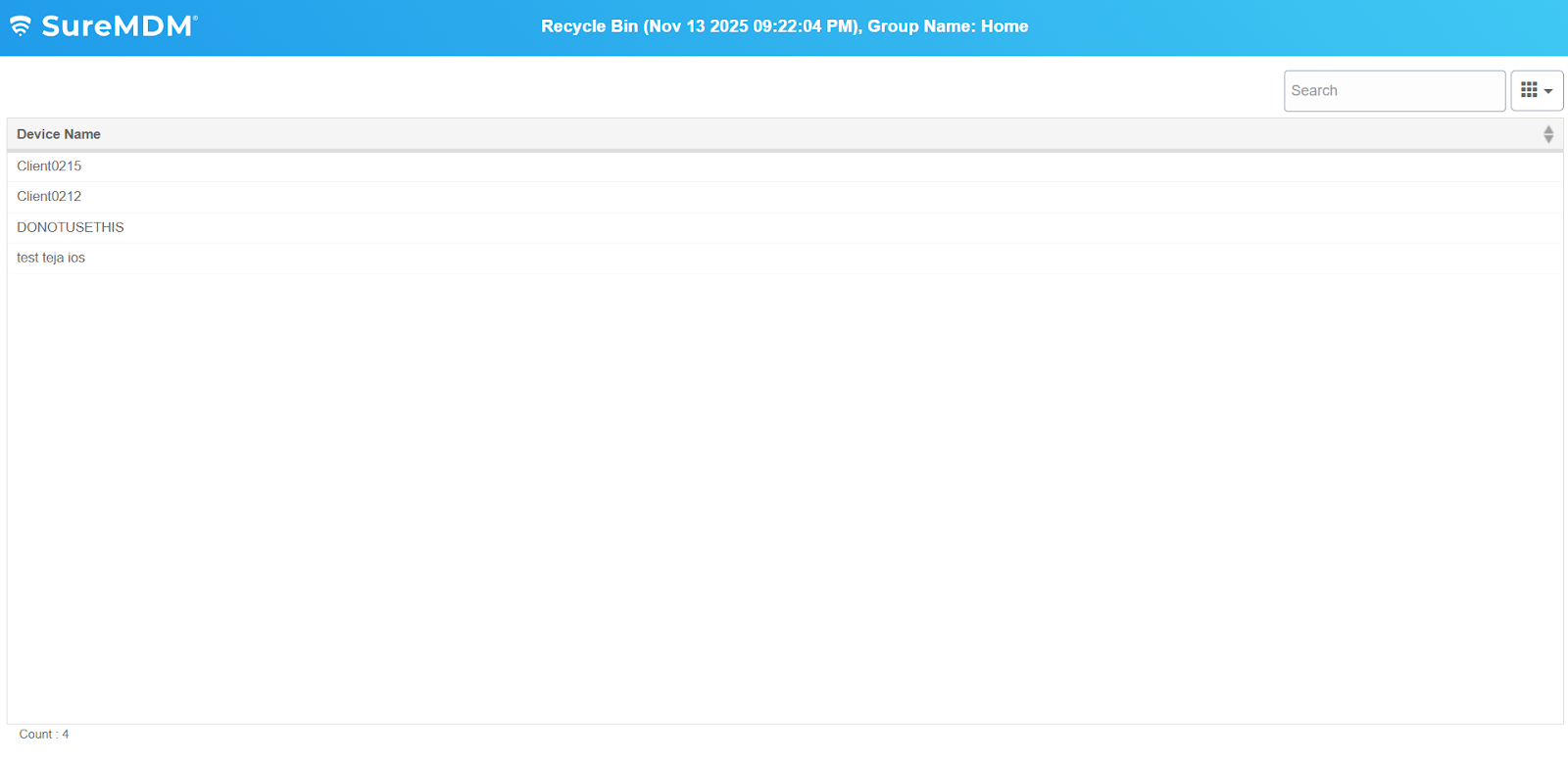
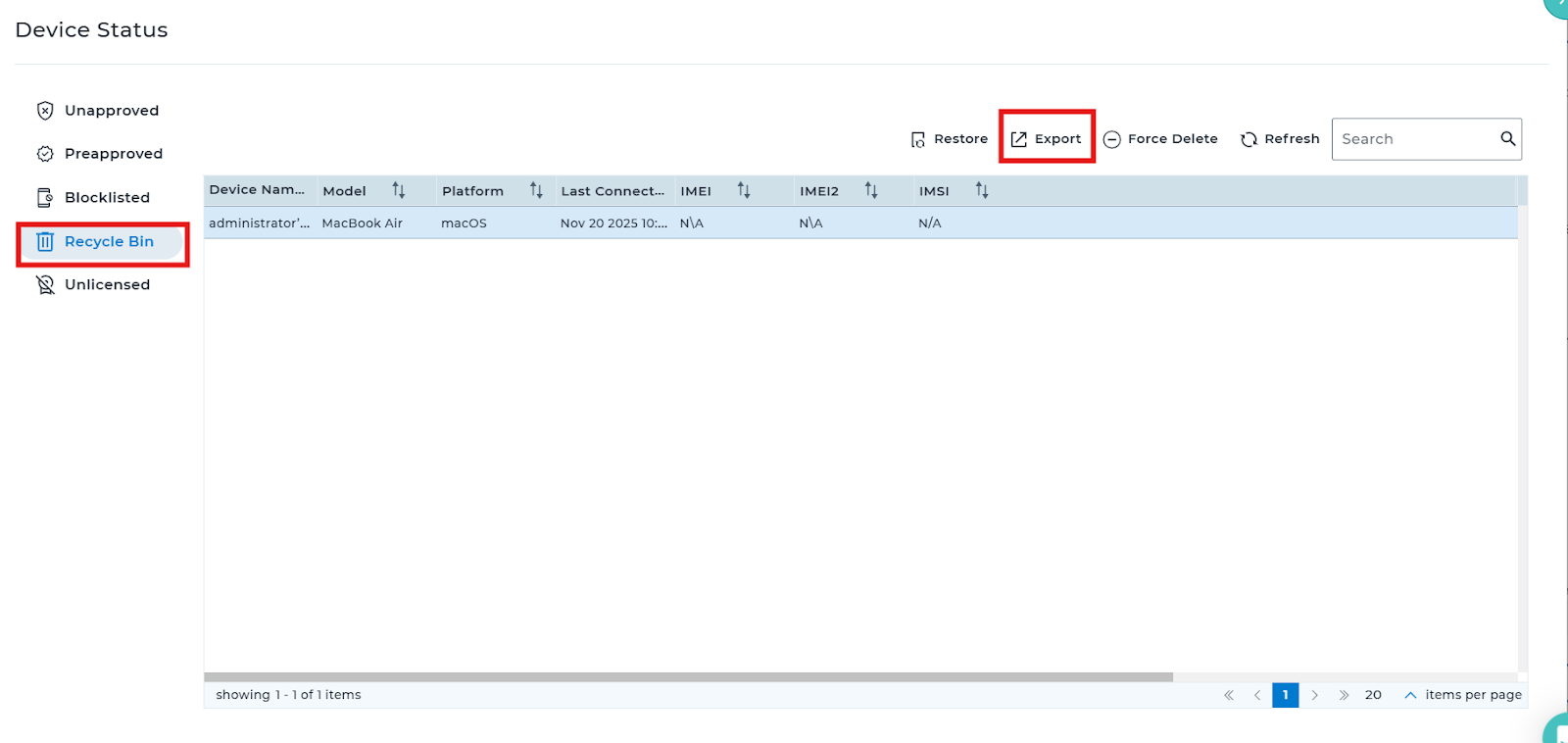
The same report can also be exported from the SureMDM console grid, where you can view device details along with their serial number and IMEI number, making it straightforward to identify each device.
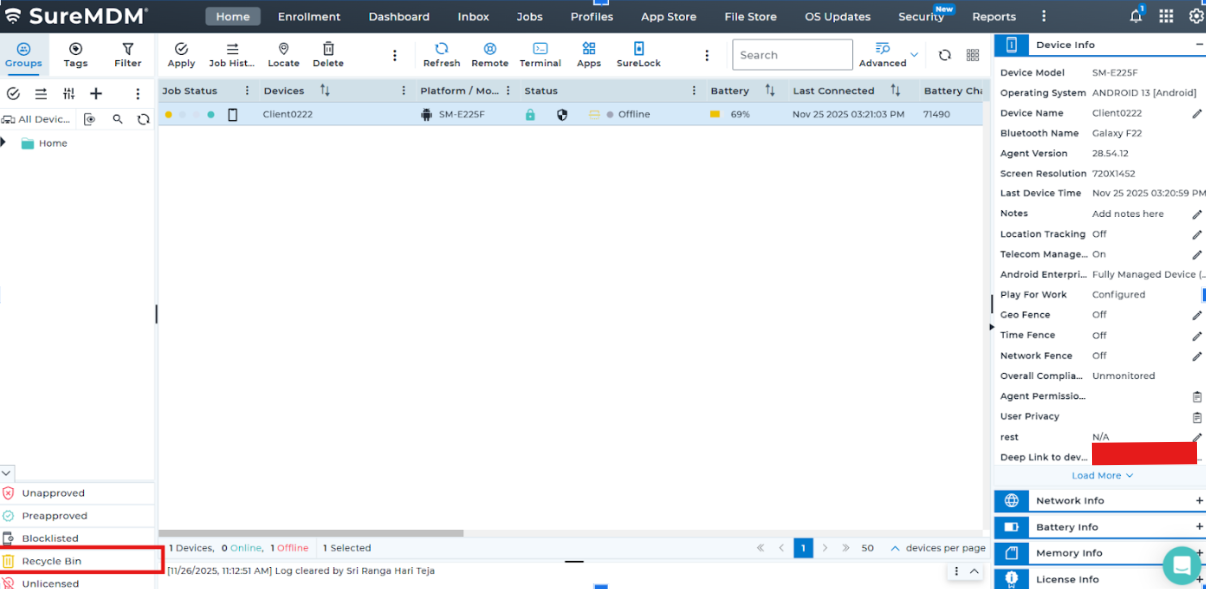
Login into the SureMDM console > Navigate to Recycle Bin > click on Export.
Conclusion:
With the help of this report, administrators will be able to effectively manage and keep a track of the devices that are deleted for future reference.
Need help?
CONTACT US