
SureMDM now allows administrators to display the current Wi-Fi band (2.4 GHz, 5 GHz, or 6 GHz, where supported) in the device grid using a custom property. By assigning the provided script to a custom property, the Wi-Fi band is automatically retrieved and displayed in the console, improving device visibility.
Purpose
This Article provides a step-by-step guide on how to fetch the WiFi Band value on Android devices via Custom Properties via SureMDM.
Prerequists
This feature is supported on Android devices with SureMDM Agent version >= v28.60.59
Steps
- Log in to the SureMDM console.
- Navigate to Settings > Account Settings > Device Properties > Properties > Custom Device Properties.
- Click on Add.
- Select the Platform as Android, enter the Key, and select the DataType as String.
- Enable the option Retrieve Value Using Script.
- Paste the Below PowerShell script in the script box.
function assignValue(){
return suremdmjs.getWifiFrequencyValue();
}
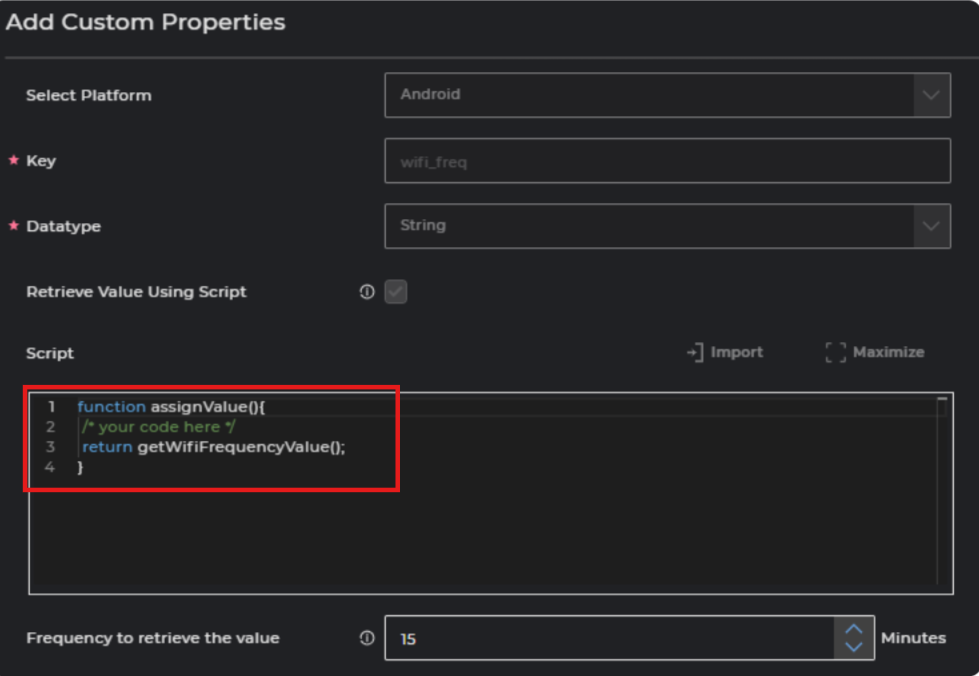
Note: The option Retrieve Value Using Script will dynamically retrieve the property value using a script. Once enabled, script/commands will be run on the device to update the custom properties
- Select the Frequency to retrieve the value. This will run the script on the devices with the frequency of the selected time interval and will display the value on the device grid.
- Click on Okay.
Conclusion:
Once the Custom property has been created, you can navigate to the Grid column and enable the created Custom property, which will create a column on the device grid with the given key and will show the WiFi band value set on the device by executing the script on the devices.

Need more help? Here’s how to get help from our experts.