
Purpose
This article explains how to view USB Debugging status for enrolled devices directly from the SureMDM Console using the Grid Column feature. Adding this column helps administrators quickly monitor which devices have USB Debugging enabled or disabled without checking each device individually.
Prerequisites
- Devices are enrolled in SureMDM.
- Devices are online and reporting device information
Steps:
- Log in to SureMDM Console
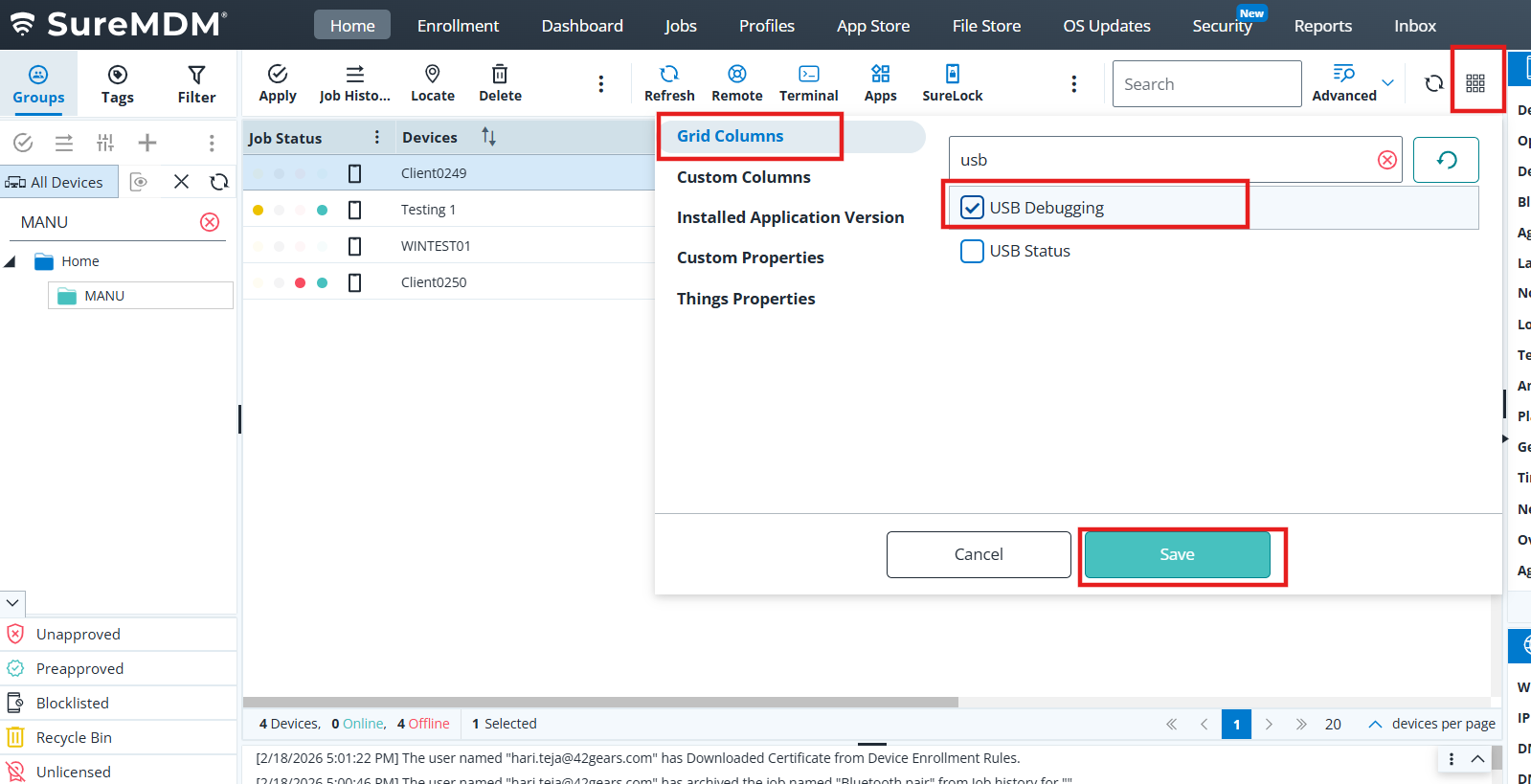
- Click on Grid Icon.
- Under the Grid column.
- Search and Enable the option “USB Debugging”
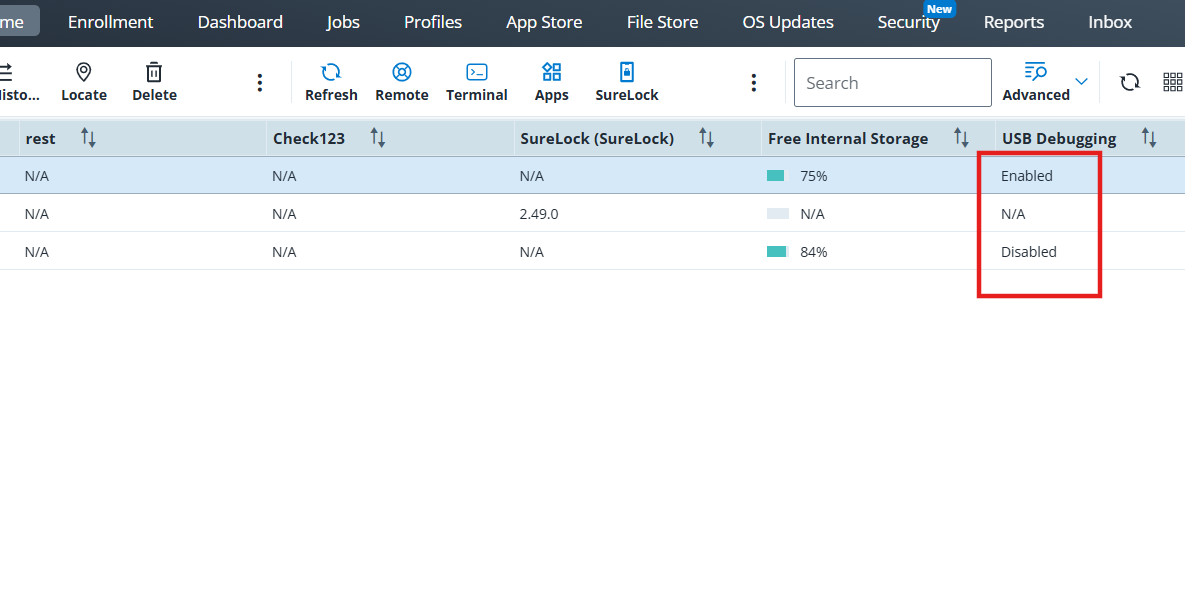
- Save and View USB Debugging Status
The column displays the status for each device USB debugging is Enabled or Disabled.
Conclusion
By enabling the USB Debugging column in the SureMDM device grid, administrators can quickly monitor the status of USB Debugging on all devices. This improves security oversight, simplifies auditing, and helps ensure compliance across all managed devices.
Need more help? Here’s how to get help from our experts.
Was this helpful?
YesNo