
Purpose:
This configuration allows administrators to hide selected applications from the SureLock home screen while keeping them active in the background. It helps maintain a clean kiosk interface while ensuring required background services continue to run.
Prerequisites
Platform – Android, SureLock
Steps
- Log in to SureMDM and navigate to Jobs.
- Click New Job → Android OS → SureLock Settings (or modify an existing SureLock Settings job).
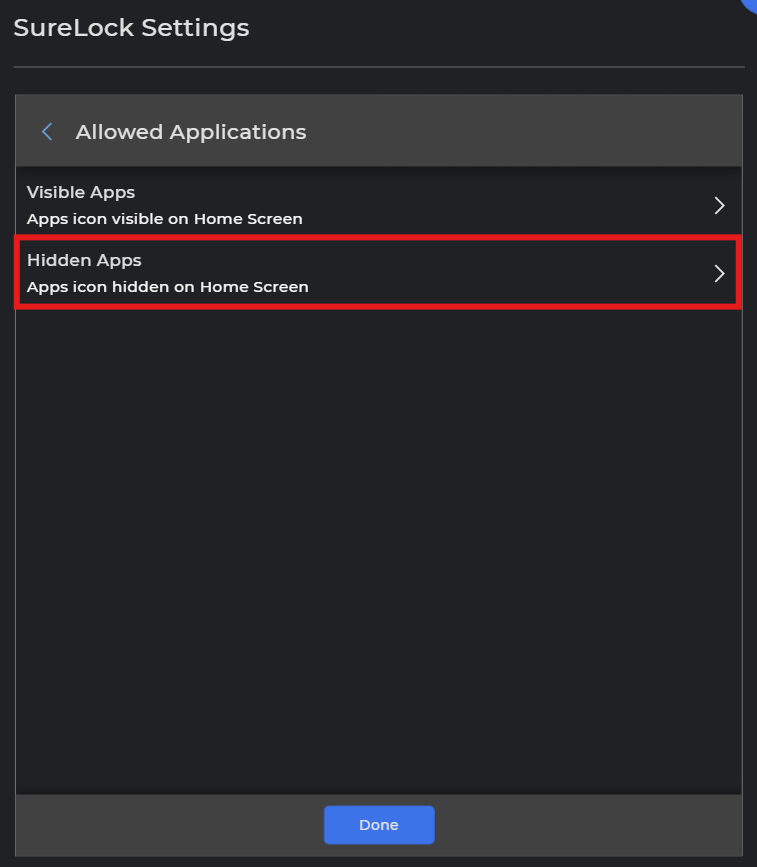
- Go to Allowed Applications and select Hidden Apps
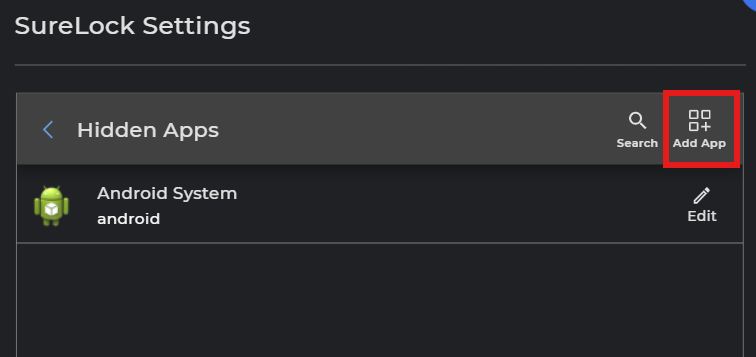
- Under Hidden Apps, tap Add App and select the applications that you want to hide from the SureLock home screen while allowing them to continue running in the background.
- Click Done, then Save, and deploy the job to the desired devices.
Expected Results
Applications added under Hidden Apps will continue running in the background but will not be visible or accessible from the SureLock home screen.
Conclusion
By configuring applications under Hidden Apps in SureLock, administrators can prevent users from accessing certain apps directly while still allowing them to run in the background. This ensures better control, improved security, and a streamlined kiosk experience on managed Android devices.
If you have any questions or need help with our products, please don’t hesitate to contact our support team.