
Contents
- Overview
- What is the YellowKey Vulnerability?
- Affected Windows Versions
- Purpose
- Prerequisites
- Steps to Identify Vulnerable Devices Using SureMDM CVE Dashboard
- Steps to Apply Microsoft’s Mitigation via SureMDM RunScript Job
- Additional Hardening Recommendations
Overview
A critical zero-day vulnerability named YellowKey, tracked as CVE-2026-45585 (CVSS score: 6.8), has been publicly disclosed, affecting Windows BitLocker encryption. Microsoft has released an emergency mitigation guidance for this vulnerability following its public proof-of-concept release.
SureMDM helps IT administrators immediately identify at-risk devices across their fleet using the built-in CVE Dashboard and deploy Microsoft’s recommended mitigation scripts remotely using RunScript jobs — all from a single console.
What is the YellowKey Vulnerability?
YellowKey is a BitLocker security feature bypass vulnerability discovered by security researcher Chaotic Eclipse (aka Nightmare-Eclipse). It allows an attacker with physical access to a Windows device to bypass BitLocker encryption and gain unrestricted access to protected data.
How the attack works:
- The attacker places specially crafted FsTx files on a USB drive or EFI partition.
- The USB drive is plugged into the target Windows computer that has BitLocker enabled.
- The attacker reboots the device into the Windows Recovery Environment (WinRE).
- By holding the CTRL key, a shell is triggered with unrestricted access to the BitLocker-protected volume.
The root cause lies in the FsTx Auto Recovery Utility (autofstx.exe) automatically starting when WinRE launches, which deletes winpeshl.ini and opens the access path.
Note: While exploitation requires physical access to the device, this poses a significant risk for laptops, field devices, shared workstations, and any unattended endpoint.
Affected Windows Versions
The following Windows versions are confirmed to be impacted:
- Windows 11 Version 24H2 (x64-based Systems)
- Windows 11 Version 25H2 (x64-based Systems)
- Windows 11 Version 26H1 (x64-based Systems)
- Windows Server 2025
- Windows Server 2025 (Server Core installation)
Purpose
The purpose of this knowledge article is to guide SureMDM administrators on how to:
- Identify Windows devices in their fleet that are exposed to CVE-2026-45585 using the SureMDM CVE Dashboard.
- Remediate vulnerable devices at scale by deploying Microsoft’s recommended mitigation script remotely using SureMDM’s RunScript job feature.
Prerequisites
- A SureMDM Administrator account.
- Windows devices enrolled in SureMDM using the latest SureMDM Agent
- Access to the Security > CVE Dashboard section in the SureMDM console.
Steps to Identify Vulnerable Devices Using SureMDM CVE Dashboard
SureMDM’s CVE Dashboard continuously scans enrolled Windows devices against known vulnerabilities. CVE-2026-45585 (YellowKey) will appear automatically for affected devices.
SureMDM’s CVE remediation workflow typically allows administrators to directly deploy Microsoft security updates or KB patches to affected devices using the Resolve At-Risk Devices option available within the CVE Dashboard.
However, at the time of writing this article, Microsoft has not yet released a dedicated KB/security update package for CVE-2026-45585 (YellowKey). Instead, Microsoft has currently provided mitigation guidance in the form of a PowerShell-based remediation script.
Until an official KB update becomes available, administrators can use SureMDM’s Run Script capability to remotely deploy and execute the mitigation script across affected Windows devices.
- Log in to the SureMDM Console.
- Navigate to Security in the top navigation bar.
- Select CVE Dashboard from the left panel.
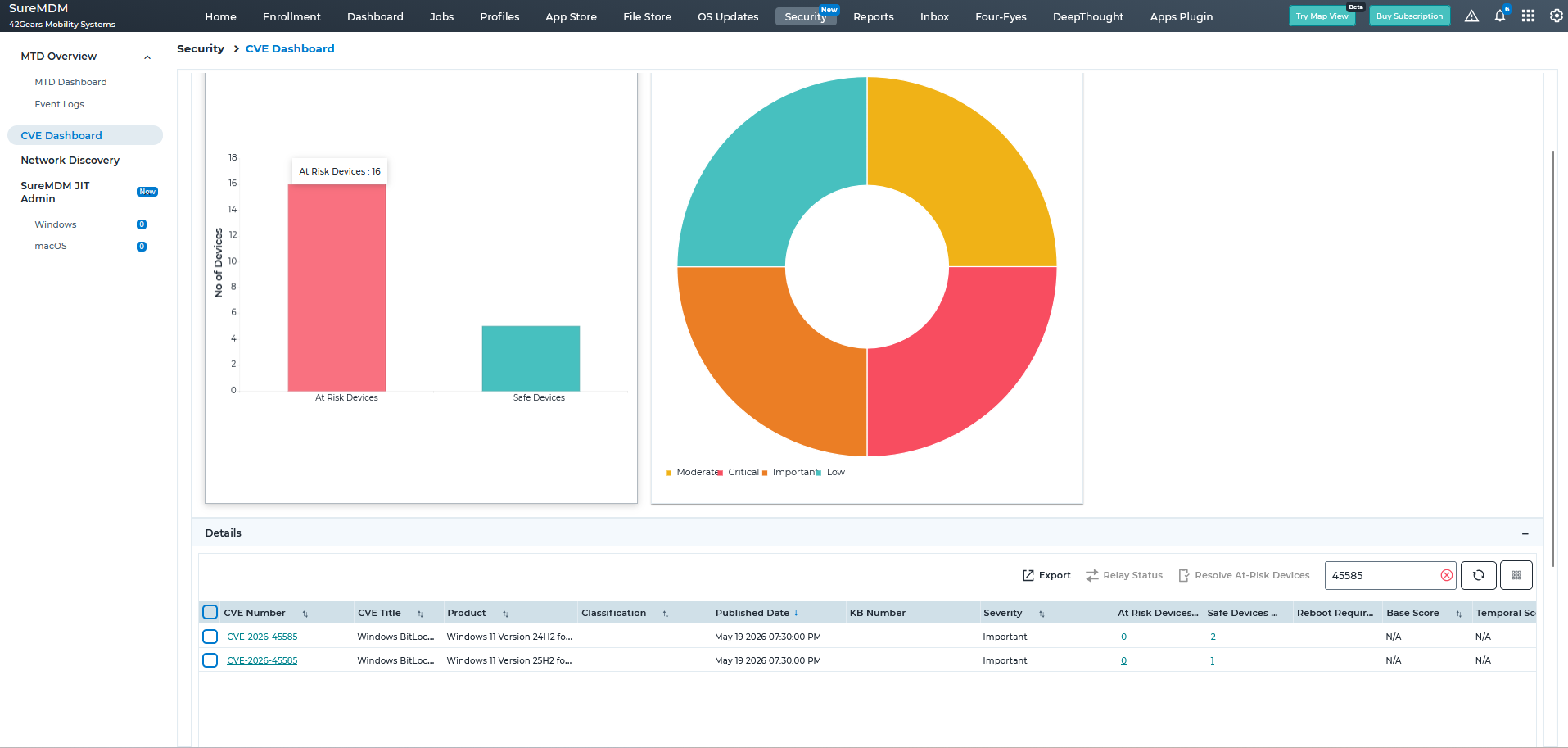
- In the Details section at the bottom, search for CVE-2026-45585 using the search field on the right.
- The dashboard will list all enrolled Windows devices that are currently At Risk for this vulnerability.
- The At Risk Devices column shows the count of devices exposed to this CVE.
- The Safe Devices column shows devices that are not impacted.
- The Severity will reflect as Important for this CVE.
- Click on the number under At Risk Devices to drill down and view the specific device list.
Tip: Use the Export option on the CVE Dashboard to download the list of at-risk devices for reporting or further action.
Steps to Apply Microsoft’s Mitigation via SureMDM RunScript Job
Microsoft’s recommended mitigation for YellowKey involves modifying the WinRE image on each affected device to prevent autofstx.exe from auto-starting. SureMDM’s RunScript job allows you to remotely deploy this script across all identified at-risk devices without needing physical or manual access.
Step 1: Create a New RunScript Job
- In the SureMDM Console, navigate to Jobs > New Job.
- Select Windows as the operating system.
- Click on RunScript and provide a descriptive Job Name, for example: CVE-2026-45585 YellowKey Mitigation.
- In the script editor, paste the PowerShell mitigation script provided by Microsoft. The script performs the following steps:
- Mounts the WinRE image on the device.
- Mounts the system registry hive of the WinRE image.
- Modifies the BootExecute registry key by removing the autofstx.exe value from Session Manager’s BootExecute REG_MULTI_SZ value.
- Saves and unloads the registry hive.
- Unmounts and commits the updated WinRE image.
- Re-establishes BitLocker trust for WinRE.
- Mounts the WinRE image on the device.
- Refer to the official Microsoft Security Advisory at https://msrc.microsoft.com/update-guide/vulnerability/CVE-2026-45585 to download the exact mitigation script.
- Click Save to save the job.
Note: Supported script file formats for import are .ps1, .txt, .bat, and .vbs.
Step 2: Apply the RunScript Job to At-Risk Devices
- Navigate to the SureMDM Home page.
- Select the individual device(s) or a Group of devices identified as at risk from the CVE Dashboard.
- Click Apply (or Group > Apply for multiple devices).
- Select the CVE-2026-45585 YellowKey Mitigation RunScript job and confirm.
Step 3: Monitor Script Execution Results
Once the job is deployed, administrators can monitor results from the Job Status view. The system provides a status message including:
- Success — Mitigation applied successfully.
- Warning — Script completed with warnings; review device-specific details.
- Error — Script failed; check error message and re-apply if needed.
For step-by-step guidance on RunScript jobs, refer to: How to Run PowerShell Scripts on Windows Devices Using SureMDM
Monitoring Remediation Status
After mitigation:
- Wait for CVE Dashboard to automatically re-scan devices for vulnerabilities
- Verify affected device count decreases
- Confirm script execution status from Job Reports
This enables administrators to centrally track remediation progress across the organization.
Important Notes:-
- Microsoft has currently provided mitigation guidance in the form of a PowerShell script for CVE-2026-45585.
- Administrators are advised to carefully review and validate the script in a test environment before deploying it across production devices.
- Since the mitigation directly interacts with BitLocker-related configurations, improper modifications may unintentionally impact BitLocker functionality or device recovery workflows.
- Organizations that follow strict change-management policies may choose to wait until Microsoft releases an official security patch or KB update for this vulnerability.
- Once an official Microsoft patch becomes available, SureMDM administrators can use the Resolve At-Risk Devices option from the CVE Dashboard to streamline remediation.
Benefits of Using SureMDM for Vulnerability Mitigation
SureMDM helps IT administrators respond quickly to emerging security threats by providing:
- Centralized vulnerability visibility
- CVE-based risk identification
- Remote PowerShell execution
- Bulk remediation capability
- Device compliance monitoring
- Reduced manual effort
Conclusion
The YellowKey BitLocker vulnerability highlights the importance of rapid vulnerability detection and response across enterprise Windows environments.
Using SureMDM’s CVE Dashboard and Run Script capabilities, administrators can efficiently identify affected devices and deploy Microsoft-recommended mitigations remotely at scale.
Need more help? Here’s how to get help from our experts.