
Purpose
This article explains how to create and deploy an Install Application job in SureMDM to remotely install or upgrade applications on enrolled Android devices. This helps administrators ensure consistent app deployment across devices, reduce manual intervention by end users, and enhance security by delivering timely application updates and patches.
Prerequisites
- Android devices must be enrolled in SureMDM.
- Storage permission must be enabled on the device.
- SureMDM Agent version requirements apply for certain features (as mentioned in the steps below).
Steps
- Log in to the SureMDM Web Console.
- Navigate to Jobs > New Job > Android > Install Application.
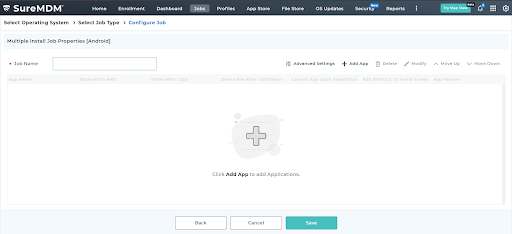
- In the Configure Job screen, enter a Job Name and click Add App.
- In the Install Job prompt, configure the required options
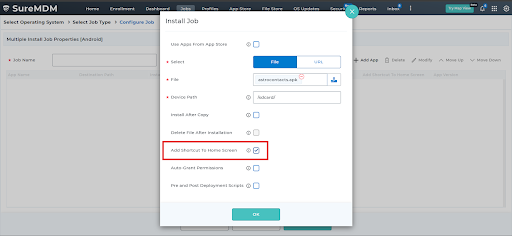
Install Job Options
- Use Apps From AppStore
Select this option to choose applications from the SureMDM AppStore.
Note: Select this option to choose the apps from the SureMDM AppStore. This feature will be available only on devices running SureMDM Agent versions 12.97 and above.
- File Path/URL
Browse and select the APK file from your system or enter a direct file URL. - Device Path
Specify the location on the device where the file should be saved.
Example: /storage/emulated/0/Documents/ - Install After Copy
Enabled by default. Copies the application file and installs it on the device.
If disabled, the file is only downloaded to the device without installation. - Delete File After Installation
Deletes the application file after successful installation.
Note: Supported on SureMDM Agent version 27.19.00 and above. - Add Shortcut to Home Screen
Creates a shortcut for the application on the device home screen.If there is insufficient space, the shortcut will not be created.
Note: Available only on Samsung KNOX devices with SureMDM Agent version 27.37.00 and above. - Use Authentication
Enables authentication if the file URL provided is password-protected.
Note: Supported only on devices that support authentication. - Auto-Grant Permissions
Automatically grants all required permissions to the application during installation.
Note: Supported on SureMDM Agent version 27.48.56 and above. - Pre and Post Deployment Scripts
Executes custom scripts before and after application installation.
Note: Supported on SureMDM Agent version 27.53.00 and above. - Pre and Post Revoke Scripts
Executes custom scripts before and after application removal or uninstallation.
Note: Supported on SureMDM Agent version 27.53.00 and above.
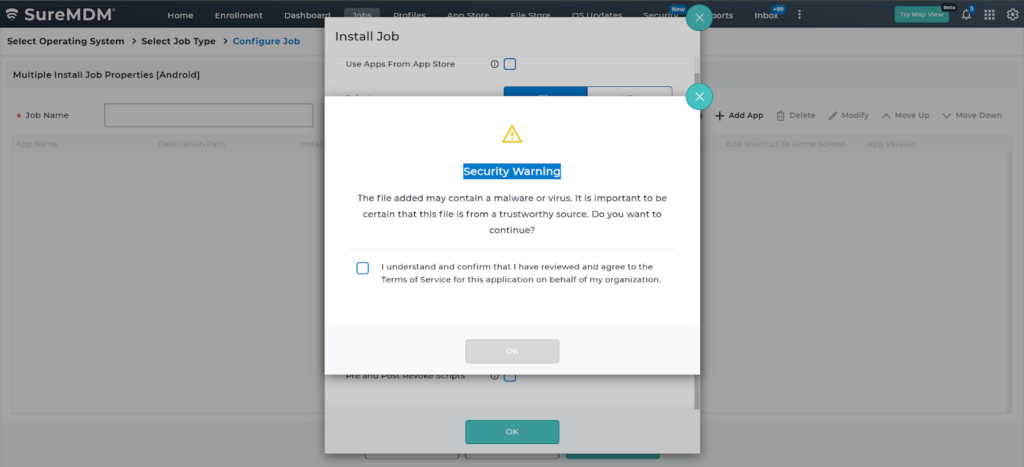
- Click OK -> Tick the Disclaimer and Click on Okay to Save the Job
Advanced Settings (Optional)
In the Configure Job screen, Use Advanced Settings to restrict application installation to devices that meet specific criteria:
- Android Version – Install the app only on devices within the selected Android OS version range.
- App Version Filter – Install the app only on devices that meet the specified application version conditions.
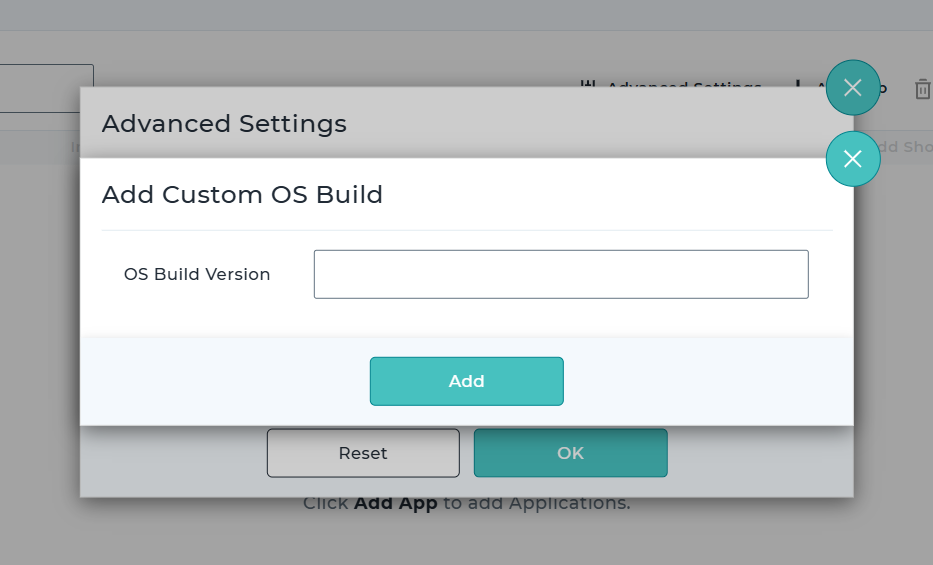
- OS Build Version – Install the app only on devices matching the specified OS build versions. Multiple build versions can be added.
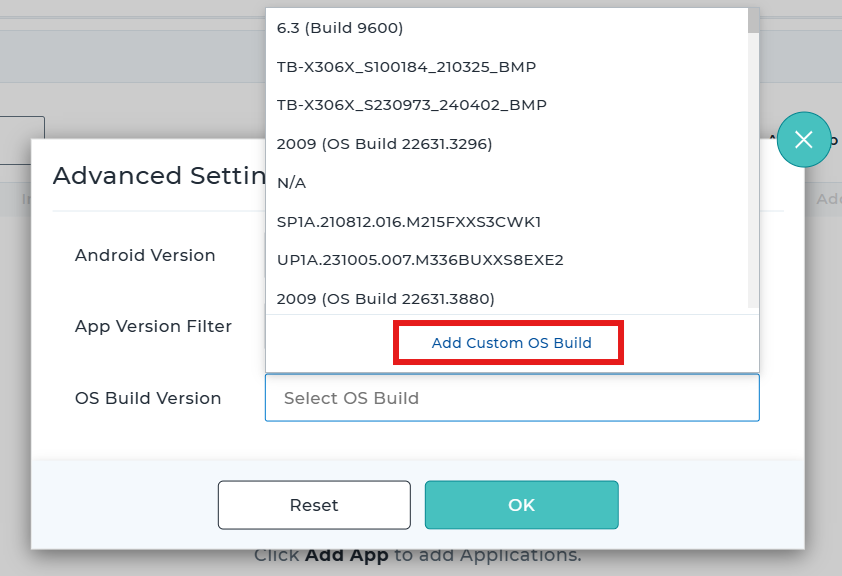
Here you Add Custom OS Build
Expected Results
- The application is remotely installed or upgraded on the selected Android devices.
- Deployment follows the configured options and advanced filters.
- Applications are installed consistently across devices without requiring user intervention.
Conclusion
The Install Application job in SureMDM provides a reliable and efficient way to deploy applications remotely on Android devices. By using advanced options such as permission auto-granting, scripts, and OS filters, administrators can ensure secure, controlled, and uniform application deployment across their device fleet.
Need more help? Here’s how to get help from our experts.