
SureFox are secure kiosk applications that help organizations restrict Android devices to approved web content. Using the SureMDM Console, administrators can remotely install these applications and apply predefined settings to ensure devices are ready for use with minimal manual intervention.
This article explains how to install SureFox on Android devices along with predefined configurations.
Purpose
The purpose of this article is to guide administrators on how to install SureFox or with predefined settings using the SureMDM Console.
By configuring the application during installation, administrators can ensure that required restrictions, policies, and user settings are automatically applied, allowing the device to be immediately operational after installation.
Prerequisites
Before proceeding, ensure the following requirements are met:
- The Android device is enrolled in SureMDM
- The device is online and communicating with the SureMDM server
- Administrator access to the SureMDM Console
- A valid SureFox license and activation code
- The device supports installation of SureFox
Steps
Install SureFox with Predefined Settings
- Log in to the SureMDM Console.
- From the SureMDM Home screen, select the Android device on which SureFox or needs to be installed.
- Right-click on the selected device, click SureFox, and then click Install.
- Under SureFox Settings, select Install Now.
- In the Configure Settings section, configure the required predefined settings for SureFox or based on organizational requirements.
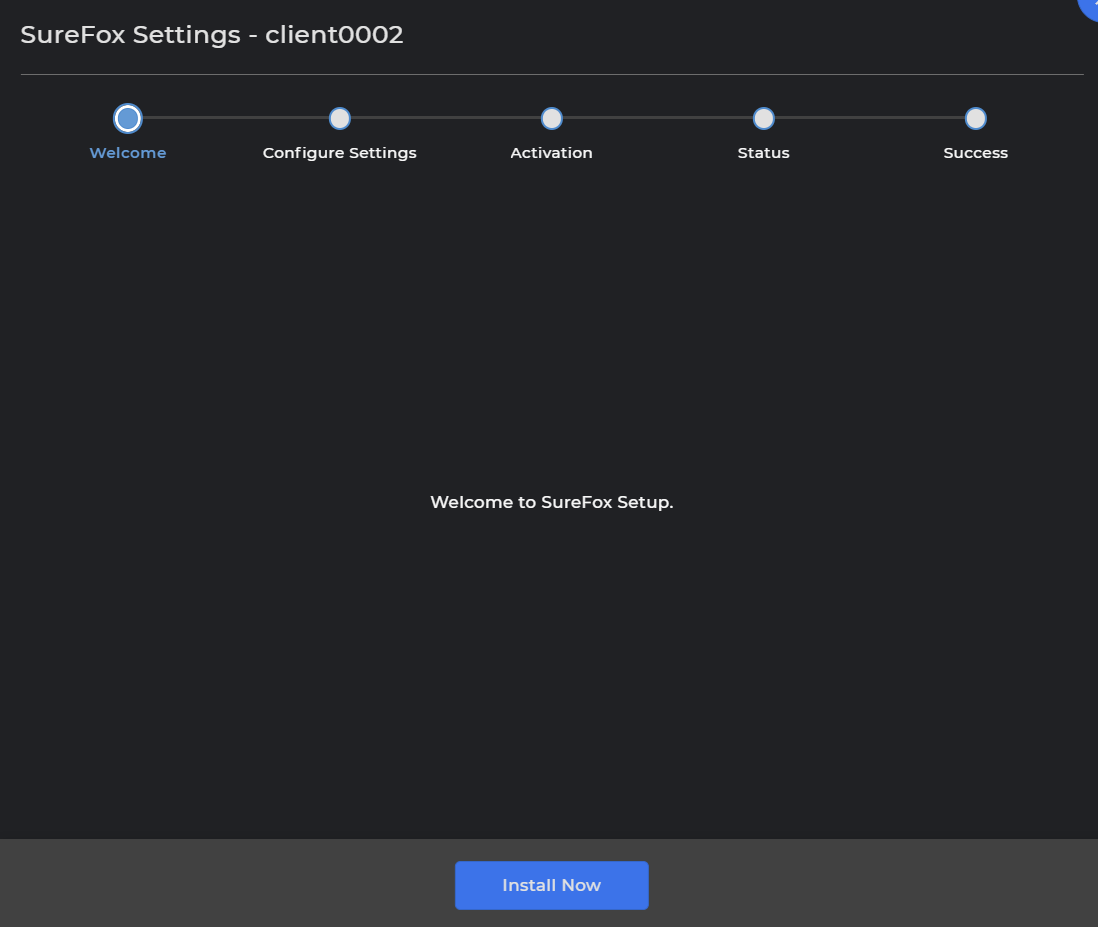
- After completing the configuration, click Next.
- Enter the activation code and complete the captcha verification.
- Click Verify to validate the following license details:
- Company Name
- Expiry Date
- Total Licenses
- Remaining Licenses
- Company Name
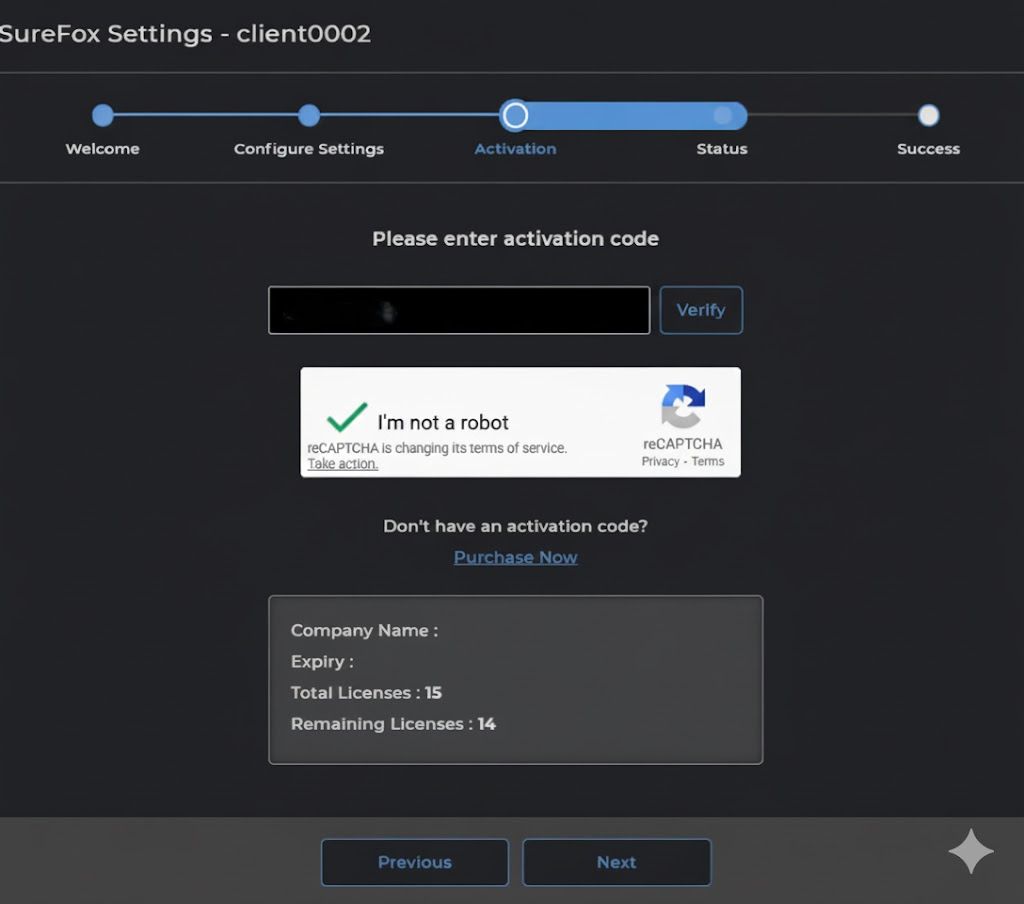
- Click Next. On the next page, the download and installation status of SureFox or will be displayed.
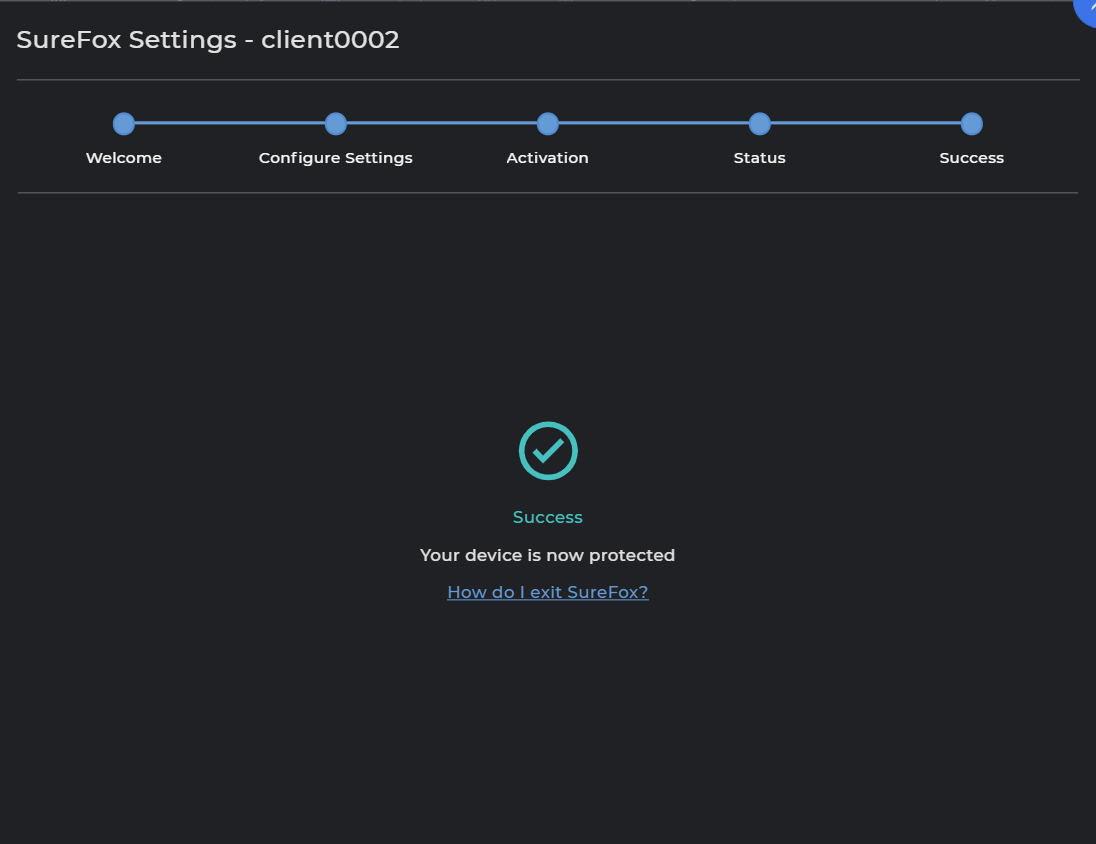
- Once the installation and configuration are completed successfully, the following message will appear:
“Your device is now protected.”
- Close the installation prompt.
On the device, launch SureFox and manually grant the required permissions when prompted.
After permissions are granted, the predefined settings will be applied automatically, and SureFox will be ready for use.
Need more help? Here’s how to get help from our experts.