
Purpose
This feature allows administrators to manage biometric authentication in Windows Hello, enabling users to sign in using options like fingerprint or facial recognition instead of a password. This provides a faster, more convenient, and secure login experience while allowing organizations to control authentication methods based on security policies.
Prerequisites
Windows Hello should be enabled in the profile.
Steps
1. Navigate to Profiles -> Windows and select New Profile.
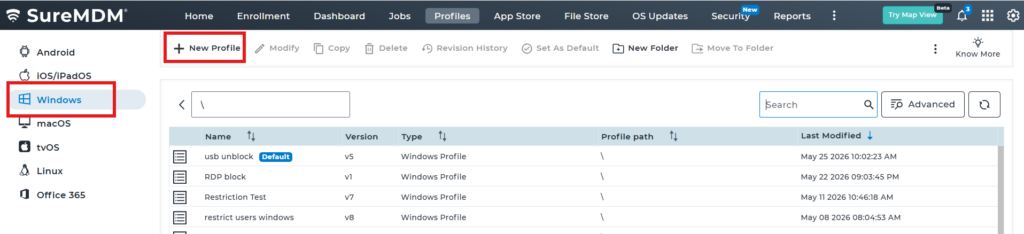
2. Navigate to Windows Hello and enable windows Hello
3: And then you can enable/dissable Windows Hello according to the requirement
Conclusion
This feature enhances both security and user convenience by allowing biometric authentication through Windows Hello. It enables faster and more efficient device access while giving administrators control over authentication methods in accordance with organizational security policies.
Need more help? Here’s how to get help from our experts.